Create datasets
In the label center, you can create datasets that can be used for training and testing your models. You can create datasets with all samples or select the necessary samples and organize them into a dataset. Only annotated samples from your selection will be included in the dataset. If you select only unannotated samples, you won't be able to create your dataset.
For more information about datasets, see Datasets.
To create a dataset
-
Select the samples to add to a dataset. These can be:
- All samples.
- Samples that match specific filters (a class, a tag, and so on). If the result includes more than 100 samples, click Select all to select all filtered samples.
- Samples that you select manually. However, you cannot select samples located on different pages. If you select one or more samples within a page, and then go to another page, these samples will no longer be selected.
-
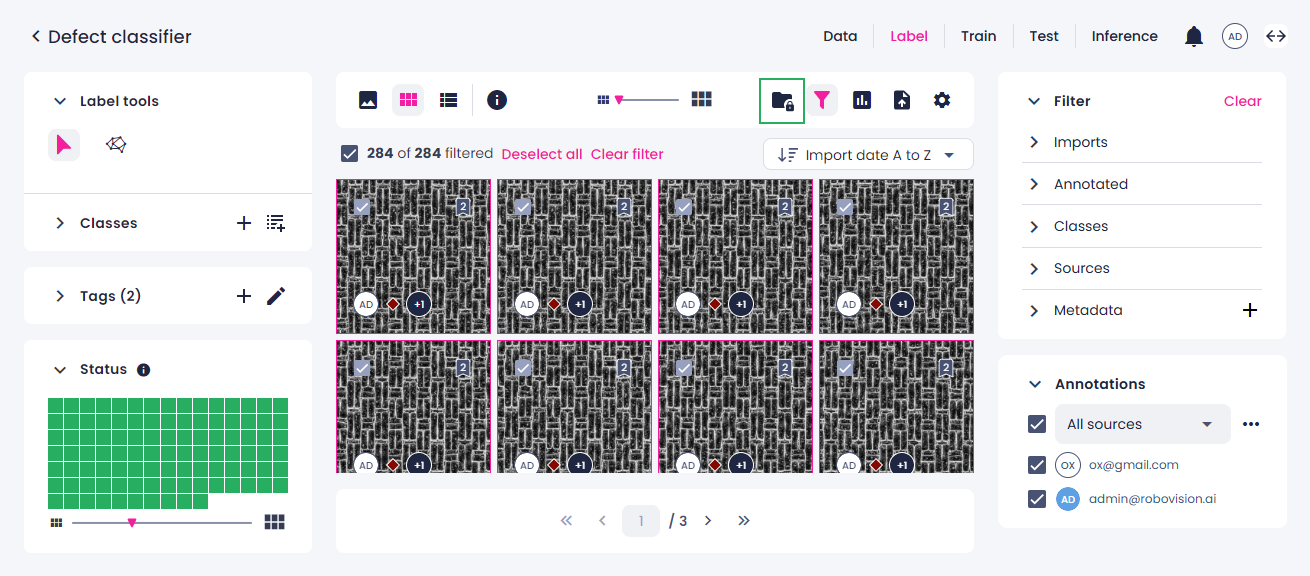
In the labeling tool, above the labeling area, click the datasets button.
-
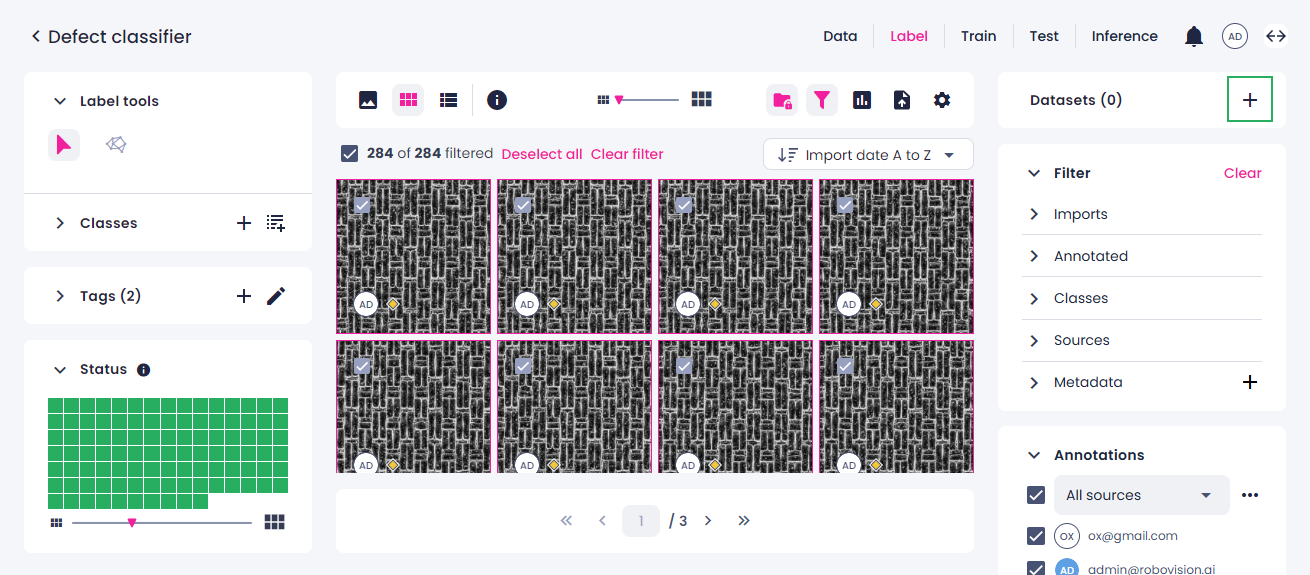
In the right panel, next to Datasets, click the plus button.
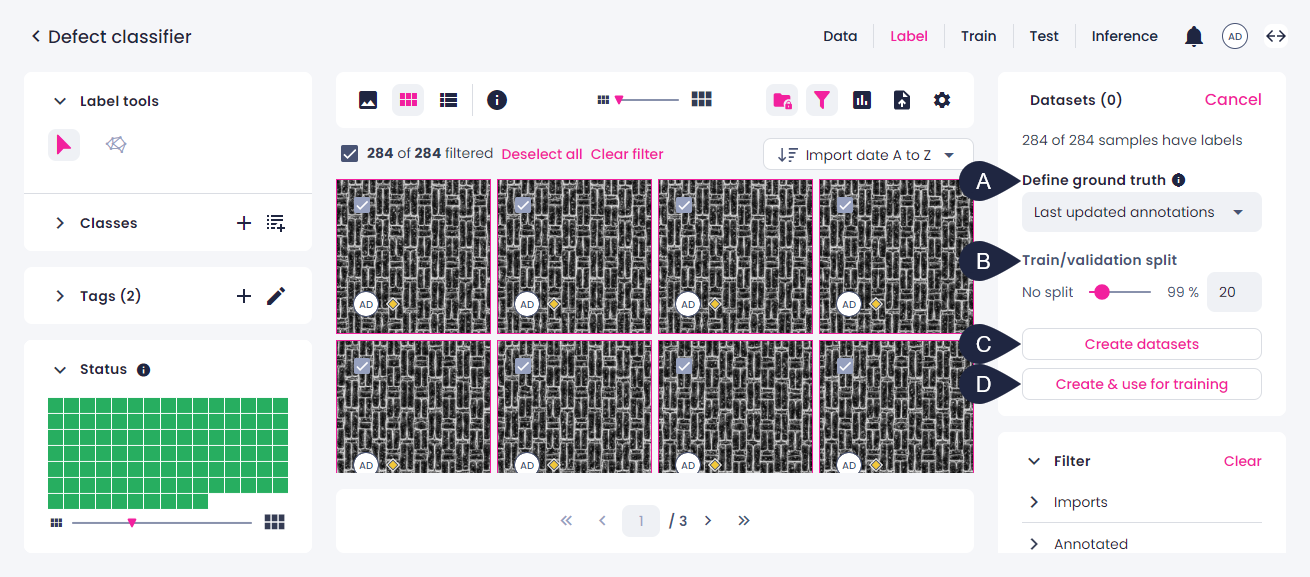
While one sample can have many annotations, only one of the annotations can be used for training—the ground truth. To select what annotation should be used, set up the following.
-
In the Define ground truth field (A), select what to include in your dataset:
-
Annotations by member
If one sample is labeled by a few users, in Labels by, you can select whose annotations to export. Note that other sources, such as predicted labels, are not displayed in the list of members.
-
Last updated annotations
This option is useful if a sample has several annotations by different users. The last updated annotation will be selected.
-
Random annotations
If a sample has several annotations by different users, a random annotation will be selected.
-
-
Using the slider, define the train/validation split (B).
-
Select if you want to create a dataset or create and use it for training.
-
If you click Create datasets (C), your datasets will be added to the list of datasets. You can now view the number of samples in each split or select certain datasets and use them for training.
-
If you click Create & use for training (D), you will be redirected to the training setup, and your datasets will be added as the training data.
-