Datasets
Glossary
Datasets are sets of images and annotations used for training or testing a model. Datasets contain one annotation per sample. Datasets cannot be edited after they are created, protecting the data within, so you can repeat a training or a test and get the same results. Datasets are created in the Datasets panel of the label center. If you train a model using "auto setup", two datasets will automatically be created in the process.
Datasets play a vital role in training and testing algorithms. When you create a dataset, you collect the most relevant samples and their annotations, creating a tidy package for algorithms to work with.
Datasets are locked in place to keep things consistent and reliable. Once created, they can't be changed, so you can trust that the data remains intact. If updates are necessary, you can always create a fresh dataset based on the new data.
The best feature of datasets is the ability to validate or test your model iterations on the same datasets. This way, you can be sure that your improved score is a real improvement.
Put some effort into creating a good test dataset, give it a memorable name, and keep using it as you work on improving your model.
FAQ
Q: Where do I create a dataset?
A: You can create a dataset in the Datasets panel. For this, go to the label center and click the datasets button on the top toolbar.
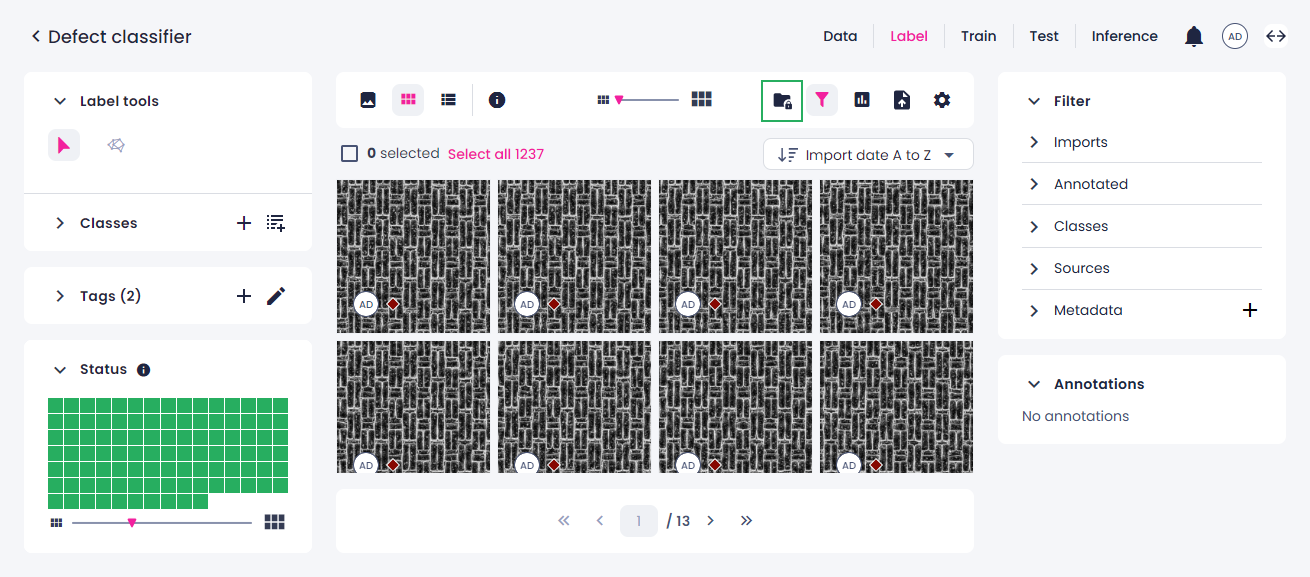
The lock symbolizes the frozen nature of a dataset; it is not a property you can change.
For more information, see Create datasets.
Q: How do I select samples to be included in the dataset?
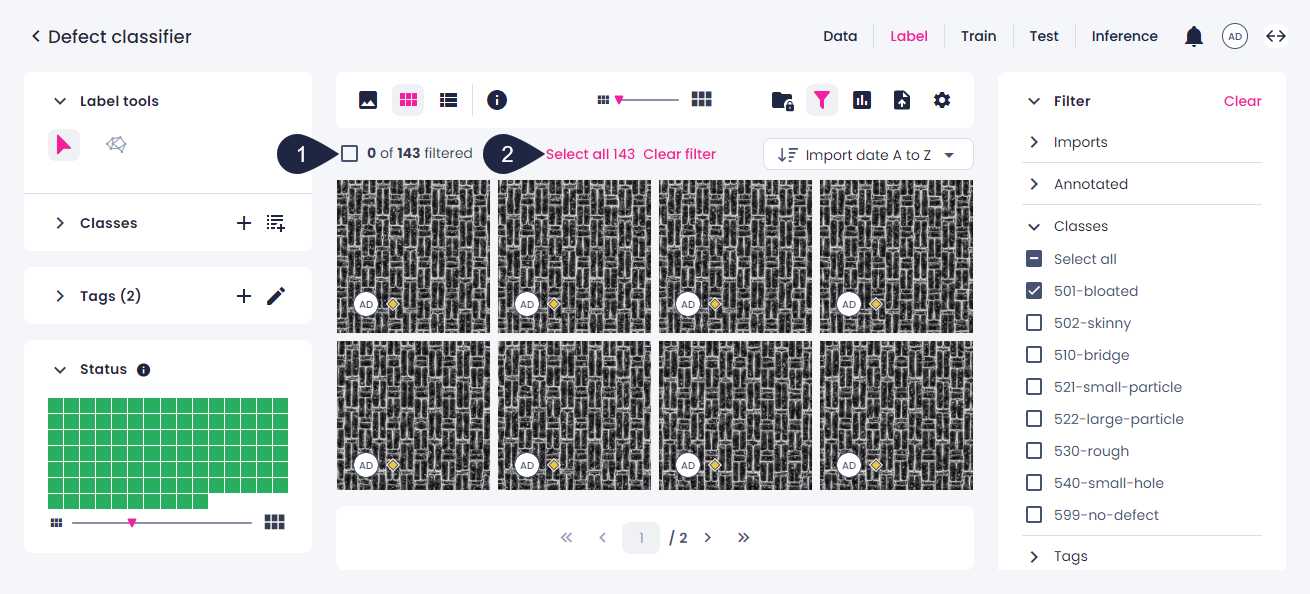
A: For your dataset, you can use all existing samples or select only the needed ones. Only annotated samples from your selection will be included in the dataset. If you want to select specific samples, note that in all views except the single view a maximum of 100 samples is displayed per page. If you select 1–100 samples within a page and then go to another page, these samples will no longer be selected. Therefore, if you are aiming for more than 100 samples in your dataset, consider using filters to select the needed samples.
To select all filtered samples within a page, above the sample preview, select the checkbox (1). To select all filtered samples, click Select all (2).
Q: What's the difference between datasets in Robovision AI 5 and datasets in Robovision AI 3 or 4?
A: In earlier versions of the Robovision AI platform, a dataset was a collection of samples that could have many simultaneous annotations per sample. You created a dataset every time you imported data, and you could add labels to that dataset in project or label sessions. In Robovision AI 5, imported data is called an import, which acts like a tag. The dataset is created later and contains exactly one annotation per sample. The most similar thing we had in Robovision AI 3 or 4 to the Robovision AI 5 datasets were the splits, but those were not locked, they could be inadvertently changed, and datasets can't.
Q: How can I create splits/no splits? How do splits work?
A: In the Datasets panel, to create one dataset, keep the slider where it is, at 0%. If you move it to, for example, 80%, you will create two datasets: one dataset with 80% of the data (Train) and one dataset with 20% of the data (Validation). These two datasets will appear grouped by the timestamp they were created at. Our splits use a stratified strategy which means classes will be proportionally distributed across the splits as well as possible.
Q: How are samples and annotations related in a dataset?
A: In a dataset, each sample is paired with its corresponding annotation.
Q: Can I unlock, unfreeze, modify, or update a dataset once it's created?
A: No, datasets are locked or frozen to maintain their integrity. You can create a new dataset if you need changes.
Q: What happens when I change the labels in the label center after a dataset has been created?
A: The annotation in the dataset will remain as it was. At that point, there are two different annotations on that sample: one in the label center and one in the dataset.
Q: Can I select samples in the label center that were used in a dataset?
A: No, a dataset can't be used as a filter. If you intend to select the data later, first create a tag and then create a dataset from that tag. That way, you can select that tag later.
Q: Can I select samples in the label center that were used in a dataset using a random split?
A: No, a random split can't be retrieved, not even with tags.
Q: I'm seeing a lot of datasets I did not create. Where do they come from?
A: A lot of processes in Robovision AI require datasets. These are often automatically created. One example is model training that was started with the default Auto setup.
Q: How much space do datasets take?
A: Datasets are symbolic. The actual sample data is not duplicated when the dataset is created. Additional storage is required when the annotations are different from the ones in the label center.
Q: Will the dataset data be deleted if I delete the import used to create the dataset?
A: No, deleting the import will not delete the dataset data. We use the "last one turns off the lights" principle. The data is only deleted when the last dataset or import that uses it is deleted.
Q: How can I free up disk space?
A: Deleting an entire project is the easiest way to free up some disk space. Alternatively, you can remove individual components of your project such as unused imports, datasets, or models. If you’ve used the Smart mask tool (for object detection or segmentation projects), you can also delete the analysis results it generated.
Note that there is no way to recover a deleted project. If you accidentally delete a project, you'll need to recreate your imports, datasets, models, and other project components from scratch.
Q: What was the benefit of freezing or locking a dataset?
A: Freezing or locking a dataset ensures data consistency and prevents unintended changes. This stability is essential for maintaining data integrity, ensuring reproducibility in algorithm training or evaluation, and creating consistent input for algorithms.
Q: Can I have multiple datasets within a project?
A: Yes, multiple datasets can be created within a project.
Q: How do I ensure that the annotations in a dataset match the requirements of an algorithm?
A: This happens automatically. All datasets are curated with a specific schema to guarantee annotation compatibility.
Q: Can I specify a different annotation strategy for creating datasets?
A: Yes, you can choose various annotation strategies during dataset creation. You can choose random annotations, the most recent annotations, or annotations of a specific member.
Q: Are there any limitations or restrictions on dataset creation?
A: If there are no labels on your samples, you can't create datasets. Only data with annotations will be used in the datasets. There are some restrictions on naming. The user interface will inform you of those.
Q: How do I access and use a dataset for algorithm training or testing?
A: You can select them in the respective centers. Datasets for training or validation can be selected during training setup. Datasets for testing can be accessed by selecting Datasets when adding data in the test center.
Q: Are datasets compatible with different types of algorithms?
A: No, currently, a dataset can only work with the algorithm of the project it was created in.
Q: Can datasets be used across projects?
A: Yes, starting from version 5.10, you can reuse datasets across projects as long as they share the same annotation type. This is especially useful when training models or running tests with common data. For details, see Reuse datasets accross projects.
Note that the dataset reusability feature may not be enabled on your deployment. Integrators or teams managing their own installation can enable the feature themselves. For help, contact support@robovision.ai.