View project datasets
On the project details page, you can see the three most recent datasets. If your project contains more datasets, you can view them in the data center.
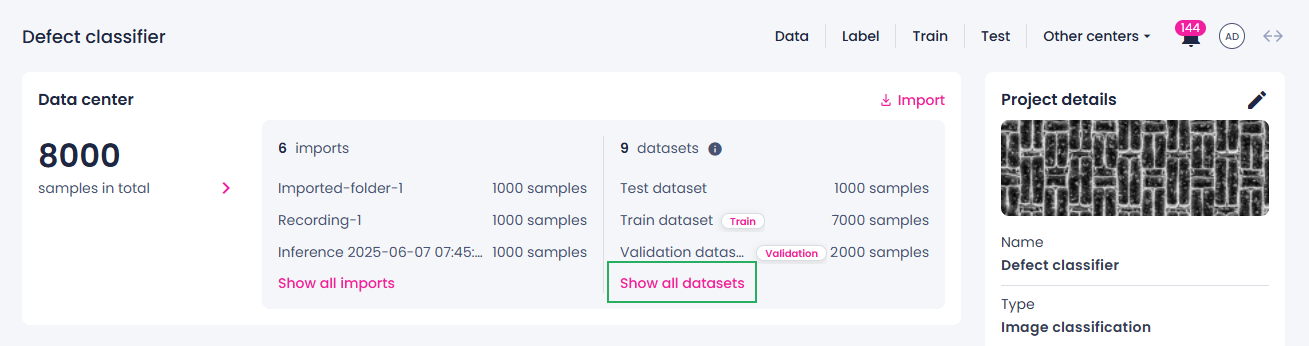
To view all datasets
- On the project details page, under the datasets list, click Show all datasets.
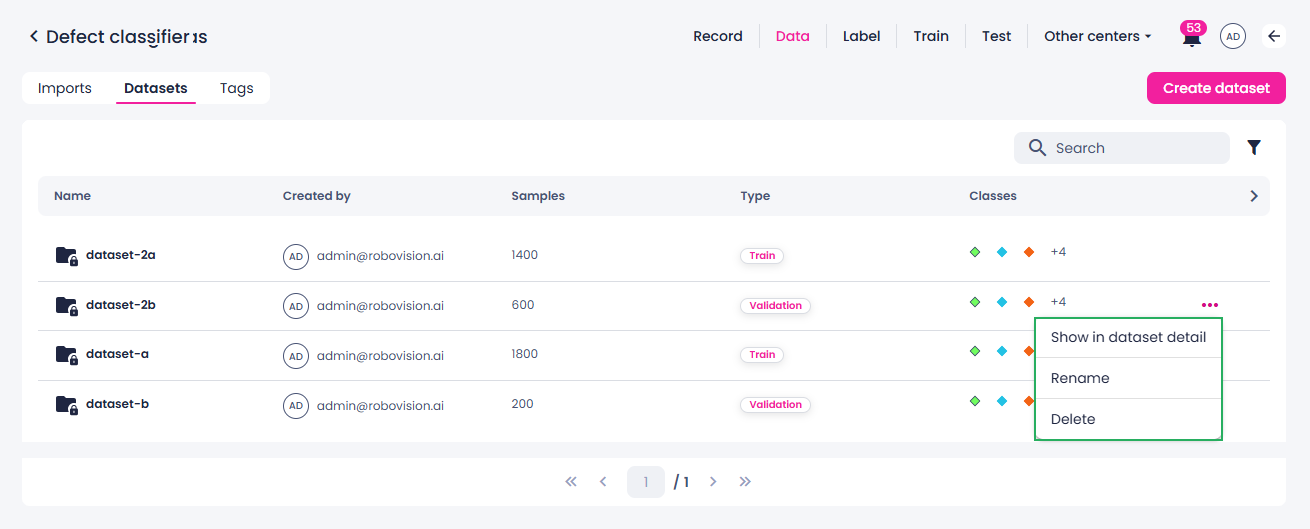
The data center opens. The data center provides a centralized interface to manage, view, and organize all datasets used in your project. It includes detailed information such as dataset name, number of samples, type, classes, and creation date.
To easily find the necessary dataset, use the search or apply filters by type, class, or creation date.
You can view the data constituting your datasets by selecting the needed dataset from the list. The dataset details page opens. You cannot assign classes or edit your data on this page.
Next to each dataset, you can click the ellipsis button and do the following:
- View the samples on the dataset details page.
- Rename the dataset.
- Delete the dataset.
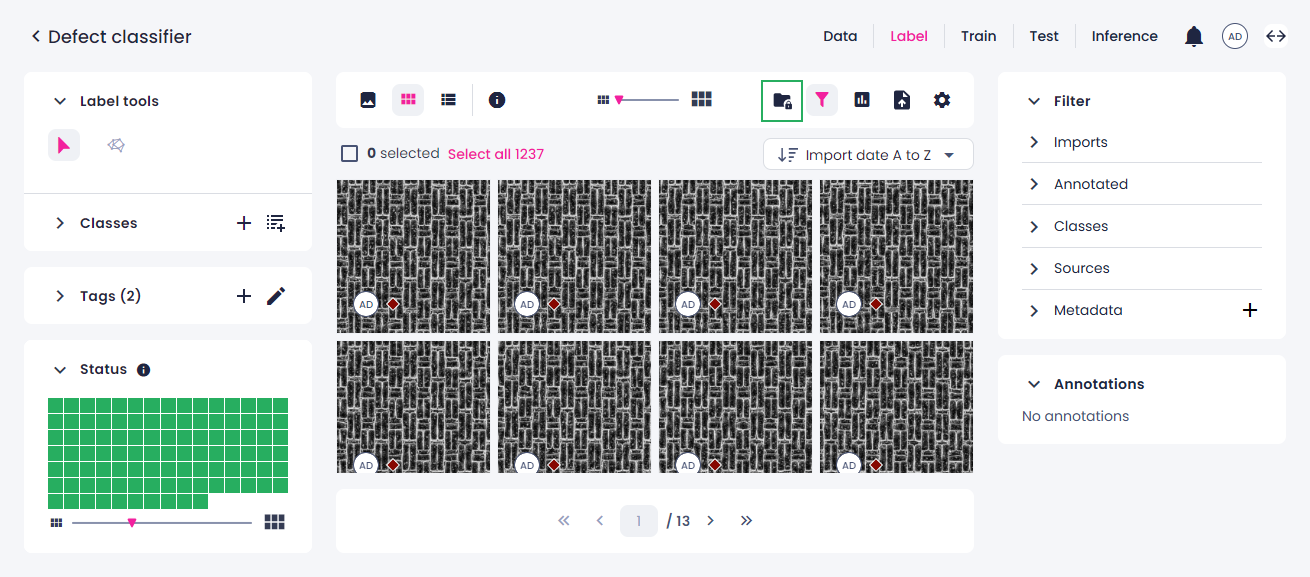
You can also view your datasets and their data from the label center. For this:
-
In the label center, above the labeling area, click the datasets button.
-
Expand the Datasets panel.
- Hover over the necessary dataset.
- Click the ellipsis button, and then select Show dataset.
The Datasets page opens. Here, you can analyze your data using charts and filters, reuse datasets for new trainings, and delete datasets.