Export imports
You can export your imported data with annotations and tags (if any) to a local storage or a connected platform.
Note
To successfully perform data import and export operations in Robovision AI, ensure the following:
- Use a Chromium-based browser (Google Chrome, Microsoft Edge, and more).
- The Robovision AI URL must contain https or be added to the list of secure websites (see Configure your browser).
To export imports
-
Select the samples that you want to export. These can be:
- All samples.
- Samples that match specific filters (a class, a tag, and so on). If the result includes more than 100 samples, click Select all to select all filtered samples.
- Samples that you select manually. However, you cannot select samples located on different pages. If you select one or more samples within a page, and then go to another page, these samples will no longer be selected.
-
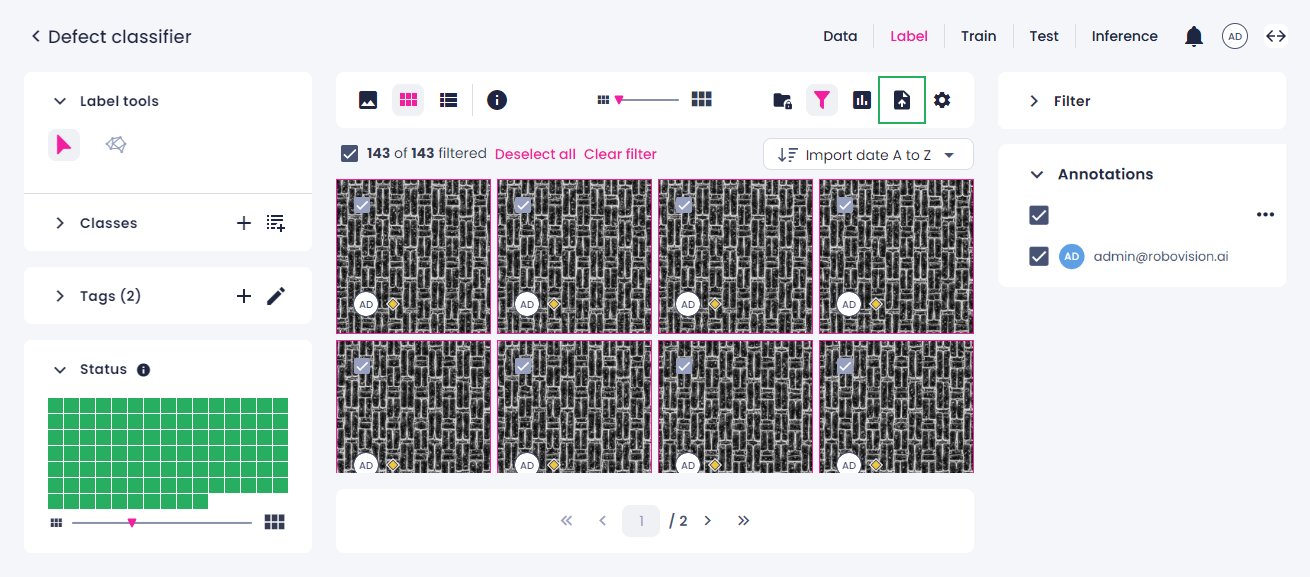
In the label center, above the labeling area, click the export button.
-
In the Export panel on the right, in Define ground truth, select which annotations you want to export:
-
Annotations by member
If one sample is labeled by a few users, in Labels by, you can select whose annotations to export. Note that other sources, such as predicted labels, are not displayed in the list of members.
-
Last updated annotations
This option is useful if a sample has several annotations by different users. The last updated annotation will be selected.
-
Random annotations
If a sample has several annotations by different users, a random annotation will be selected.
-
-
To export the tags that are assigned to the selected samples, select the Include tags checkbox.
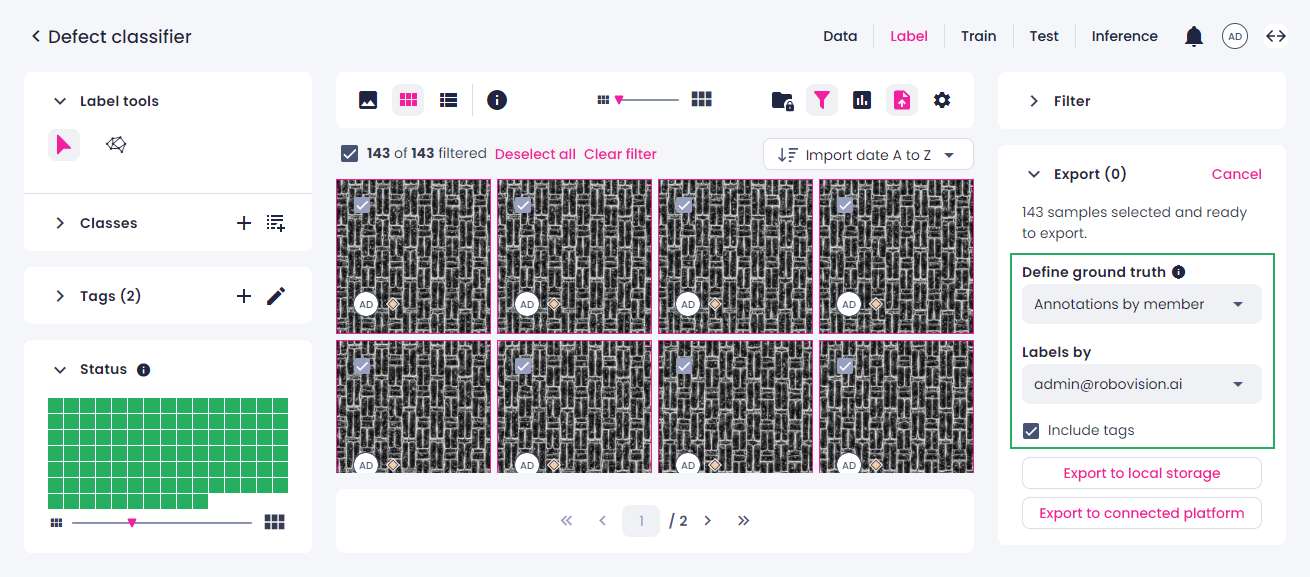
If you export samples that have tags, the following tags will be created in the target project:
- Tags that are assigned to the exported samples.
- Tags with the name of each import that is included in the export.
For example, if the export includes two imports—apples and pears—the apples and pears tags will be exported to the target project together with the samples. This way, you can track the original imports from the source project.
-
Do one of the following:
-
To export samples to your computer:
-
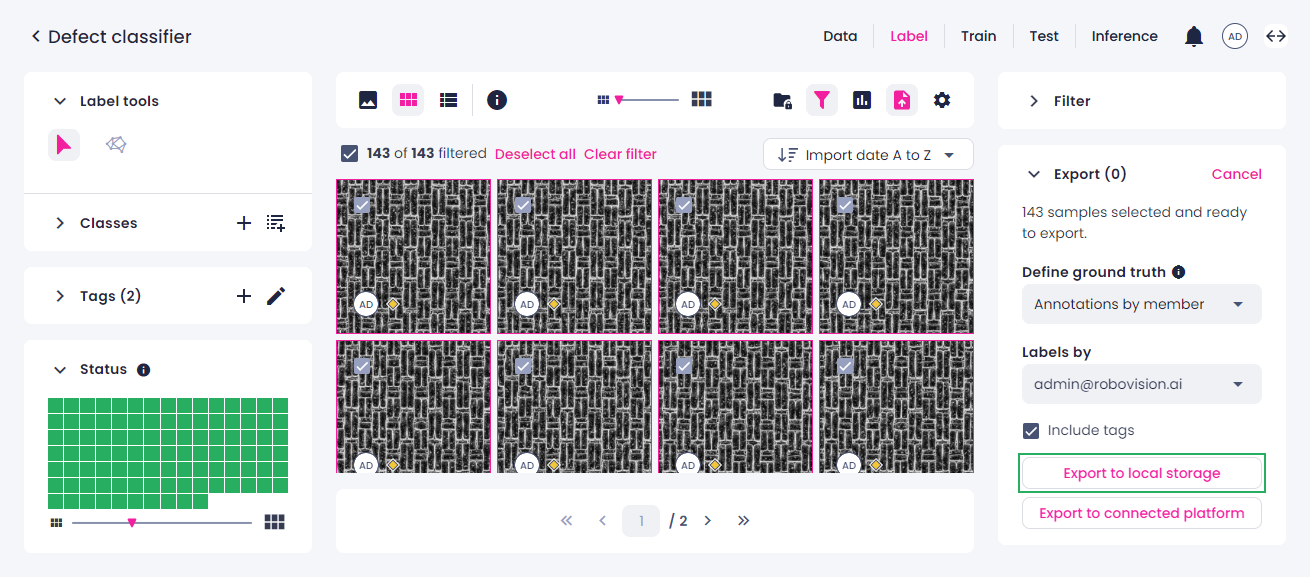
Click Export to local storage.
-
Select the location where you want to save the samples. You can select an existing empty folder or create a new one.
-
In the Let site edit files dialog in your browser, click Edit files.
If the selected folder isn't empty, you are prompted to create or select an empty one.
The samples with their annotations and tags (if any) are exported as a compilation of files. You can track the progress in the Export panel.
-
-
To export to the connected platform:
-
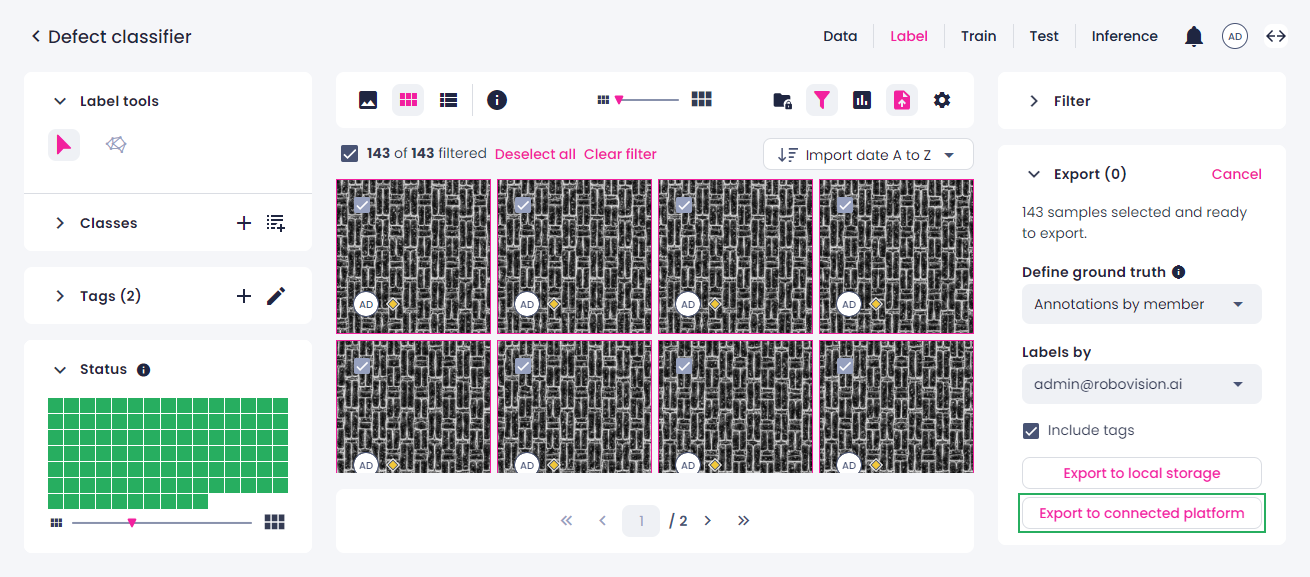
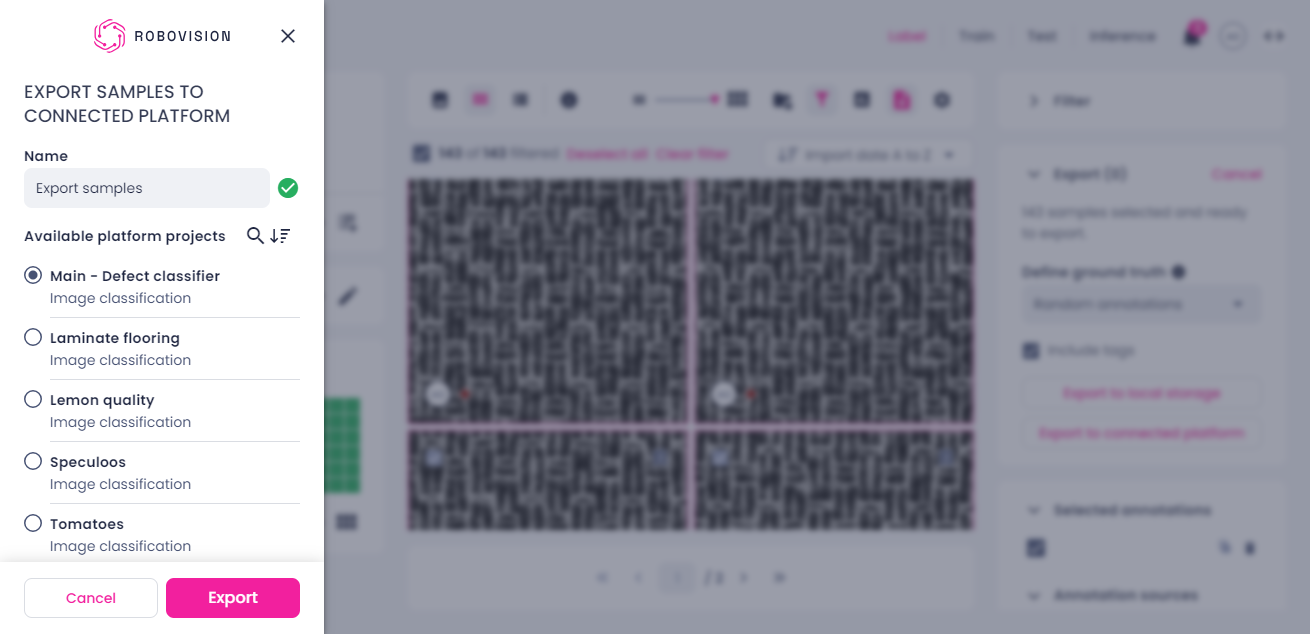
Click Export to connected platform.
If the button appears dimmed, you first need to set up a connection.
-
In the sidebar, change the export name if needed.
-
Select the target project.
The list includes only compatible projects—the ones with the same project type (for example, image classification). You can use search and sorting to find the necessary project quickly.
The list may contain projects with the Limited functionality status. These are the projects that use the deleted algorithm version. You cannot select these projects.
-
Click Export.
The samples with their annotations (if any) are exported to the connected platform. The member whose credentials were used to set up the connection becomes the author of these annotations on the target platform.
You can track the export progress in the Export panel.
-
-
-
To stop the export, click the stop button (
 ), and then, in the confirmation dialog, click Confirm.
Note
If you close the tab in your browser or refresh the page during the ongoing export, you will be able to resume the export. In case of connection issues, the export will resume automatically once the connection is restored.
When the export is completed, it will disappear from the list, and you will receive a notification. You can now import samples into another Robovision AI platform.