Delete tags
To delete tags
-
In the Tags panel on the left, click the edit button next to Tags.
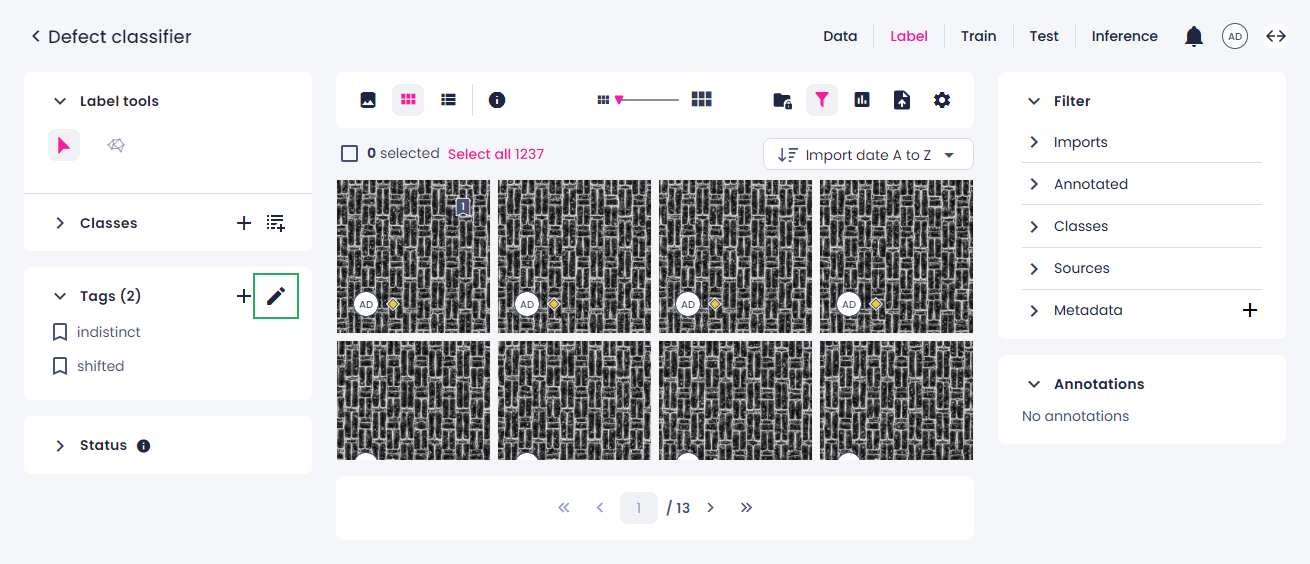
The Edit tags sidebar opens.
-
Do one of the following:
- To delete one tag, hover over it, and then click the delete button next to the tag.
-
To delete multiple tags, select the checkboxes next to them, and then click the delete button next to the top checkbox.
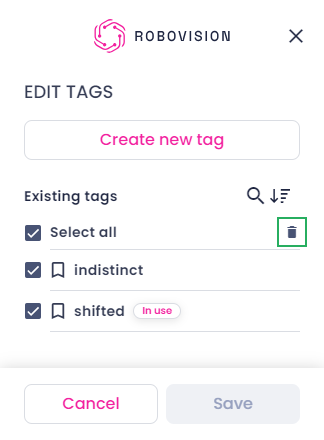
The tag will disappear. If the tag was in use, the following message will be displayed.
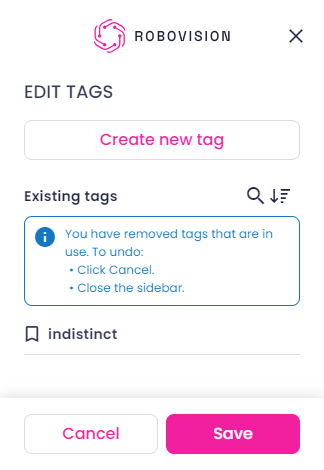
-
Click Save.
The deleted tags will be removed from the Tags panel and the samples they were assigned to.