Configure your browser
Robovision AI is optimized for Google Chrome. While our platform is designed to function on most Chromium-based browsers (such as Edge, Brave, Vivaldi, or Opera), we cannot guarantee 100% feature parity or visual consistency across all variants due to third-party modifications. To use the import and export functionality, you might need to configure your browser depending on your setup.
Browser compatibility
The import and export functionality requires the File System Access API, which is available in Chromium-based browsers. Some browsers (such as Brave) have this feature disabled by default. If you encounter issues with importing or exporting data or inference setups, enable the File system access API feature flag in your browser settings.
Configure insecure origins
If your platform URL contains http instead of https, you need to configure your browser to treat your Robovision AI URL as a secure website.
To configure your browser
- In your browser, go to
chrome://flags/#unsafely-treat-insecure-origin-as-secure -
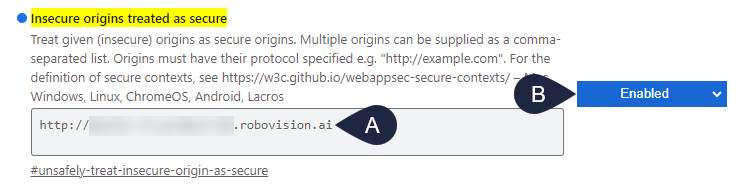
Enter the URL of your Robovision AI platform (A), and then select Enabled (B).
-
Restart your browser.