Notification center
Notification center consolidates all platform events, alerts, and notifications into a single interface. There are two ways to see your notifications from the notification center:
- Live pop-up notifications appearing in the upper-right corner of the platform.
- Sidebar with your notifications history, allowing you to scroll back and see notifications you have missed.
The notification center displays information about different operations in the platform. These may include notifications about:
- Data recording.
- Import of system classes.
- Completed and failed trainings.
- Model tests.
- Camera calibrations.
- Inference.
- Export and import of samples with their annotations and tags.
- Export and import of inference setup.
- Export and import of datasets.
- Low storage.
-
Bulk operations in the label center:
- Assigning a class for more than 100 samples (in image classification and multilabel classification projects).
- Assigning an "empty annotation" to any number of samples (in multilabel classification, object detection, instance segmentation, and semantic segmentation projects).
- Copying or replacing your own annotations with annotations from another source, for any number of samples (in any project type).
To manage your notifications
-
To open the notification center, in the upper-right corner of the platform, click
 .
.The number displayed next to the notification center button indicates the number of unread notifications. Once you click the button, the sidebar with your notification history appears.
The notifications can be of the following types:
- Notifications about successful operations marked with a green circle.
-
Notifications about partially successful bulk operations marked with a red circle.
For example, this might happen when your storage is almost full, and part of annotation can't be saved.
-
Notifications about failed operations with a red circle.
- Notifications about neutral operations with an orange circle.
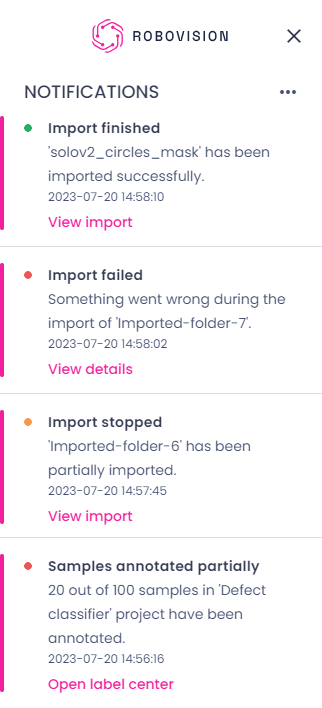
When the operation is finished, you can view its outcomes by clicking the corresponding button. For example, for the successfully imported data, the View import button appears. Clicking View import opens the project details page of the project where data has been added.
-
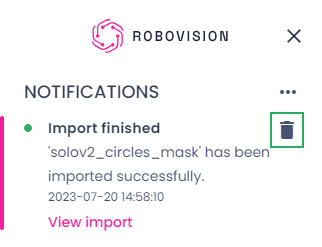
To delete a notification from the notification center, hover over it and click the delete button.
-
To clear your notification history, in the upper-right corner of the notification sidebar, click the ellipsis button, and then select Remove all notifications.
- If you don't want to get pop-ups, select Turn off popups.