Robovision AI 5.10 release notes
Robovision AI 5.10.1
Release date: August 4, 2025
Bug fixes
- YOLOv8: The issue where a recording job would not transition to the ready state until a manual capture request was made, has been resolved.
- Test center: The issue where incorrect test results were reported, has been resolved.
Known limitations
General
- The Robovision AI UI has been optimized for the browser size of 1920x1200.
- It is not possible for users to duplicate a tab if the environment is using the HTTP protocol. This does not affect environments using HTTPS. As a workaround, do one of the following:
- Open multiple browser windows instead of duplicating tabs.
- In Chrome, configure the HTTP URL to be treated as secure via
chrome://flags.
- If the storage is full, some functions may become unavailable, for example, saving annotation or training a model.
- Upgrades are supported up to two minor versions forward from your current version.
- When upgrading to a new version, new algorithm versions are installed, while preserving the existing ones. Existing projects will be updated to utilize the new algorithms.
- If the terms and conditions change, you will not be prompted to read and accept them again.
-
Notifications may be missing in specific cases, such as:
- When copying of annotations fails because the storage is almost full.
- When an inference setup import fails due to nearly full storage.
- When upgrading from 5.9 to 5.10, if you have manually increased the storage size of either the MinIO PVC or the Database PVC, a preflight PVC size check will fail. To proceed, set the following in your
values.yamlor via--setduring upgrade to disable the preflight check:
Browser support
- The Robovision AI platform has been designed and validated for Google Chrome 117 or later.
- You can transfer data between Robovision AI platforms only in Chromium-based browsers (Google Chrome, Microsoft Edge, and more).
- In Google Chrome, training metrics and a final validation score might not be displayed if an ad blocker is used. To prevent this, mark the Robovision AI URL as trusted in the Google Chrome settings.
- In Google Chrome, the thumbnail view can load slowly if you have password managers like Lastpass activated. To prevent this, disable the extension or work in a guest profile window.
- When using Google Chrome, you might experience issues in the label center. As a quick fix, reset your browser settings.
Backward compatibility
- Backward compatibility with Robovision AI versions 3.x and 4.x is not foreseen. But upon request, Robovision will provide the needed assistance and conversion scripts.
Branding and brand assets
- Upon upgrading to a newer version, Robovision AI may include new UI text that has not been customized. To ensure alignment, export the template containing the UI text and review for any necessary updates (see step 3 in Change brand assets).
Project management
- You can't delete a project if it has running processes.
Data recording
- Samples recorded while the recording session is stopping are missing from the recording session logs.
Data upload
- In general and with respect to the model testing functionality, the following image types are supported: JPG, JPEG, PNG, 8-bit TIF and TIFF, BMP, GIF, including a 4th transparency channel. EXIF orientation metadata is supported.
- File names must contain only Latin (ASCII) characters. There are known rendering, packing, and backup/restore issues with file names/object keys that contain non-Latin characters.
- You will be logged out of the platform if your data import has been in the Uploading stage for more than an hour.
- Limited functionality projects: You can still import data if the label center is empty.
Data center
- When the number of imports approaches 2,500, the imports page in the data center may experience slow loading times. If the number exceeds 2,500, the page may fail to load. Removing unnecessary imports can help improve performance.
Labeling
- 2D labeler performance (in particular the Magnetic lasso and Grab cut tools) may degrade for high-resolution images.
-
You may face the following issues when using the Prediction tool in the label center:
- The prediction process gets hidden if you leave the label center. To view it again, click the Prediction tool.
- The predicted labels are not added to the samples as the prediction process is running.
- The Status section is not updated as the prediction process is running.
-
If you select more than 100 samples in the label center, the Selected annotations panel on the right includes no information about individual samples. As a result, you will not be able to copy or delete individual annotations.
- When copying or replacing annotations for multiple samples, the same source should be selected for each sample (for example, annotations from one particular member or one prediction job).
- EfficientNet: When you re-annotate already annotated samples in bulk, you will not be notified that existing annotations will be overwritten.
Pagination
- In all views except the single view, a maximum of 100 samples is displayed per page. If you select samples and then go to another page, these samples will no longer be selected.
- In the test center, you can't select samples beyond the current page (more than 100 samples). The same applies when you view samples in a dataset.
Classes
- In the label center, it is possible to create a class with a name that is just a space.
- The class name is not saved if you collapse the Classes section without pressing Enter.
Charts
-
Class distribution:
- Label and test centers: If you apply a filter when the chart is already open, the filter isn't considered. To refresh the chart, click Clear in the upper-right corner of the Chart setup panel, and then set up the chart again.
-
Confusion matrix:
- In both the UI and exported CSV files, percentages are rounded to whole numbers.
- When setting up the confusion matrix, you can select the same user for both "Labels by (x-axis)" and "Labels by (y-axis)".
-
Label center:
- If you apply a filter when the chart is already open, the filter isn't considered. To refresh the chart, click Clear in the upper-right corner of the Chart setup panel, and then set up the chart again.
- When you generate the chart for filtered data, some information in the chart might be inaccurate.
-
Test center:
- YOLOv8+: For some samples, no model annotations are displayed in the chart, even though the annotations exist.
- The chart doesn't consider the filters you have applied—the number and percentage of samples labeled with a certain class is incorrect. To view the actual number of samples, you'll need to click the needed cell.
- SOLOv2, YOLOv5: When a test compares two models or different parameters of the same model, more than one matrix may be generated.
-
Wafer map:
- The wafer map chart is optimized for the browser size of 1920x1080 in full-screen mode. To enter full-screen mode, press F11.
- When the wafer map contains more than 100,000 samples, selection and filtering within the chart may affect performance and increase the loading time.
Model training
- PIDNet: When labeling a consistent area with the ignore class, the model might predict every class in those areas. To avoid this, ensure there is some variation in the areas labeled as ignore.
- PIDNet: If the entered batch size is too large, no validation message is displayed, and the training cannot be started.
- YOLOv8+: Subtle differences in score calculations during model validation and in the test center may result in discrepancies between the scores, even when using the same settings and data.
- YOLOv8+: When starting a training with CPU only (GPU disabled) on an AWS deployment, the training fails to start. We recommend using AWS deployments with GPU enabled as a workaround for now.
- During training setup, the Add model button is enabled even if there are no models available for transfer learning.
- When you stop and delete a training that had a custom name, the next training you set up will have the same custom name instead of the default one.
Model testing
- If you test a model on tagged data without comparison, the test data in the test center may disappear after you unassign that tag. However, the training center will still display the correct number of samples used in the test.
- Filtering is based on predicted classes from the first model only—not ground truth or second model predictions.
- YOLOv5: If a test is set up with a confidence threshold of 0, it will automatically run with a threshold of 0.001 instead. This temporary workaround prevents the test from failing.
- The test process will not start if the test name contains exactly 255 characters.
-
Tests may fail if:
- The test dataset has been deleted.
- You set the confidence threshold to 1 for both models when testing on tagged or imported data. The system requires at least one predicted example to compute metrics.
-
When a user tests a model on a dataset from which samples were deleted, the test runs without errors and evaluation metrics are correctly calculated and displayed on the project details page and in the training center. However, the test results are not displayed in the test center.
- When you export test results, the name of the CSV file contains the project and test names from the time the test was run.
Cameras
- When configuring the camera to use hardware triggering, validation of the configuration file will now wait until an actual hardware trigger event occurs.
Inferences
- You can run only one camera inference at a time.
- You can't rename a running inference. Wait for the inference to stop or stop it manually before renaming.
- If you stop an inference within the first minute of this first run, inference logs will not be available.
- SOLOv2: During inference setup, you can set the inference parameters that are outside of the available range. Despite this, the inference will run with the parameters within the range.
- It is possible to delete a stopping inference from the project details page.
- You cannot restart inferences in the Failed status. To proceed, stop the inference and start it again.
- In an inference setup, repeatedly switching between imported models and then saving the setup may cause the platform to crash.
- If your license expires, you cannot access the inference center to view details of inferences started while the license was active. Renew the license to regain access.
-
Inference monitoring:
- Opening a project with limited functionality from the Inference monitoring page results in an error. To open the project, go to the Projects module and search for the project directly.
- On the Inference monitoring page, the same inference metric type may be listed multiple times. This can occur after an upgrade when projects are updated to the new algorithm version, so both the old and new versions of the algorithm remain on the platform.
Import and export of data
- If the import or export process is interrupted, it will restart from the beginning instead of resuming, potentially resulting in multiple notifications about the process start.
-
Data transfer from Robovision Edge or connected Robovision AI platform:
- On the target Robovision AI platform, you won't receive notifications about data upload.
- On the project details page of the target Robovision AI platform, you can't stop the data upload.
- Exporting large numbers of samples to the connected platform may fail. To avoid this, export no more than 200,000 samples at a time.
- If the bandwidth is below 8 Mbit, the export to the connected platform may fail.
- If you delete an import while it's still in progress, some imported samples may not be deleted. These samples will appear in the label center, but they won't be associated with any import.
- EfficientNet: During samples export, some samples may incorrectly show empty annotations. Once the data transfer is complete, the annotations will be updated, and the issue will no longer appear.
- When data upload is in progress, the number of samples displayed above the sample preview in the label center may be out of sync with the number shown in the Imports group of the Filter panel.
-
Inference setups:
- Imported models aren't displayed on the training details page and the Training center section of the project details page because trainings—not models—are shown there. However, you will still be able to select imported models for transfer learning, to set up a test, and more.
- YOLOv8+ instance segmentation: Import of inference setups with YOLOv11 models may fail, especially if the network is interrupted. In most cases, the issue resolves itself once the network stabilizes.
- You can import several models with the same name.
-
Samples:
- If you don't change the default name, all exports in your project will share the same name.
- Sample export or import, especially for more than 100 samples, may become stuck. To resolve this, manually resume the process.
Robovision AI 5.10
Release date: July 11, 2025
What's new
Data center
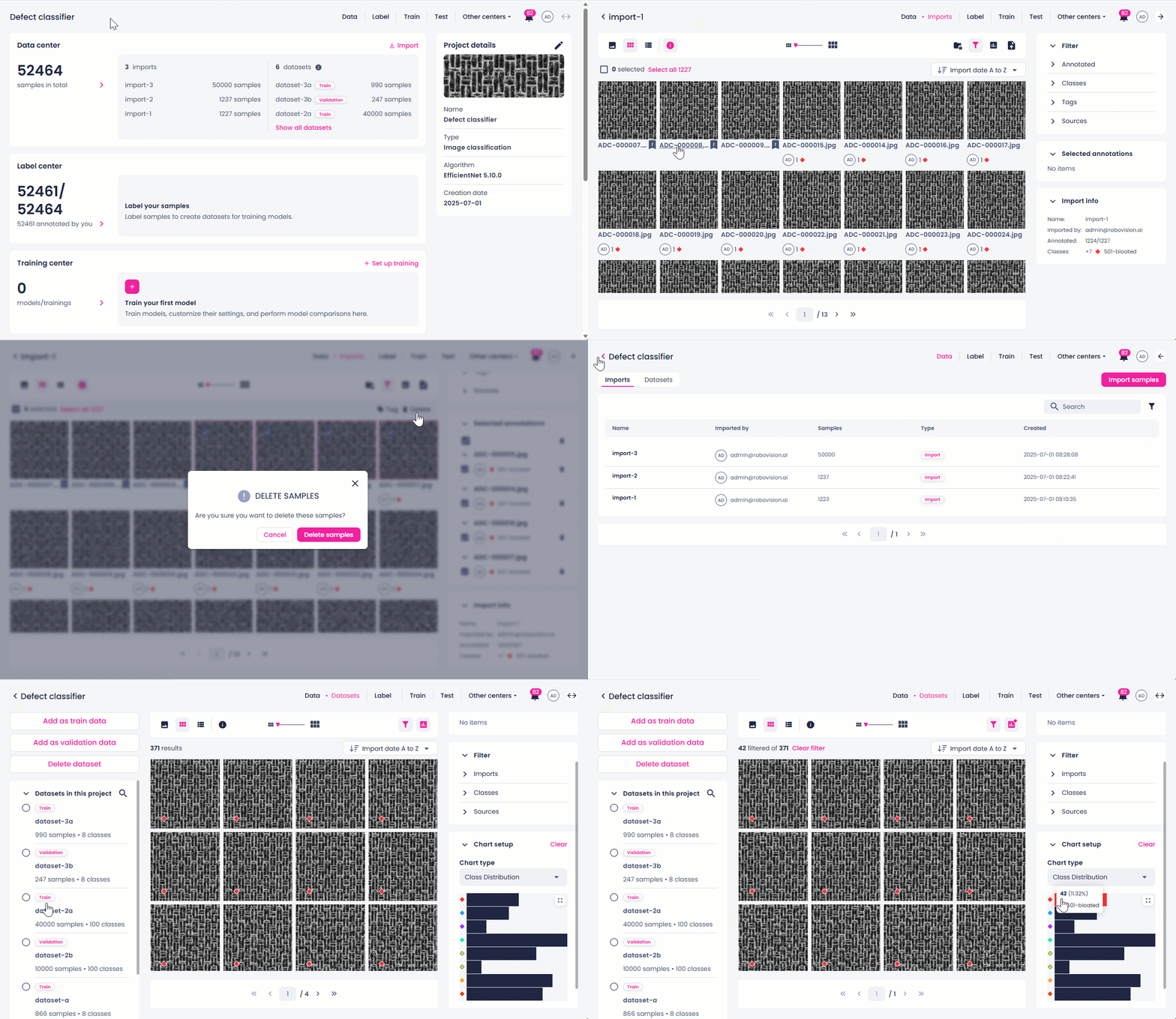
The new data center provides a centralized view to manage all imports and datasets within a project on a single page. Here, you can:
- View and manage all your project imports.
- Tag and delete samples from your imports.
- View and manage all your project datasets.
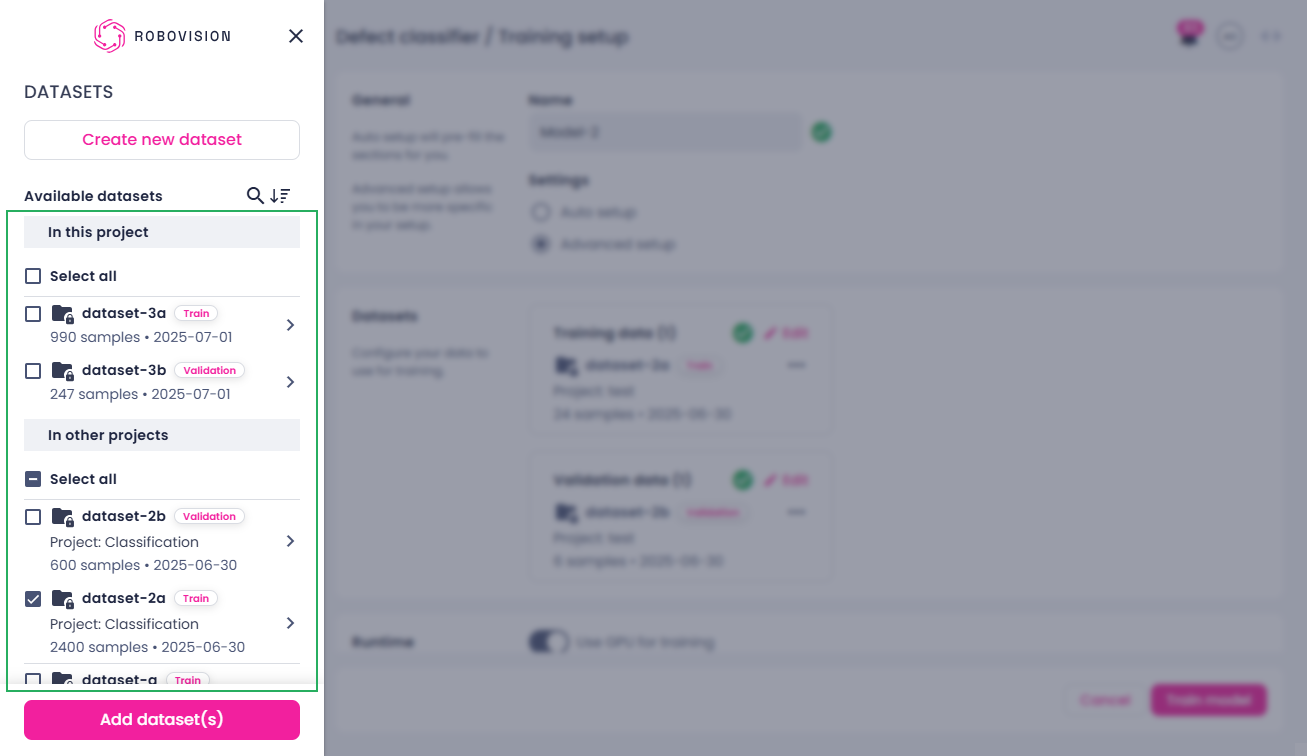
Data reuse across projects
You can now reuse datasets across projects with the same annotation type—particularly when training models or running tests that share common data. See Reuse datasets accross projects.
Note that the dataset reusability feature may not be enabled on your deployment. Integrators or teams managing their own installation can enable the feature themselves. For help, contact support@robovision.ai.
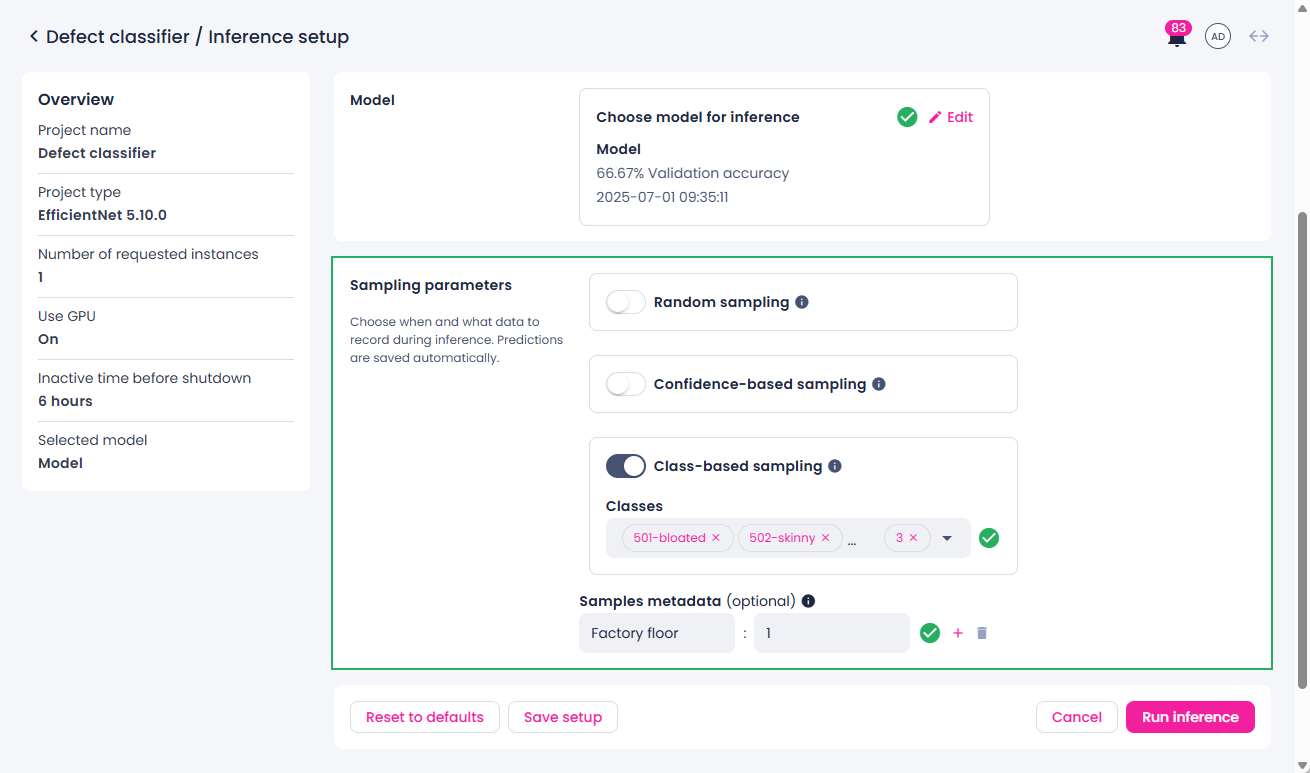
Data recording during inference
You can now record data during inference using various sampling methods: random, confidence-based, or class-based. Additionally, you can specify metadata for the recorded samples. These options are available for both camera and API inference. See step 7 of the corresponding inference setup article for details.
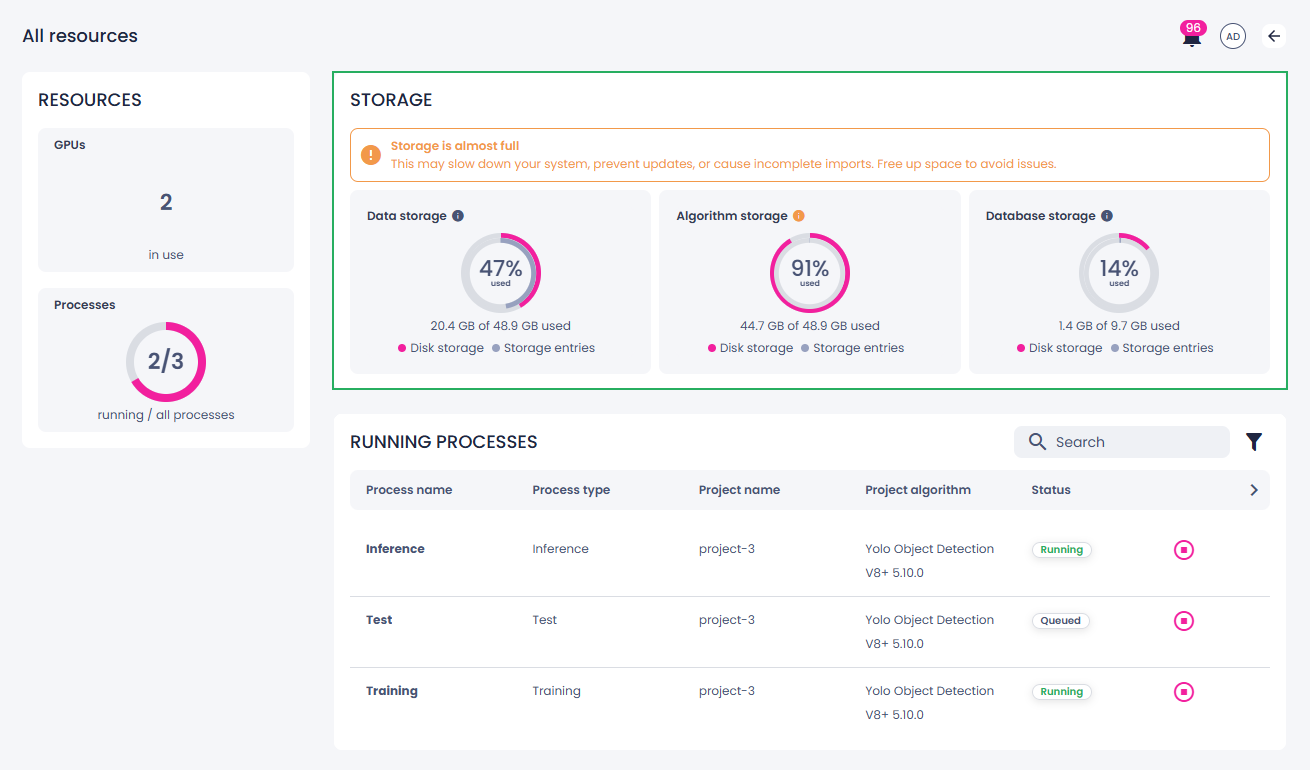
Storage monitoring
You can now monitor your deployment's storage capacity on the Resources page in the System module. You will gain immediate visibility into key storage categories:
- Data storage – S3 storage for various data types, such as samples, annotations, embeddings, trained models, training parameters, and more.
- Algorithm storage – Docker Registry storage for algorithm Docker images.
- Database storage – PostgreSQL storage.
You will receive notifications when storage is running low and, with our smart storage categorization, you'll always know what data to clean up to free up space.
Wafermap extension
- You can now install the Wafermap extension on top of your own single-label classifier to enable wafermap chart visualization.
Upgrade notice
- The
yolo_ins_seg_opcuaextension has been renamed topicking_and_grading. When upgrading to version 5.10, be sure to use thepicking_and_gradingextension in your configuration. Similarly, in the UI, the YOLOv8+ instance segmentation with OPC-UA algorithm extension has been renamed to Instance segmentation – Picking and grading.
Other improvements
- Support for selecting two models during inference is now available via additional configuration settings. Note that this feature is limited to supported deployments.
- You can now delete unnecessary prediction runs from the Predictions list in the label center.
Bug fixes
Labeling
- MacOS: The shortcut Scroll+Cmd did not previously trigger zoom on samples. Zoom functionality now behaves as expected.
- Windows and macOS: The shortcut Alt/Option+Z+Click for cutting from annotations did not function as expected. This issue has been fixed.
Data export
- Ongoing exports are now correctly sorted, with the most recent exports displayed first.
Cameras
- WebRTC streams could fail to work when using Basler emulator cameras. This issue has been fixed.
Inference
- Previously, object detection results from the YOLOv8 API and camera inference were shifted relative to the actual objects in the image. This issue has been fixed, and annotations are now correctly positioned.
Model testing
- Model parameters were not saved when test setup was initiated from the training center. This has now been fixed.
- Performance issues in the test center caused by duplicate endpoint requests have been resolved.
- The confidence threshold slider was incorrectly displayed for model vs. model comparisons. This issue has been fixed.
Known limitations
General
- The Robovision AI UI has been optimized for the browser size of 1920x1200.
- It is not possible for users to duplicate a tab if the environment is using the HTTP protocol. This does not affect environments using HTTPS. As a workaround, do one of the following:
- Open multiple browser windows instead of duplicating tabs.
- In Chrome, configure the HTTP URL to be treated as secure via
chrome://flags.
- If the storage is full, some functions may become unavailable, for example, saving annotation or training a model.
- Upgrades are supported up to two minor versions forward from your current version.
- When upgrading to a new version, new algorithm versions are installed, while preserving the existing ones. Existing projects will be updated to utilize the new algorithms.
- If the terms and conditions change, you will not be prompted to read and accept them again.
-
Notifications may be missing in specific cases, such as:
- When copying of annotations fails because the storage is almost full.
- When an inference setup import fails due to nearly full storage.
Browser support
- The Robovision AI platform has been designed and validated for Google Chrome 117 or later.
- You can transfer data between Robovision AI platforms only in Chromium-based browsers (Google Chrome, Microsoft Edge, and more).
- In Google Chrome, training metrics and a final validation score might not be displayed if an ad blocker is used. To prevent this, mark the Robovision AI URL as trusted in the Google Chrome settings.
- In Google Chrome, the thumbnail view can load slowly if you have password managers like Lastpass activated. To prevent this, disable the extension or work in a guest profile window.
- When using Google Chrome, you might experience issues in the label center. As a quick fix, reset your browser settings.
Backward compatibility
- Backward compatibility with Robovision AI versions 3.x and 4.x is not foreseen. But upon request, Robovision will provide the needed assistance and conversion scripts.
Branding and brand assets
- Upon upgrading to a newer version, Robovision AI may include new UI text that has not been customized. To ensure alignment, export the template containing the UI text and review for any necessary updates (see step 3 in Change brand assets).
Project management
- You can't delete a project if it has running processes.
Data recording
- Samples recorded while the recording session is stopping are missing from the recording session logs.
Data upload
- In general and with respect to the model testing functionality, the following image types are supported: JPG, JPEG, PNG, 8-bit TIF and TIFF, BMP, GIF, including a 4th transparency channel. EXIF orientation metadata is supported.
- File names must contain only Latin (ASCII) characters. There are known rendering, packing, and backup/restore issues with file names/object keys that contain non-Latin characters.
- You will be logged out of the platform if your data import has been in the Uploading stage for more than an hour.
- Limited functionality projects: You can still import data if the label center is empty.
Data center
- When the number of imports approaches 2,500, the imports page in the data center may experience slow loading times. If the number exceeds 2,500, the page may fail to load. Removing unnecessary imports can help improve performance.
Labeling
- 2D labeler performance (in particular the Magnetic lasso and Grab cut tools) may degrade for high-resolution images.
-
You may face the following issues when using the Prediction tool in the label center:
- The prediction process gets hidden if you leave the label center. To view it again, click the Prediction tool.
- The predicted labels are not added to the samples as the prediction process is running.
- The Status section is not updated as the prediction process is running.
-
If you select more than 100 samples in the label center, the Selected annotations panel on the right includes no information about individual samples. As a result, you will not be able to copy or delete individual annotations.
- When copying or replacing annotations for multiple samples, the same source should be selected for each sample (for example, annotations from one particular member or one prediction job).
- EfficientNet: When you re-annotate already annotated samples in bulk, you will not be notified that existing annotations will be overwritten.
Pagination
- In all views except the single view, a maximum of 100 samples is displayed per page. If you select samples and then go to another page, these samples will no longer be selected.
- In the test center, you can't select samples beyond the current page (more than 100 samples). The same applies when you view samples in a dataset.
Classes
- In the label center, it is possible to create a class with a name that is just a space.
- The class name is not saved if you collapse the Classes section without pressing Enter.
Charts
-
Class distribution:
- Label and test centers: If you apply a filter when the chart is already open, the filter isn't considered. To refresh the chart, click Clear in the upper-right corner of the Chart setup panel, and then set up the chart again.
-
Confusion matrix:
- In both the UI and exported CSV files, percentages are rounded to whole numbers.
- When setting up the confusion matrix, you can select the same user for both "Labels by (x-axis)" and "Labels by (y-axis)".
-
Label center:
- If you apply a filter when the chart is already open, the filter isn't considered. To refresh the chart, click Clear in the upper-right corner of the Chart setup panel, and then set up the chart again.
- When you generate the chart for filtered data, some information in the chart might be inaccurate.
-
Test center:
- YOLOv8+: For some samples, no model annotations are displayed in the chart, even though the annotations exist.
- The chart doesn't consider the filters you have applied—the number and percentage of samples labeled with a certain class is incorrect. To view the actual number of samples, you'll need to click the needed cell.
- SOLOv2, YOLOv5: When a test compares two models or different parameters of the same model, more than one matrix may be generated.
-
Wafer map:
- The wafer map chart is optimized for the browser size of 1920x1080 in full-screen mode. To enter full-screen mode, press F11.
- When the wafer map contains more than 100,000 samples, selection and filtering within the chart may affect performance and increase the loading time.
Model training
- PIDNet: When labeling a consistent area with the ignore class, the model might predict every class in those areas. To avoid this, ensure there is some variation in the areas labeled as ignore.
- PIDNet: If the entered batch size is too large, no validation message is displayed, and the training cannot be started.
- YOLOv8+: Subtle differences in score calculations during model validation and in the test center may result in discrepancies between the scores, even when using the same settings and data.
- YOLOv8+: When starting a training with CPU only (GPU disabled) on an AWS deployment, the training fails to start. We recommend using AWS deployments with GPU enabled as a workaround for now.
- During training setup, the Add model button is enabled even if there are no models available for transfer learning.
- When you stop and delete a training that had a custom name, the next training you set up will have the same custom name instead of the default one.
Model testing
- If you test a model on tagged data without comparison, the test data in the test center may disappear after you unassign that tag. However, the training center will still display the correct number of samples used in the test.
- Filtering is based on predicted classes from the first model only—not ground truth or second model predictions.
- YOLOv5: If a test is set up with a confidence threshold of 0, it will automatically run with a threshold of 0.001 instead. This temporary workaround prevents the test from failing.
- The test process will not start if the test name contains exactly 255 characters.
-
Tests may fail if:
- The test dataset has been deleted.
- You set the confidence threshold to 1 for both models when testing on tagged or imported data. The system requires at least one predicted example to compute metrics.
-
When a user tests a model on a dataset from which samples were deleted, the test runs without errors and evaluation metrics are correctly calculated and displayed on the project details page and in the training center. However, the test results are not displayed in the test center.
- When you export test results, the name of the CSV file contains the project and test names from the time the test was run.
Cameras
- When configuring the camera to use hardware triggering, validation of the configuration file will now wait until an actual hardware trigger event occurs.
Inferences
- You can run only one camera inference at a time.
- You can't rename a running inference. Wait for the inference to stop or stop it manually before renaming.
- If you stop an inference within the first minute of this first run, inference logs will not be available.
- SOLOv2: During inference setup, you can set the inference parameters that are outside of the available range. Despite this, the inference will run with the parameters within the range.
- It is possible to delete a stopping inference from the project details page.
- You cannot restart inferences in the Failed status. To proceed, stop the inference and start it again.
- In an inference setup, repeatedly switching between imported models and then saving the setup may cause the platform to crash.
- If your license expires, you cannot access the inference center to view details of inferences started while the license was active. Renew the license to regain access.
-
Inference monitoring:
- Opening a project with limited functionality from the Inference monitoring page results in an error. To open the project, go to the Projects module and search for the project directly.
- On the Inference monitoring page, the same inference metric type may be listed multiple times. This can occur after an upgrade when projects are updated to the new algorithm version, so both the old and new versions of the algorithm remain on the platform.
Import and export of data
- If the import or export process is interrupted, it will restart from the beginning instead of resuming, potentially resulting in multiple notifications about the process start.
-
Data transfer from Robovision Edge or connected Robovision AI platform:
- On the target Robovision AI platform, you won't receive notifications about data upload.
- On the project details page of the target Robovision AI platform, you can't stop the data upload.
- Exporting large numbers of samples to the connected platform may fail. To avoid this, export no more than 200,000 samples at a time.
- If the bandwidth is below 8 Mbit, the export to the connected platform may fail.
- If you delete an import while it's still in progress, some imported samples may not be deleted. These samples will appear in the label center, but they won't be associated with any import.
- EfficientNet: During samples export, some samples may incorrectly show empty annotations. Once the data transfer is complete, the annotations will be updated, and the issue will no longer appear.
- When data upload is in progress, the number of samples displayed above the sample preview in the label center may be out of sync with the number shown in the Imports group of the Filter panel.
-
Inference setups:
- Imported models aren't displayed on the training details page and the Training center section of the project details page because trainings—not models—are shown there. However, you will still be able to select imported models for transfer learning, to set up a test, and more.
- YOLOv8+ instance segmentation: Import of inference setups with YOLOv11 models may fail, especially if the network is interrupted. In most cases, the issue resolves itself once the network stabilizes.
- You can import several models with the same name.
-
Samples:
- If you don't change the default name, all exports in your project will share the same name.
- Sample export or import, especially for more than 100 samples, may become stuck. To resolve this, manually resume the process.