Robovision AI 5.13 release notes
Release date: April 14, 2026
What's new
Support for higher bit-depth grayscale imagery
Robovision AI now supports importing grayscale images with higher bit depths, including 16-bit (full range) and 14-bit with 2 null bits (MSB-aligned). These images are automatically converted to 8-bit format during import using right 8-bit shifting, preserving the most significant visual information while ensuring compatibility across all Robovision AI workflows (labeling, training, testing, and inference).
AI-ADC inference enhancements
-
Batch prediction
AI-ADC inference now supports batch prediction, allowing multiple samples to be processed simultaneously in a single API request. This significantly improves throughput and GPU utilization, enabling more cost-effective deployments. Batch prediction is particularly beneficial for high-volume applications where multiple inspection stations or machines can share a single GPU resource, reducing infrastructure costs while maintaining the required processing speed.
You can monitor the average batch size processed during specific time intervals on the inference monitoring page. This metric helps you tune your client-side ingestion logic and optimize GPU/CPU utilization across deployments.
-
Configurable number of predicted classes
You can now choose how many predicted classes are returned in the API response using the new Number of predicted classes setting in the advanced inference parameters. This helps detect critical classes even when their confidence is lower.
-
Custom metadata configuration
You can now configure custom metadata when setting up API inference for AI-ADC projects. This includes:
- Import metadata: Define wafer dimensions (waferDiameter, waferCenterX, waferCenterY, diePitchX, diePitchY) that apply to all samples. These values are essential for wafer map visualization.
- Samples metadata: Add custom key-value pairs to individual samples via the inference setup UI or API requests, allowing you to map samples to internal tracking systems such as project IDs, batch numbers, or production line identifiers.
Basler linescan camera support
You can now use RGB and grayscale Basler linescan cameras for data recording and inference on conveyor systems. Linescan cameras are supported for:
- Recording images for labeling.
- Running inference with OPC-UA output.
- Running inference with webhook output.
Limitations:
- Linescan cameras can only be used in single camera setups, not multi-stream setups.
- Variable image heights are not supported. All captured images from a linescan camera must have a consistent height.
- Testing is only supported via Pylon source. GenICam source has a known blocker and is not supported for linescan cameras.
- Camera calibration for linescan cameras is not included in this release.
Camera tooling
You can now configure cameras directly from your browser using Pylon Viewer and IP Configurator. This feature is available for on-premises installations with the camera tooling feature flag enabled. Use Pylon Viewer to adjust camera settings and download PFS (Pylon Feature Stream) files for use in Robovision AI, and use IP Configurator to configure IP addresses on your cameras. See Open camera tooling.
Improved tag assignment and unassignment workflow
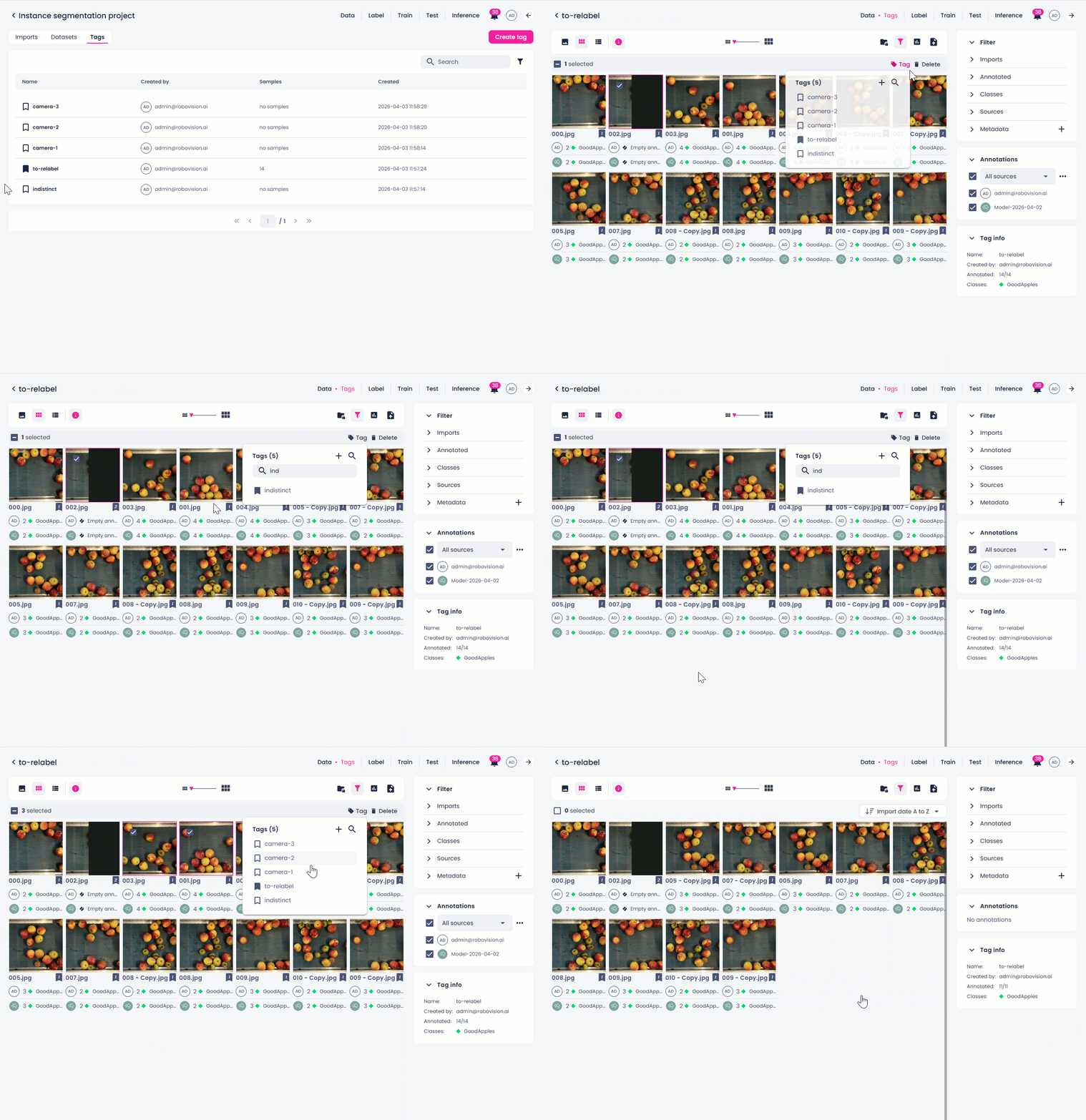
In the data center, the tag assignment and unassignment workflow has been improved to provide better visibility and control. Now, when you select samples and click Tag, a popup displays the current tags in the same format as the label center sidebar panel. When you unassign a tag, a confirmation popup prevents accidental removal.
Visual feedback for non-editable annotations
- In the label center, when you hover over or select annotations created by other users or generated by the Prediction tool, the cursor changes to a forbidden icon with a respective tooltip. This visual feedback helps you quickly identify which annotations are read-only and need to be copied before you can modify them. See Copy or replace annotations. The same visual feedback appears when you hover over non-editable annotations in the data and test centers.
Visual feedback for non-editable annotations
- In the label center, when you hover over or select annotations created by other users or generated by the Prediction tool, the cursor changes to a forbidden icon with a respective tooltip. This visual feedback helps you quickly identify which annotations are read-only and need to be copied before you can modify them. See Copy or replace annotations. The same visual feedback appears when you hover over non-editable annotations in the data and test centers.
Individual annotation management
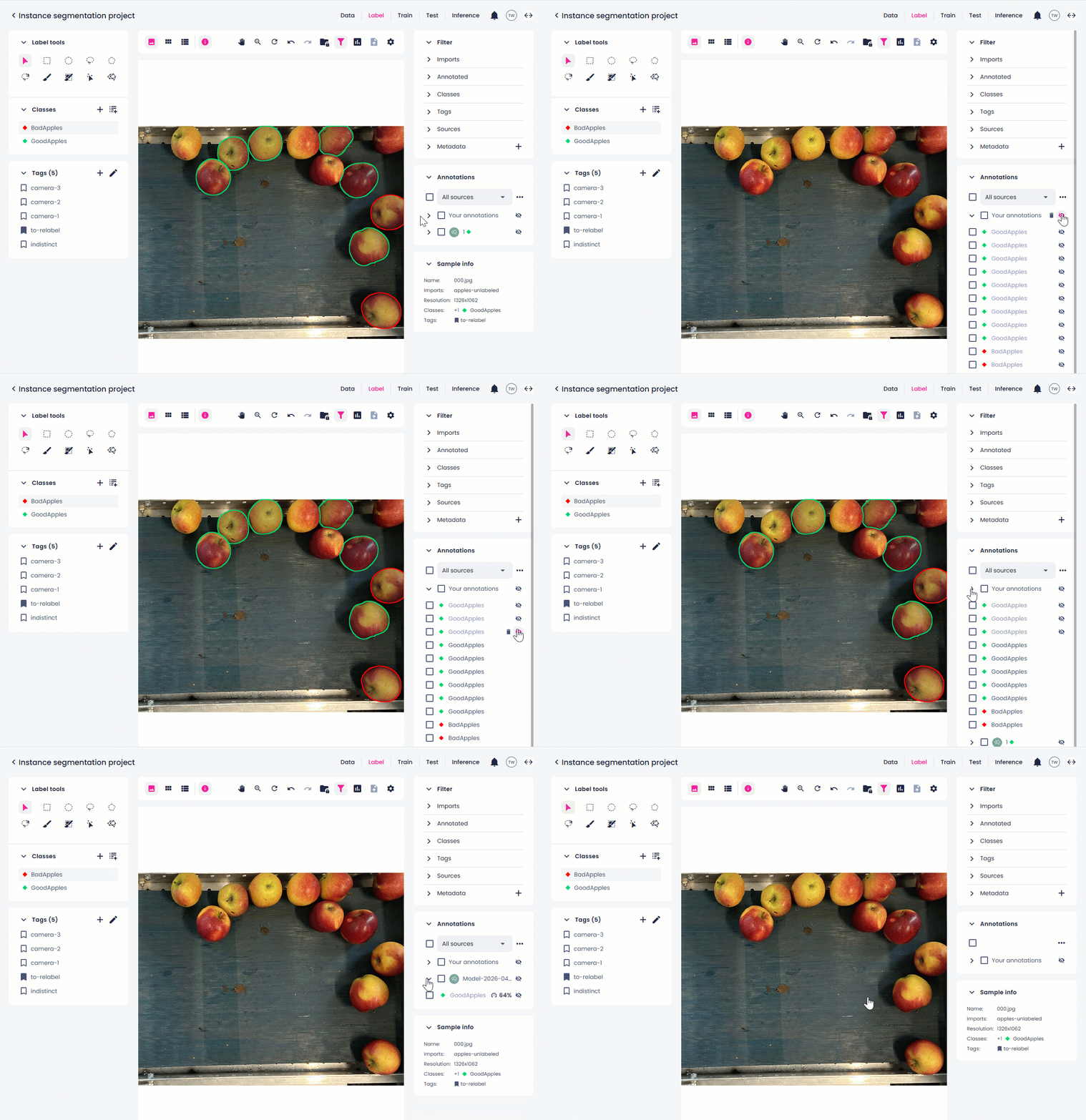
You can now hide, show, and delete individual annotations directly from the Annotations panel in the label center. Hover over any annotation to reveal quick action icons:
- Eye icon: Toggle visibility of individual annotations without affecting other annotations from the same source.
- Delete icon: Remove individual annotations.
For more information, see Hide annotations and Delete annotations.
Visibility control in centers
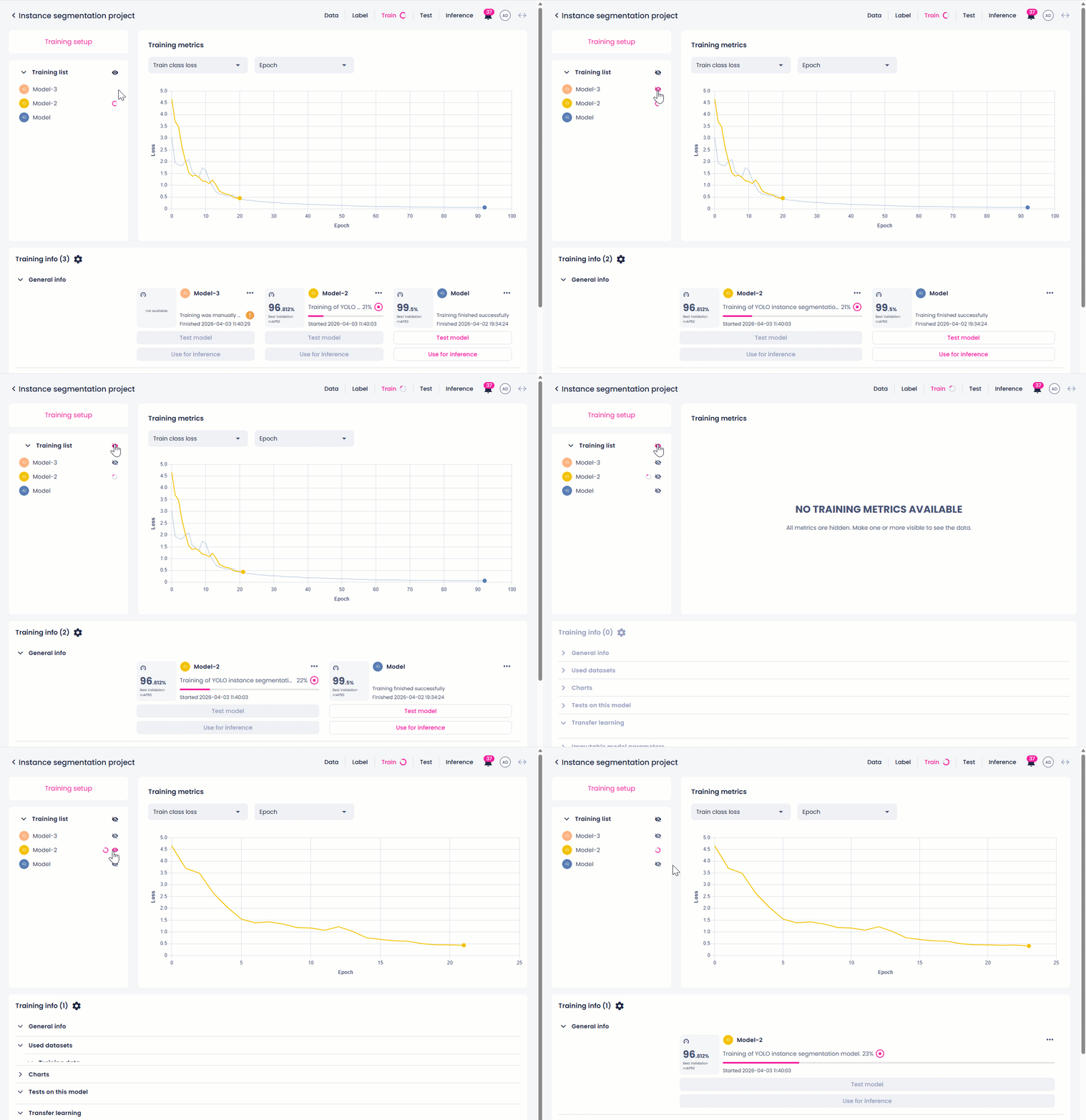
You can now hide or show all items at once in the train, inference, camera calibration, KRF export, and optimization centers. This helps you focus on specific jobs (trainings, inferences, calibrations, tests, KRF exports, or optimizations) when monitoring progress or comparing results. Click the top eye icon to hide all visible items or show all items if some are already hidden. Individual visibility can also be controlled separately for each item.
Persona-based product documentation
The Robovision AI documentation now features persona-based content tailored to different user roles. The new getting started page provides role-specific guidance and labels to help data scientists, process engineers, system integrators, and other users quickly find the most relevant information for their workflows. This improvement makes it easier to navigate the documentation and get started with the platform based on your specific responsibilities and use cases.
Inference improvements for agents
- You can now see improved visibility indicators on your agent platform when it receives an inference setup from a parent hub. The connections list displays the inference as running with a disabled stop button, and a tooltip explains that the parent platform controls the inference. In the topology diagram, the connection line animates with a dotted pattern during ongoing inference export.
- The Healthy inference status now accurately indicates when your deployment is fully loaded and ready to receive inference requests.
Bug fixes
Test metrics
- Macro average precision, macro average recall, and mIOU metrics now use only the classes the model was trained on. Classes in the test dataset that aren't in the training dataset are excluded. Per-class metrics (precision per class, recall per class, IOU per class) also display only trained classes in the test results panel. The confusion matrix and class list continue to show all ground truth classes. See Test scores.
Algorithms
- The issue where processes (training, testing, or threshold optimization) did not consistently use the latest algorithm version has been resolved. When multiple versions of the same algorithm are installed, the system now correctly uses the latest algorithm version (the one associated with the project) when starting those processes.
Platform connections
- You can no longer create duplicate platform connections. Previously, opening the Settings page in multiple browser tabs allowed you to connect to different platforms simultaneously, causing connection status issues and missing platforms in the topology graph. The system now prevents connecting to a second platform when a connection already exists.
Exporting inference setup to agents
- When pushing inference setups from the hub to agents on the Topology page, inference setups that have already been pushed to the selected agent are now displayed as disabled in the export list. This prevents failed push attempts and unnecessary error notifications when trying to push the same setup again.
- The inference time in the Start inference setup sidebar no longer updates continuously. The timestamp now remains stable and clearly indicates when the inference was started or stopped.
Label center
- The thumbnails view in the label center no longer resets the page and scroll position when you make annotation changes for image classification projects. Previously, annotating samples caused the view to jump back to the first page and scroll to the top, requiring you to manually navigate back to where you left off.
Charts
- AI-ADC EfficientNet: Metadata filters are now applied to the wafer map chart. Previously, only built-in filters were applied to the wafer map.
Known limitations
General
- The Robovision AI UI has been optimized for the browser size of 1920x1200.
- It is not possible for users to duplicate a tab if the environment is using the HTTP protocol. This does not affect environments using HTTPS. As a workaround, do one of the following:
- Open multiple browser windows instead of duplicating tabs.
- In Chrome, configure the HTTP URL to be treated as secure via
chrome://flags.
- If the storage is full, some functions may become unavailable, for example, saving annotation or training a model.
- Upgrades are supported up to two minor versions forward from your current version.
- When upgrading to a new version, new algorithm versions are installed, while preserving the existing ones. Existing projects will be updated to utilize the new algorithms.
- If the terms and conditions change, you will not be prompted to read and accept them again.
-
Notifications may be missing in specific cases, such as:
- When copying of annotations fails because the storage is almost full.
- When an inference setup import fails due to nearly full storage.
-
When recovering from an invalid or expired license, a 404 page may appear. To resolve the issue: Log out and log back in to refresh your licensing information.
Browser support
- The Robovision AI platform has been designed and validated for Google Chrome 117 or later.
- You can transfer data between Robovision AI platforms only in Chromium-based browsers (Google Chrome, Microsoft Edge, and more).
- In Google Chrome, training metrics and a final validation score might not be displayed if an ad blocker is used. To prevent this, mark the Robovision AI URL as trusted in the Google Chrome settings.
- In Google Chrome, the thumbnail view can load slowly if you have password managers like Lastpass activated. To prevent this, disable the extension or work in a guest profile window.
Backward compatibility
- Backward compatibility with Robovision AI versions 3.x and 4.x is not foreseen. But upon request, Robovision will provide the needed assistance and conversion scripts.
Branding and brand assets
- Upon upgrading to a newer version, Robovision AI may include new UI text that has not been customized. To ensure alignment, export the template containing the UI text and review for any necessary updates (see step 3 in Change brand assets).
Data recording
- Samples recorded while the recording session is stopping are missing from the recording session logs.
Data upload
- The following image types are supported: JPG, JPEG, PNG, 8-bit TIF and TIFF, BMP, GIF, including a 4th transparency channel. Higher bit-depth grayscale images (14-bit and 16-bit) are automatically converted to 8-bit during import using right 8-bit shifting. EXIF orientation metadata is supported.
- For 14-bit grayscale images, the conversion only works correctly with MSB-aligned images (where data bits are aligned to the Most Significant Bit side). Images with different bit alignment will not convert correctly and may result in poor image quality.
- File names must contain only Latin (ASCII) characters. There are known rendering, packing, and backup/restore issues with file names/object keys that contain non-Latin characters.
- You will be logged out of the platform if your data import has been in the Uploading stage for more than an hour.
- Limited functionality projects: You can still import data if the label center is empty.
Data center
- When the number of imports exceeds 2,500, the imports page in the data center may experience slow loading times. Removing unnecessary imports can help improve performance.
Labeling
- 2D labeler performance (in particular the Magnetic lasso and Grab cut tools) may degrade for high-resolution images.
-
You may face the following issues when using the Prediction tool in the label center:
- The prediction process gets hidden if you leave the label center. To view it again, click the Prediction tool.
- The predicted labels are not added to the samples as the prediction process is running.
- The Status section is not updated as the prediction process is running.
-
When copying or replacing annotations for multiple samples, the same source should be selected for each sample (for example, annotations from one particular member or one prediction job).
- EfficientNet: When you re-annotate already annotated samples in bulk, you will not be notified that existing annotations will be overwritten.
Pagination
- In all views except the single view, a maximum of 100 samples is displayed per page. If you select samples and then go to another page, these samples will no longer be selected.
- In the test center, you can't select samples beyond the current page (more than 100 samples). The same applies when you view samples in a dataset.
Classes
- In the label center, it is possible to create a class with a name that is just a space.
- The class name is not saved if you collapse the Classes section without pressing Enter.
Charts
-
Class distribution:
- Label and test centers: If you apply a filter when the chart is already open, the filter isn't considered. To refresh the chart, click Clear in the upper-right corner of the Chart setup panel, and then set up the chart again.
-
Confusion matrix:
- In both the UI and exported CSV files, percentages are rounded to whole numbers.
-
Label center:
- If you apply a filter when the chart is already open, the filter isn't considered. To refresh the chart, click Clear in the upper-right corner of the Chart setup panel, and then set up the chart again.
- When you generate the chart for filtered data, some information in the chart might be inaccurate.
-
Test center:
- YOLOv8+: For some samples, no model annotations are displayed in the chart, even though the annotations exist.
- The chart doesn't consider the filters you have applied—the number and percentage of samples labeled with a certain class is incorrect. To view the actual number of samples, you'll need to click the needed cell.
-
Wafer map:
- The wafer map chart is optimized for the browser size of 1920x1080 in full-screen mode. To enter full-screen mode, press F11.
- When the wafer map contains more than 100,000 samples, selection and filtering within the chart may affect performance and increase the loading time.
Model training
- DINOv3: An out-of-memory (OOM) error can occur during the training process. For recommendations on how to mitigate it, see Troubleshoot out-of-memory issue.
- PIDNet: When labeling a consistent area with the ignore class, the model might predict every class in those areas. To avoid this, ensure there is some variation in the areas labeled as ignore.
- PIDNet: If the entered batch size is too large, no validation message is displayed, and the training cannot be started.
- YOLOv8+: Subtle differences in score calculations during model validation and in the test center may result in discrepancies between the scores, even when using the same settings and data.
- During training setup, the Add model button is enabled even if there are no models available for transfer learning.
Model testing
- If you test a model on tagged data without comparison, the test data in the test center may disappear after you unassign that tag. However, the training center will still display the correct number of samples used in the test.
- Filtering is based on predicted classes from the first model only—not ground truth or second model predictions.
-
Tests may fail if:
- The test name contains exactly 255 characters.
- The test dataset has been deleted.
- You set the confidence threshold to 1 for both models when testing on tagged or imported data. The system requires at least one predicted example to compute metrics.
-
When a user tests a model on a dataset from which samples were deleted, the test runs without errors and evaluation metrics are correctly calculated and displayed on the project details page and in the training center. However, the test results are not displayed in the test center.
- When you export test results, the name of the CSV file contains the project and test names from the time the test was run.
-
DINOv3 memory constraints and performance impact:
- Enabling upsampling, especially on large images, can lead to failing tests due to excessive memory usage.
- Including a large number or high-resolution masks in the support set may exceed memory limits, leading to test failures.
- Prediction time increases proportionally with both the quantity and size of masks included in the support set.
Cameras and camera configurations
- An edited camera configuration needs to be re-applied in an inference setup. To use the updated camera configuration, edit your inference and re-apply the configuration.
-
Basler linescan cameras:
- Linescan cameras can only be used in single camera setups, not multi-stream setups.
- Variable image heights are not supported. All captured images must have a consistent height.
- Only Pylon source is supported for testing. GenICam source has a known blocker.
- Camera calibration is not currently available for linescan cameras.
Inferences
- You can't rename a running inference. Wait for the inference to stop or stop it manually before renaming.
- If you stop an inference within the first minute of this first run, inference logs will not be available.
- It is possible to delete a stopping inference from the project details page.
- You cannot restart inferences in the Failed status. To proceed, stop the inference and start it again.
- In an inference setup, repeatedly switching between imported models and then saving the setup may cause the platform to crash.
- If your license expires, you cannot access the inference center to view details of inferences started while the license was active. Renew the license to regain access.
-
Inference monitoring:
- Opening a project with limited functionality from the Inference monitoring page results in an error. To open the project, go to the Projects module and search for the project directly.
- On the Inference monitoring page, the same inference metric type may be listed multiple times. This can occur after an upgrade when projects are updated to the new algorithm version, so both the old and new versions of the algorithm remain on the platform.
- Started inference appears as hidden on the Inference monitoring page. To make the inference visible, click the eye icon.
-
Cemera inference: If a camera configuration is initially created using the camera config trigger mode and later updated to API signal trigger mode, the testing API endpoint link does not appear.
Exporting inference setup to agents
- Camera inference setups cannot be started on the agent from the hub. If the setup does not include camera configuration, it can be pushed and started, but the inference status will be Failed inference.
- On the Topology page, in the list of connections, the agent name is not clickable if there are no pushed inference setups to that agent.
Import and export of data
- If the import or export process is interrupted, it will restart from the beginning instead of resuming, potentially resulting in multiple notifications about the process start.
-
Data transfer from connected Robovision AI platform:
- On the target Robovision AI platform, you won't receive notifications about data upload.
- On the project details page of the target Robovision AI platform, you can't stop the data upload.
- Exporting large numbers of samples to the connected platform may fail. To avoid this, export no more than 200,000 samples at a time.
- If the bandwidth is below 8 Mbit, the export to the connected platform may fail.
- If you delete an import while it's still in progress, some imported samples may not be deleted. These samples will appear in the label center, but they won't be associated with any import.
- EfficientNet: During samples export, some samples may incorrectly show empty annotations. Once the data transfer is complete, the annotations will be updated, and the issue will no longer appear.
- When data upload is in progress, the number of samples displayed above the sample preview in the label center may be out of sync with the number shown in the Imports group of the Filter panel.
-
Inference setups:
- Imported models aren't displayed on the training details page and the Training center section of the project details page because trainings—not models—are shown there. However, you will still be able to select imported models for transfer learning, to set up a test, and more.
- YOLOv8+ instance segmentation: Import of inference setups with YOLOv11 models may fail, especially if the network is interrupted. In most cases, the issue resolves itself once the network stabilizes.
- You can import several models with the same name.
- AI-ADC EfficientNet: When you edit an imported inference setup, you can’t save the setup or start inference if only the model is updated. Changing an inference parameter (for example, Prediction batch size) enables Save setup and Run inference.
-
Samples:
- If you don't change the default name, all exports in your project will share the same name.
- Sample export or import, especially for more than 100 samples, may become stuck. To resolve this, manually resume the process.
Empty annotations filter
- The Empty annotation filter in the label center does not work correctly for annotations that do not contain labels or classes. These annotations will still appear in the Empty annotation filter results even though the samples are already annotated.
- All current Robovision AI algorithms include labels, so this limitation only affects customers who choose to upload and use a custom algorithm that uses annotations without labels.
- When filtering on Not annotated with all classes selected, images with empty annotations may incorrectly appear in the results. To view the correct filtered results, deselect all classes.