Robovision AI 5.5 release notes
Robovision AI 5.5.1
Release date: May 7, 2024
What's new
Installation and upgrade
- Air-gapped installation of Robovision AI is now possible.
Known limitations
General
- The Robovision AI UI has been optimized for the browser size of 1920x1200.
- You will be logged out of the platform if your data import has been in the Uploading stage for more than an hour.
- If the storage is full, some functions may become unavailable, for example, saving annotation or training a model.
- When upgrading to a new version, new algorithm versions are installed, while preserving the existing ones. Existing projects will be updated to utilize the new algorithms.
Browser support
- The Robovision AI platform has been designed and validated for Google Chrome 85 and Mozilla Firefox 77 or later.
- In Google Chrome, training metrics and a final validation score might not be displayed if an ad blocker is used. To prevent this, mark the Robovision AI URL as trusted in the Google Chrome settings.
- In Google Chrome, the thumbnail view can load slowly if you have password managers like Lastpass activated. To prevent this, disable the extension or work in a guest profile window.
- When using Google Chrome, you might experience issues in the label center. As a quick fix, reset your browser settings.
Backward compatibility
- Backward compatibility with Robovision AI versions 3.x and 4.x is not foreseen. But upon request, Robovision will provide the needed assistance and conversion scripts.
Images
- Types supported: In general and with respect to the model testing functionality, the following image types are supported: JPEG, JPG, PNG, TIF, TIFF, BMP, GIF, including a 4th transparency channel. EXIF orientation metadata is supported.
- File names must contain only Latin (ASCII) characters. There are known rendering, packing, and backup/restore issues with file names/object keys that contain non-Latin characters.
Label center
- 2D labeler performance (in particular the Magnetic lasso and Grab cut tools) may degrade for high-resolution images.
-
You may face the following issues when using the Prediction tool in the label center:
- The prediction process gets hidden if you leave the label center. To view it again, click the Prediction tool.
- The predicted labels are not added to the samples as the prediction process is running.
- The Status section is not updated as the prediction process is running.
-
If you select more than 100 samples in the label center, the Selected annotations panel on the right includes no information about individual samples. As a result, you will not be able to copy or delete individual annotations.
- When copying or replacing annotations for multiple samples, the same source should be selected for each sample (for example, annotations from one particular member or one prediction job).
Pagination
- In all views except the single view, a maximum of 100 samples is displayed per page. If you select 1–100 samples within a page and then go to another page, these samples will no longer be selected.
- In the test center, you can't select samples beyond the current page (more than 100 samples). The same applies when you view samples in a dataset.
Charts
- Class distribution: If you applied any filters in the label or test center, the chart doesn't consider these filters and shows an incorrect number and percentage of samples labeled with a certain class. To view the actual number of samples, you'll need to click the needed bar.
-
Confusion matrix:
- Label center: If you apply a filter when the chart is already open, the filter isn't considered. To refresh the chart, click Clear in the upper-right corner of the Chart setup panel, and then set up the chart again.
- Label center: When you generate the chart for filtered data, some information in the chart might be inaccurate.
- Test center: The chart doesn't consider the filters you have applied—the number and percentage of samples labeled with a certain class is incorrect. To view the actual number of samples, you'll need to click the needed cell.
Training center
- During training setup, the Add model button is enabled even if there are no models available for transfer learning.
Inference
- Multi-Label EfficientNet: The Confidence threshold parameter is not displayed during the inference setup.
Robovision Edge
- You won't receive notifications about data upload from Robovision Edge.
- On the project details page, you can't stop the data upload from Robovision Edge.
Robovision AI 5.5
Release date: April 9, 2024
What's new
Pagination
-
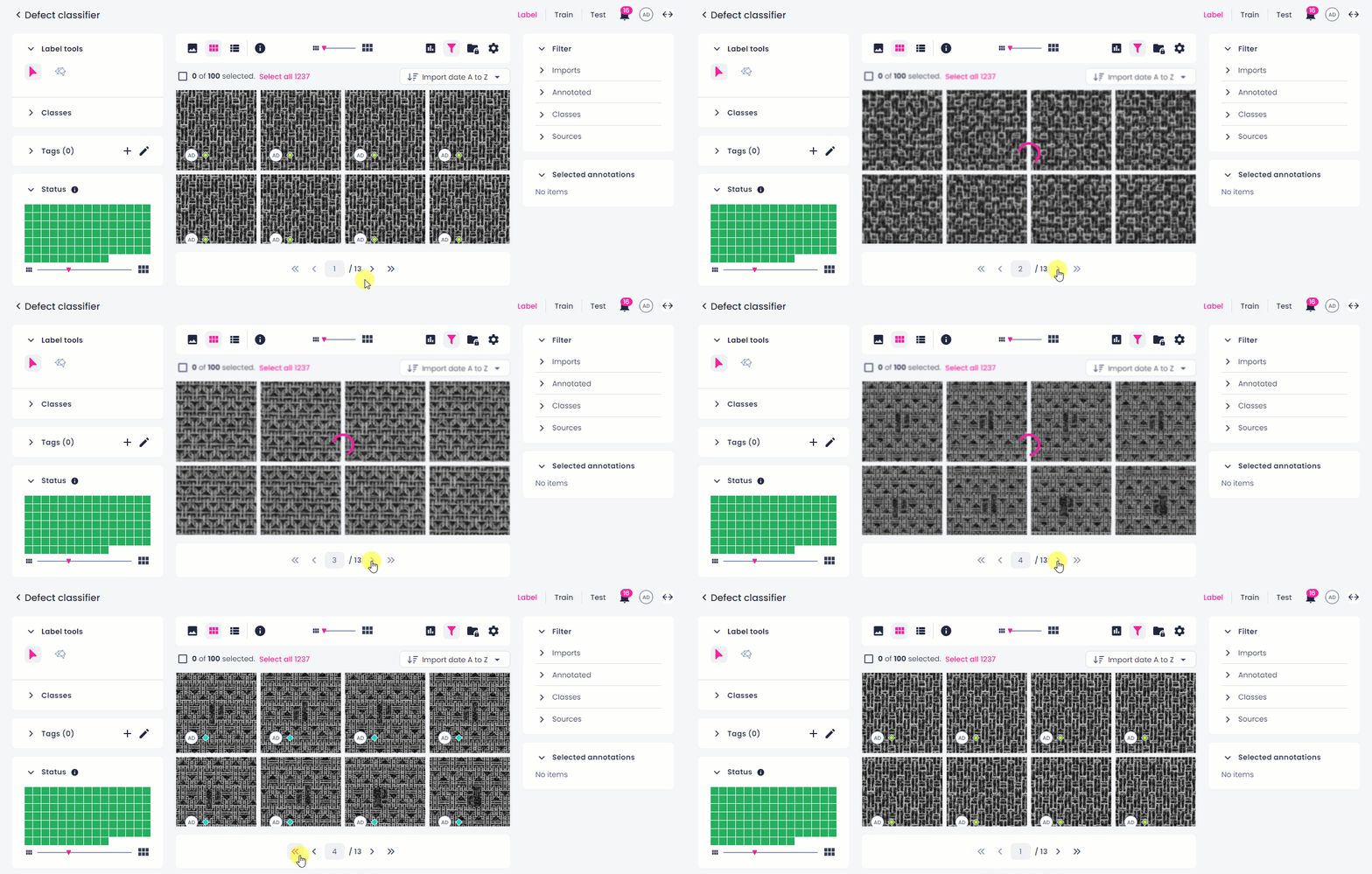
You can now view up to 100 samples per page in the label center, test center, and dataset details view. To navigate between pages, use the arrow buttons on the bottom toolbar or simply enter the page number.
-
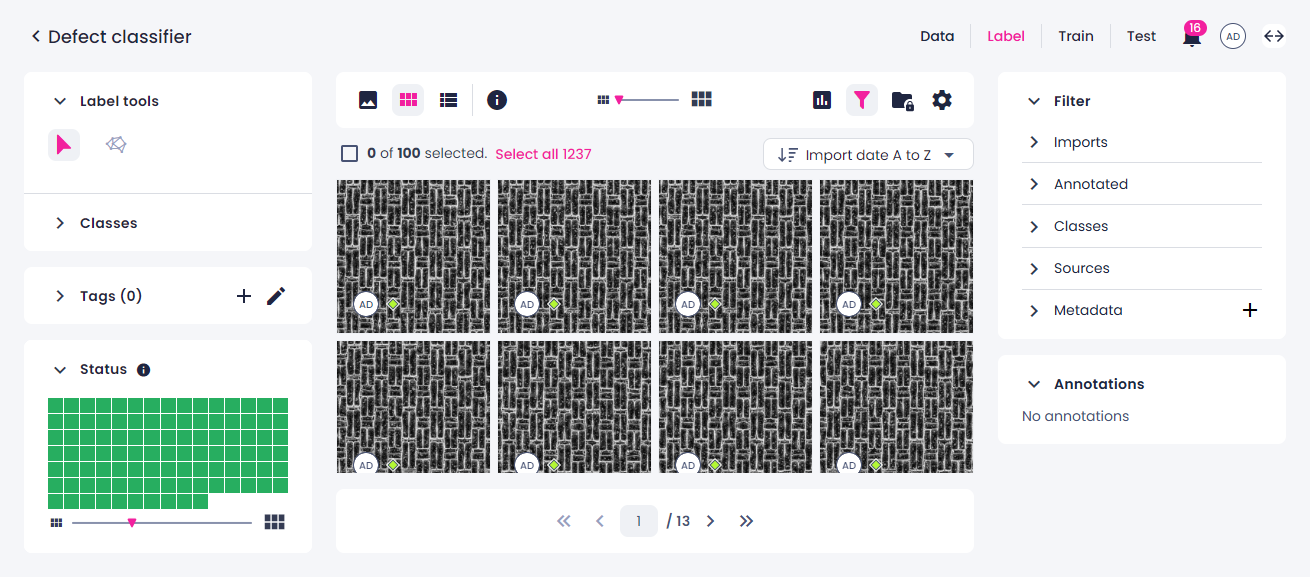
The Status panel now only shows 100 samples within the current page. In the single view, the Status panel has been removed.
-
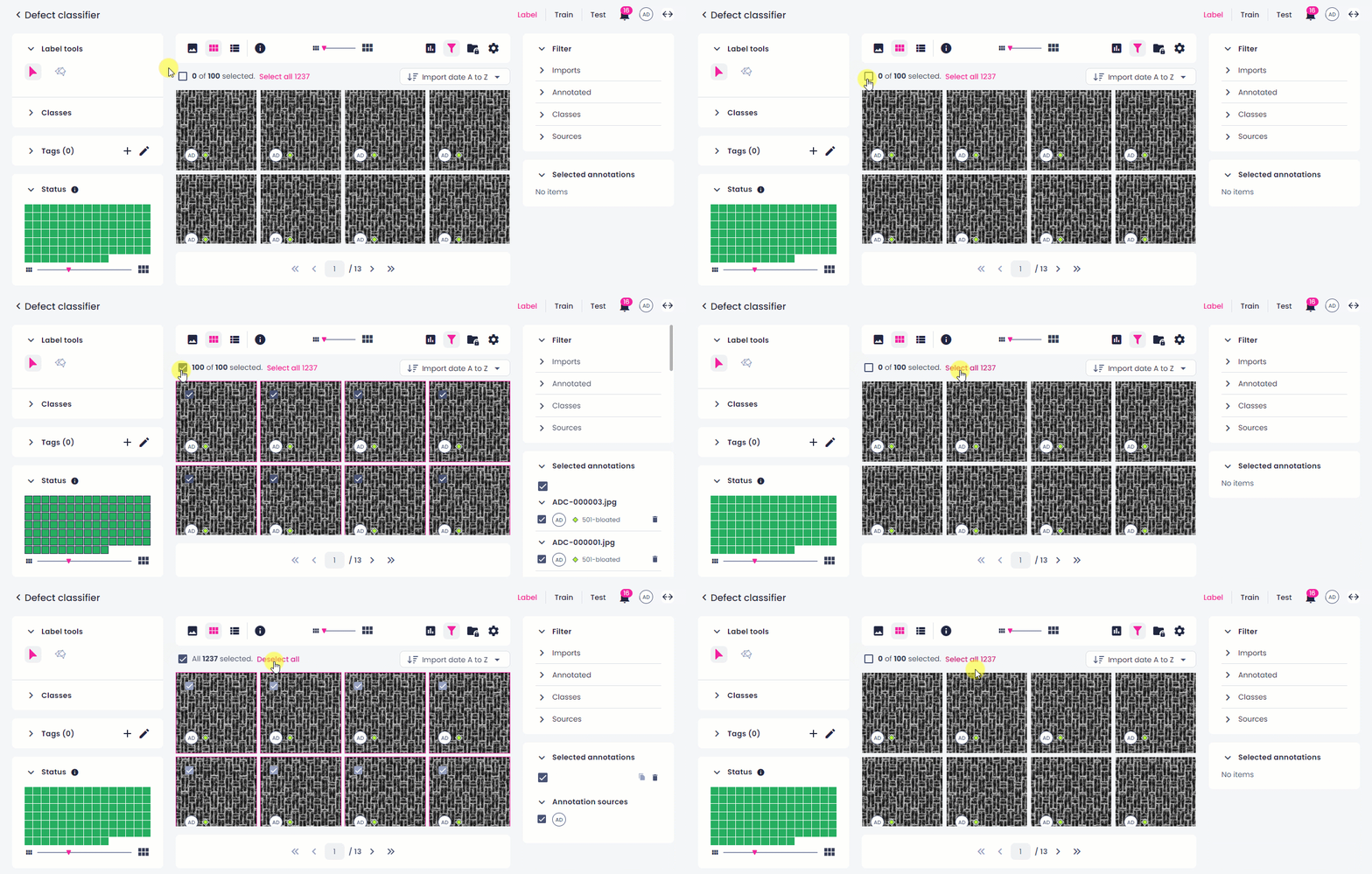
You can select all samples within the page in one click. In the label center, you can also select samples beyond the current page (all existing samples or all filtered samples).
Label center
-
You can now annotate samples faster by using two new keyboard shortcuts:
- Press X to annotate a sample as empty.
- Press Enter to submit your annotations.
-
When creating a dataset, you are now prompted to select samples first. Note that you won't be able to create a dataset in the single view of the label center.
- Multi-Label EfficientNet: When you relabel 100+ samples in bulk, you can replace the existing labels with the ones you have just added. However, there is no way to recover the labels that got replaced.
Notification center
-
You will now receive notifications for the following bulk operations in the label center:
- EfficientNet and Multi-Label EfficientNet: Assigning a class for more than 100 samples.
- Multi-Label EfficientNet, YOLOv5, and SOLOv2: Assigning an “empty annotation” to any number of samples.
- All project types: Copying or replacing your own annotations with annotations from another source, for any number of samples.
-
If your bulk operation is only partially successful, you will be notified of this.
Other improvements
- The Selected panel in the label and test center has been renamed to Selected annotations, and the number of the selected samples is no longer indicated. This change is purely cosmetic, and the underlying concept and functionality remain unchanged.
Bug fixes
Label center
- SOLOv2: Previously, in the thumbnails view, annotations were out of sync in the info mode under the sample thumbnails and in the Selected annotations panel on the right. This has been fixed.
- The correct error message now appears if both datasets used for training are deleted right after the training started.
- When an import is renamed, its new name is checked against the existing import and tag names. If the new name isn't unique, the unsaved name is now reset to the previous import name in the edit mode.
- After you annotate a sample as empty, the last used class now remains active. To proceed with labeling, you can also use keyboard shortcuts.
- To quickly find a model for predictive labeling, you can now use sorting.
- Multi-Label EfficientNet, SOLOv2, and YOLOv5: Deleting an annotation generated by the Prediction tool used to remove the credibility score for all other annotations generated by the Prediction tool for that sample. This issue is now fixed.
Training center
- Previously, after you selected a model for transfer learning, the datasets selected for training were overridden with the ones associated with that model. Now, the datasets to be used for training are independent of the model selected for transfer learning.
- If a project includes test predictions but no annotated data, it's no longer possible to start the training. However, if the project contains datasets, you can still start the training in the advanced setup mode.
Test center
- When you constantly improve your model, the datasets created with each training iteration will differ (for example, newer datasets may have more classes). Previously, when you tested a new model against old annotated data, the test failed due to "inconsistent" classes. These tests will no longer fail.
Other bug fixes
- Renaming a project with an ongoing import process used to restart the import. Now, you will need to wait for the import to finish before you can rename the project.
- When you edit project details, the Save button becomes active only after you make a change.
Known limitations
General
- The Robovision AI UI has been optimized for the browser size of 1920x1200.
- You will be logged out of the platform if your data import has been in the Uploading stage for more than an hour.
- If the storage is full, some functions may become unavailable, for example, saving annotation or training a model.
- When upgrading to a new version, new algorithm versions are installed, while preserving the existing ones. Existing projects will be updated to utilize the new algorithms.
Browser support
- The Robovision AI platform has been designed and validated for Google Chrome 85 and Mozilla Firefox 77 or later.
- In Google Chrome, training metrics and a final validation score might not be displayed if an ad blocker is used. To prevent this, mark the Robovision AI URL as trusted in the Google Chrome settings.
- In Google Chrome, the thumbnail view can load slowly if you have password managers like Lastpass activated. To prevent this, disable the extension or work in a guest profile window.
- When using Google Chrome, you might experience issues in the label center. As a quick fix, reset your browser settings.
Backward compatibility
- Backward compatibility with Robovision AI versions 3.x and 4.x is not foreseen. But upon request, Robovision will provide the needed assistance and conversion scripts.
Images
- Types supported: In general and with respect to the model testing functionality, the following image types are supported: JPEG, JPG, PNG, TIF, TIFF, BMP, GIF, including a 4th transparency channel. EXIF orientation metadata is supported.
- File names must contain only Latin (ASCII) characters. There are known rendering, packing, and backup/restore issues with file names/object keys that contain non-Latin characters.
Label center
- 2D labeler performance (in particular the Magnetic lasso and Grab cut tools) may degrade for high-resolution images.
-
You may face the following issues when using the Prediction tool in the label center:
- The prediction process gets hidden if you leave the label center. To view it again, click the Prediction tool.
- The predicted labels are not added to the samples as the prediction process is running.
- The Status section is not updated as the prediction process is running.
-
If you select more than 100 samples in the label center, the Selected annotations panel on the right includes no information about individual samples. As a result, you will not be able to copy or delete individual annotations.
- When copying or replacing annotations for multiple samples, the same source should be selected for each sample (for example, annotations from one particular member or one prediction job).
Pagination
- In all views except the single view, a maximum of 100 samples is displayed per page. If you select 1–100 samples within a page and then go to another page, these samples will no longer be selected.
- In the test center, you can't select samples beyond the current page (more than 100 samples). The same applies when you view samples in a dataset.
Charts
- Class distribution: If you applied any filters in the label or test center, the chart doesn't consider these filters and shows an incorrect number and percentage of samples labeled with a certain class. To view the actual number of samples, you'll need to click the needed bar.
-
Confusion matrix:
- Label center: If you apply a filter when the chart is already open, the filter isn't considered. To refresh the chart, click Clear in the upper-right corner of the Chart setup panel, and then set up the chart again.
- Label center: When you generate the chart for filtered data, some information in the chart might be inaccurate.
- Test center: The chart doesn't consider the filters you have applied—the number and percentage of samples labeled with a certain class is incorrect. To view the actual number of samples, you'll need to click the needed cell.
Training center
- During training setup, the Add model button is enabled even if there are no models available for transfer learning.
Inference
- Multi-Label EfficientNet: The Confidence threshold parameter is not displayed during the inference setup.
Robovision Edge
- You won't receive notifications about data upload from Robovision Edge.
- On the project details page, you can't stop the data upload from Robovision Edge.