Inference
Once you have a trained model, you can set up your first inference. Depending on your installation (cloud or on-premises), you can use one of the following inference types:
API inference
API inference is available on both cloud and on-premises installations and for all algorithms. With this method, you can send data to a model through an API endpoint and receive predictions in response. When an API inference is running, you can copy the endpoint URL to integrate it into your system for data transmission and prediction retrieval.
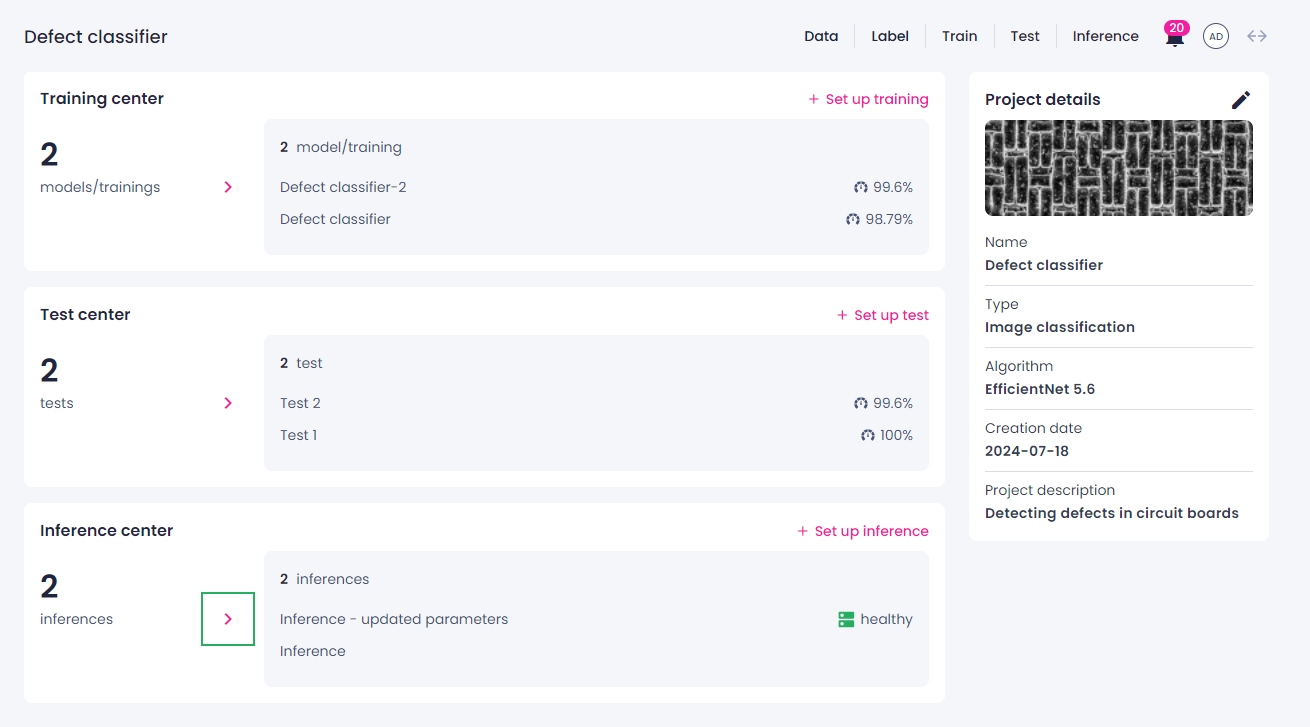
You can run multiple API inferences in one project at the same time, provided that Robovision AI has enough resources (GPU, CPU, and memory). The list of inferences is displayed on the project details page. To view and compare the inference details, click the right-arrow button ( ) in the Inference center section.
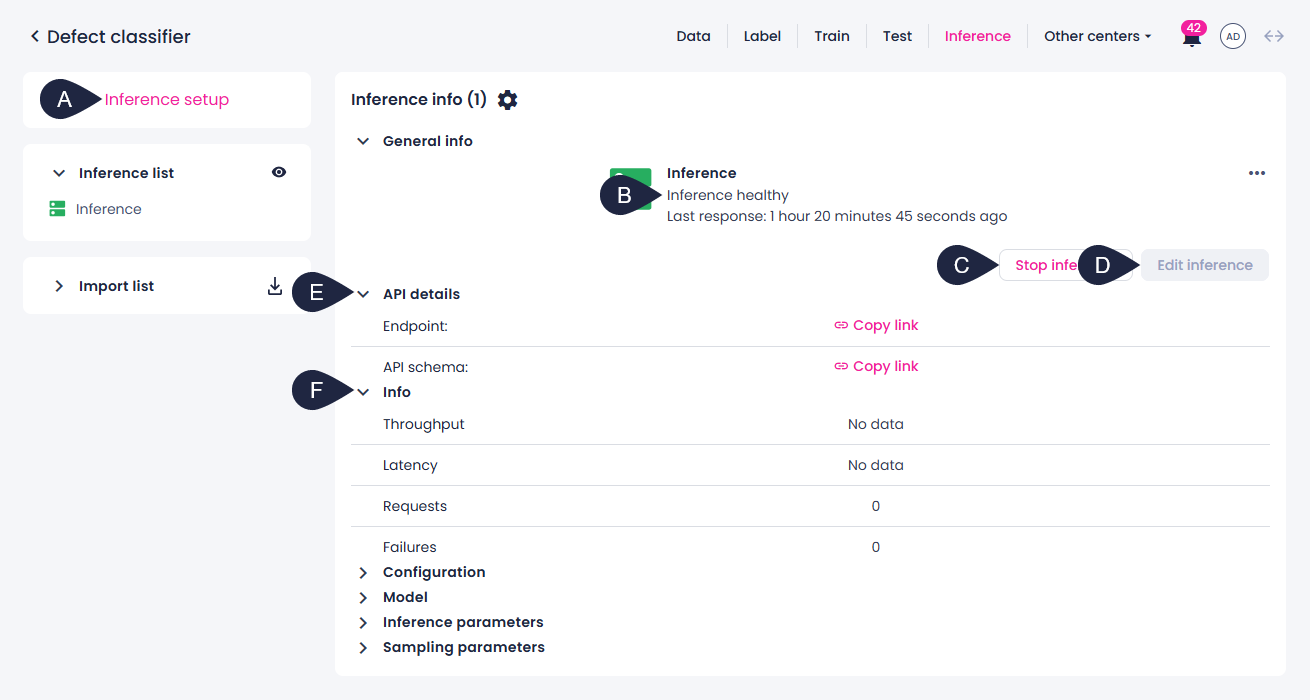
The inference details page opens. Here, you can do the following:
- Initiate a new API inference by clicking the Inference setup button in the upper-left corner (A).
- View the inference status (B).
- Start and stop an inference (C) or edit it (D).
- Copy inference API details (E).
- Configure custom metadata for captured samples.
- Compare the inference information and parameters (F).
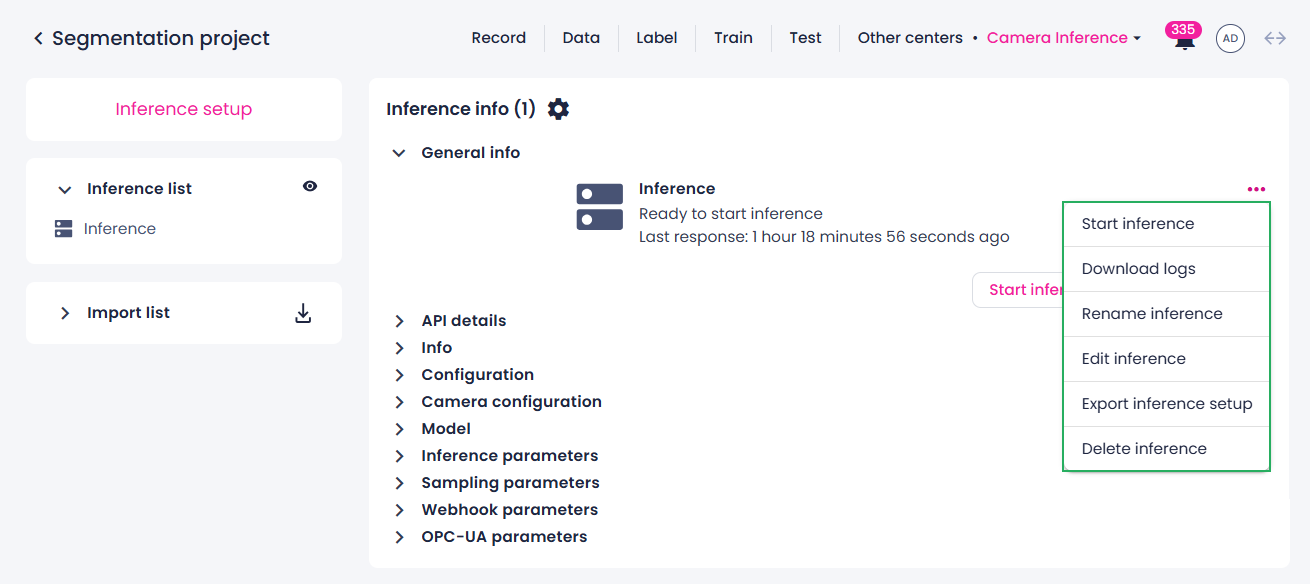
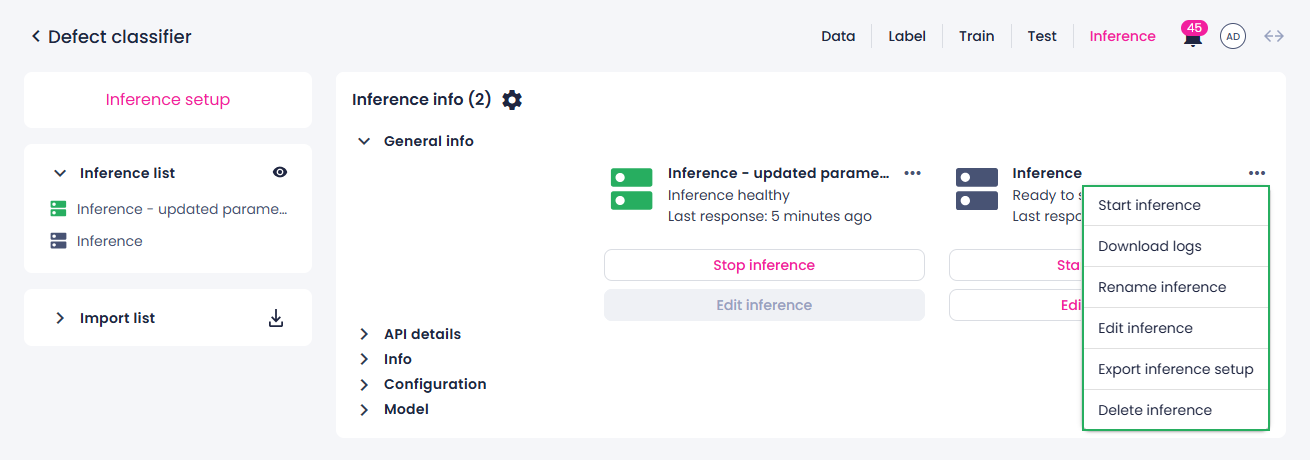
Also, next to each inference, you can click the ellipsis button and do the following:
- Start the inference.
-
If the inference setup was saved but never started, the Download logs button will not be available.
-
Rename the inference.
- Edit the inference.
-
The model used for the inference will also be exported.
Direct camera inference
With this approach, live camera data is processed in real time and is sent to a webhook URL that you specify during the inference setup. This URL is the address of the system or application that will receive and process the data. You can use a custom application or a third-party service to handle the incoming data. For more details, see Use webhooks with camera inference.
Camera inference is available only for:
- Installation type: On-premises
-
Project type:
- Image classification
- Multilabel image classification
- Object detection
- Instance segmentation
- Semantic segmentation
- Multiview instance segmentation
You can run only one camera inference at a time. To view the inference details, click the right-arrow button () in the Camera inference center section of the project details page.
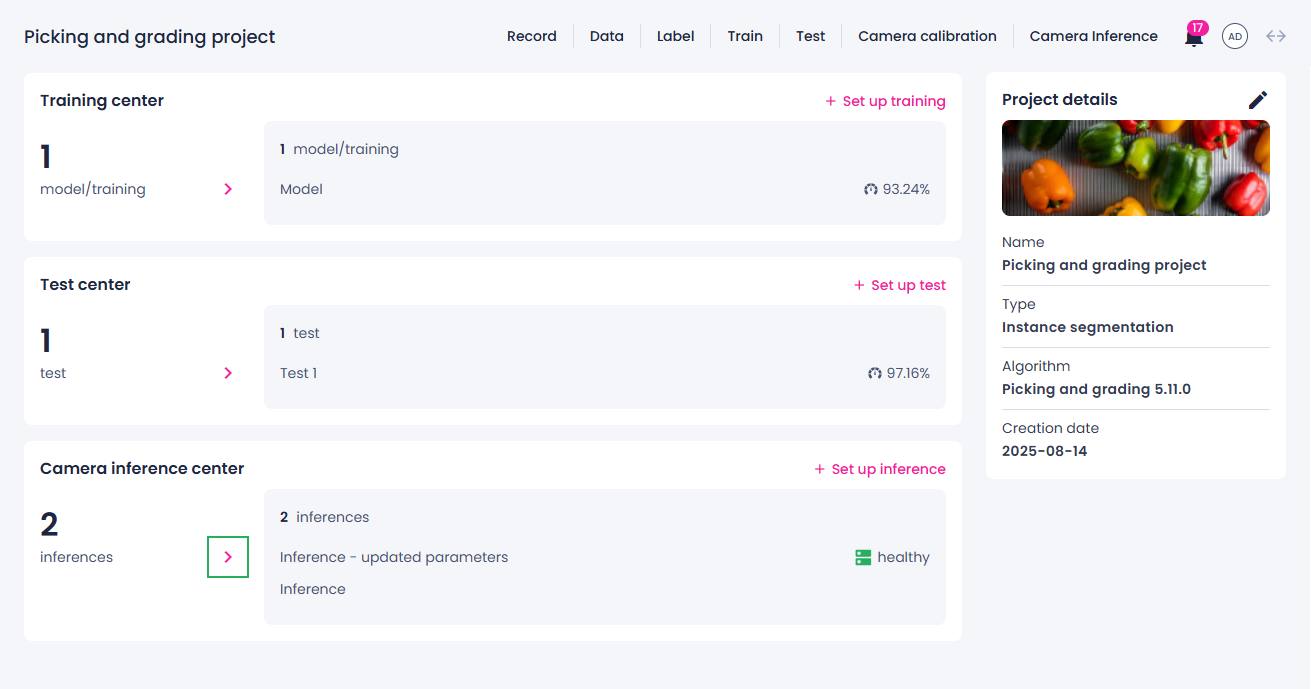
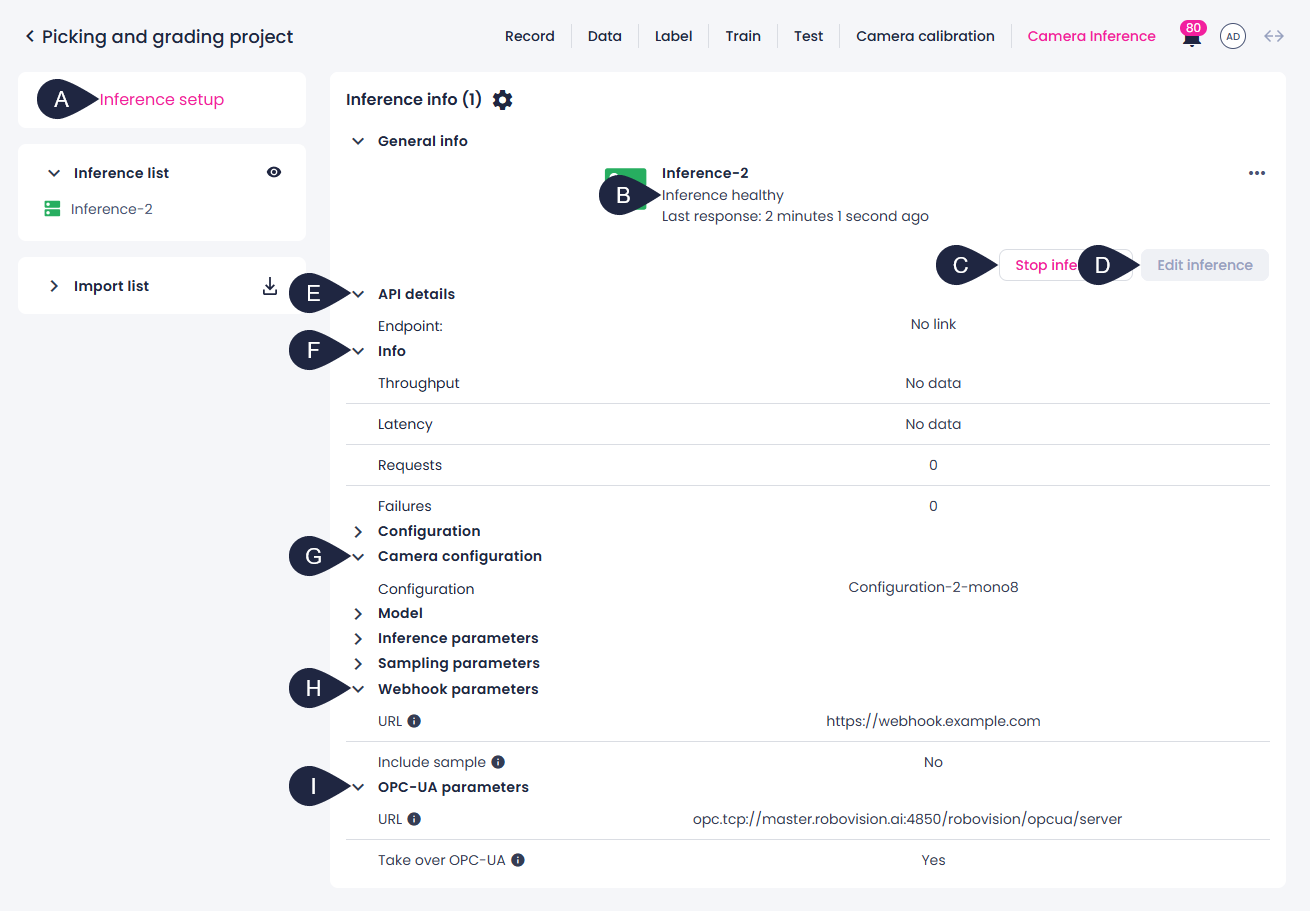
The inference details page opens. Here, you can do the following:
- Initiate a new camera inference by clicking the Inference setup button in the upper-left corner (A).
- View the inference status (B).
- Start and stop an inference (C) or edit it (D).
- Copy inference API details for testing purposes (E).
- Compare the inference information and parameters (F).
- View camera settings (G).
- View the Webhook URL to which data is sent (H).
- View the OPC-UA URL to which data is sent (I).
Also, next to each inference, you can click the ellipsis button and do the following:
-
Start the inference.
-
If the inference setup was saved but never started, the Download logs button will not be available.
-
Rename the inference.
- Edit the inference.
-
The model used for the inference will be exported, but the camera configuration won't.