Set up API inference
To use your model in production, set up an inference. It can be of one of the following types:
- Direct camera inference
- API inference (see the details below)
You can run multiple API inferences at the same time, provided that Robovision AI has enough resources (GPU, CPU, and memory).
To set up an API inference
- Go to the Projects module, and then click the name of the necessary project.
-
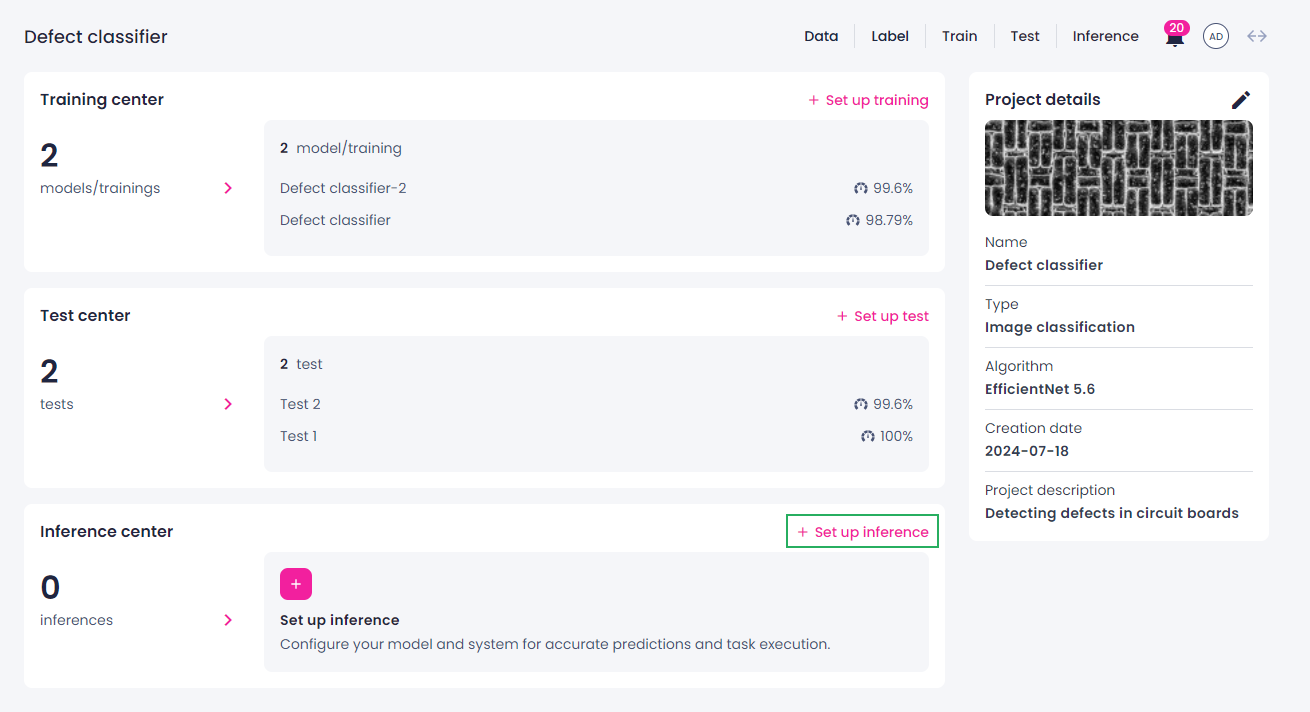
In the Inference center section, click Set up inference.
-
Specify the general information for your API inference:
- Change the inference name if necessary.
- Set the shutdown time for the inference.
- Classification projects: Select whether you want to use GPU.
- Expand the advanced parameters, and then, if necessary, increase the number of requested instances.
-
If there are several models trained in the projects, in the Model section, select the necessary model.
-
Update the inference parameters if available.
-
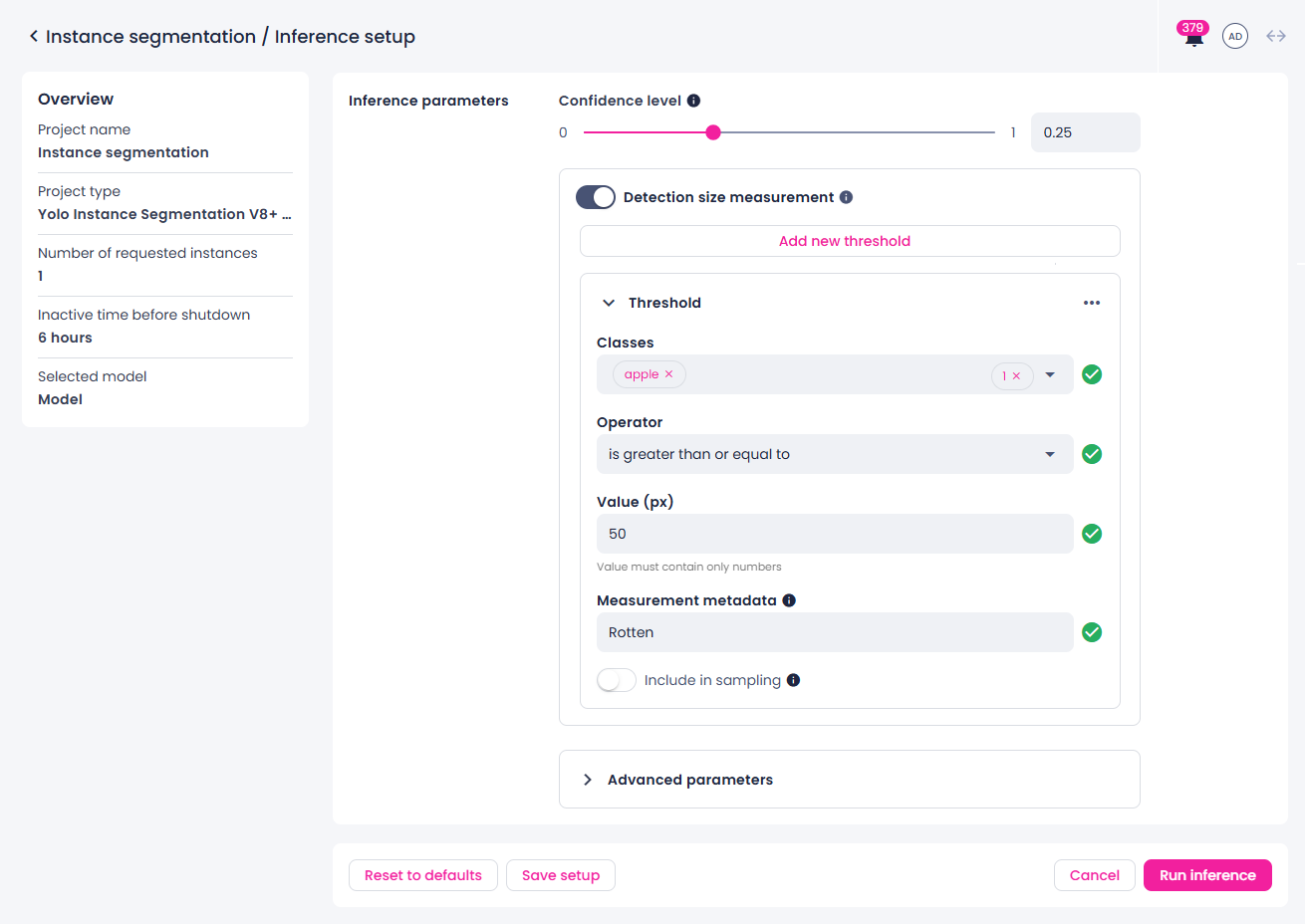
YOLOv8+ instance segmentation & PIDNet semantic segmentation: To measure detection area and classify objects by size, configure the following:
- Turn on the Detection size measurement toggle.
- Add one or more thresholds. Each threshold appears as an expandable section so you can open or close it while you work.
-
For each threshold, set the following:
-
Name — New thresholds use default names (Threshold, Threshold-2, and so on).
To rename a threshold:
- Click the edit button next to the threshold name, or select the ellipsis button for that threshold, and then select Edit.
- Enter a name, and then press Enter, or click outside the text box.
-
Classes — Select one or more classes from your project.
- Operator — Select is between, is greater than or equal to, or is less than or equal to.
- Value (px) — Enter a number greater than zero, using digits only. If the value isn't valid, you see a message that the value must contain only numbers.
- Second Value (px) — This field appears only when the operator is is between. Use the same rules as the first field, and set the second value higher than the first to define the range.
- Measurement metadata (optional) — Add metadata to describe the origin or context of the measurement.
- Include in sampling — Turn on to use this threshold to record data during inference. When this option is enabled, samples are recorded even if no other sampling conditions are enabled.
-
-
To remove a threshold, click the ellipsis button for that threshold, and then select Delete.
You can add several thresholds that use the same classes or the same value ranges if that fits your process.
-
If you want to record data during inference, select one of the following sampling options:
-
Random sampling – randomly record samples during inference based on the specified probability.
Random sampling during inference is a probabilistic process. For example, if a condition has a 50% probability and you record 100 samples, you should expect around 50 occurrences, but the actual number may vary due to randomness. This variation is normal and reflects the stochastic nature of sampling.
-
Confidence-based sampling – record data based on the model's prediction confidence score. If any prediction meets the selected confidence range, the sample with all predictions will be recorded.
- Class-based sampling – record data only when specific classes are predicted.
Note
Filters use OR logic—a sample is recorded if at least one of the specified conditions is met.
The data recorded during inference can be accessed from the label and data centers. Each inference run generates a separate data folder in the imports list, with the folder name based on the inference name and timestamp. You can use filters to view samples recorded during a specific inference run.
-
-
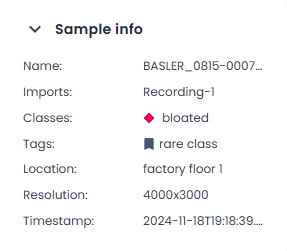
If necessary, specify metadata for the recorded data in the key and value format, for example, Location: factory floor 1. You can add as many metadata entries as needed, as well as delete the ones you don't need anymore.
The metadata is displayed in the label center as the sample info for each recorded sample.
Info
Metadata configured here serves as default values for all samples. You can also send metadata in individual API requests, which will override the values specified here. For more information, see Configure custom metadata for API inference.
In addition to the specified metadata, each recorded sample will have default metadata:
- Timestamp
-
Class thresholds: If the project already contains optimized thresholds per class, you can use one of the following options:
- Use the class thresholds generated with the most recent optimization (the default option).
- Use the class thresholds from one of the earlier optimizations in the project.
-
Set the class thresholds manually.
Tip
To adjust the class thresholds generated with a certain optimization:
-
In the Select class thresholds field, select the needed optimization.
The class thresholds that were generated with this optimization are displayed, but you can't edit them.
-
In the Select class thresholds field, select Manually edit thresholds.
- When the class thresholds become editable, adjust their values as needed.
-
-
Use no class thresholds.
All class thresholds are set to 0. In other words, no samples will be classified as "unknown". For more information about "unknowns", see Threshold optimization.
-
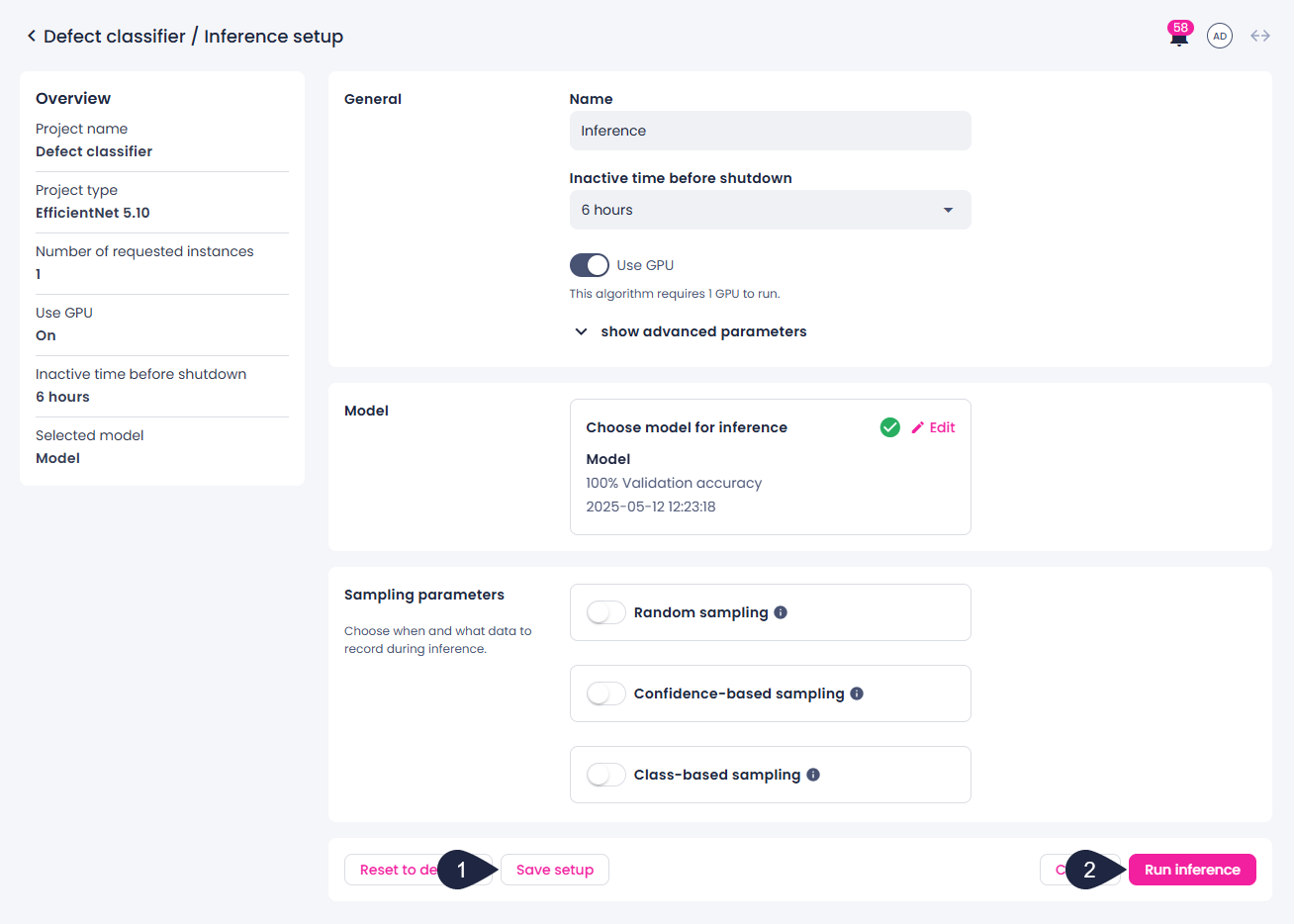
Save your changes by doing one of the following:
- To save the inference setup, click Save setup (1).
- To save the setup and start the inference, click Run inference (2).
Inference statuses
If you have started the inference, its status changes to one of the following:
-
In queue – The inference request has been submitted and is waiting to be scheduled.
-
Preparing – The deployment is being created and the algorithm is starting up.
-
Healthy – The inference is fully loaded and ready to receive requests.
-
Failed – The deployment could not start up and is trying to recover. Check the inference logs for error details.
To stop an inference
- To stop the inference, on the inference details page, click Stop inference.
The inference status changes to Stopping. Once the process is complete, you can restart, edit, or delete the inference if necessary.