Set up camera inference
To use your model in production, set up an inference. It can be of one of the following types:
- API inference
- Direct camera inference (see the details below)
You can run only one camera inference at a time. For this, you need an idle camera configuration that is not used for a recording session.
Note
Camera inference is available only for on-premises installations.
To set up a camera inference
- Go to the Projects module, and then click the name of the necessary project.
-
In the Camera inference center section, click Set up inference.
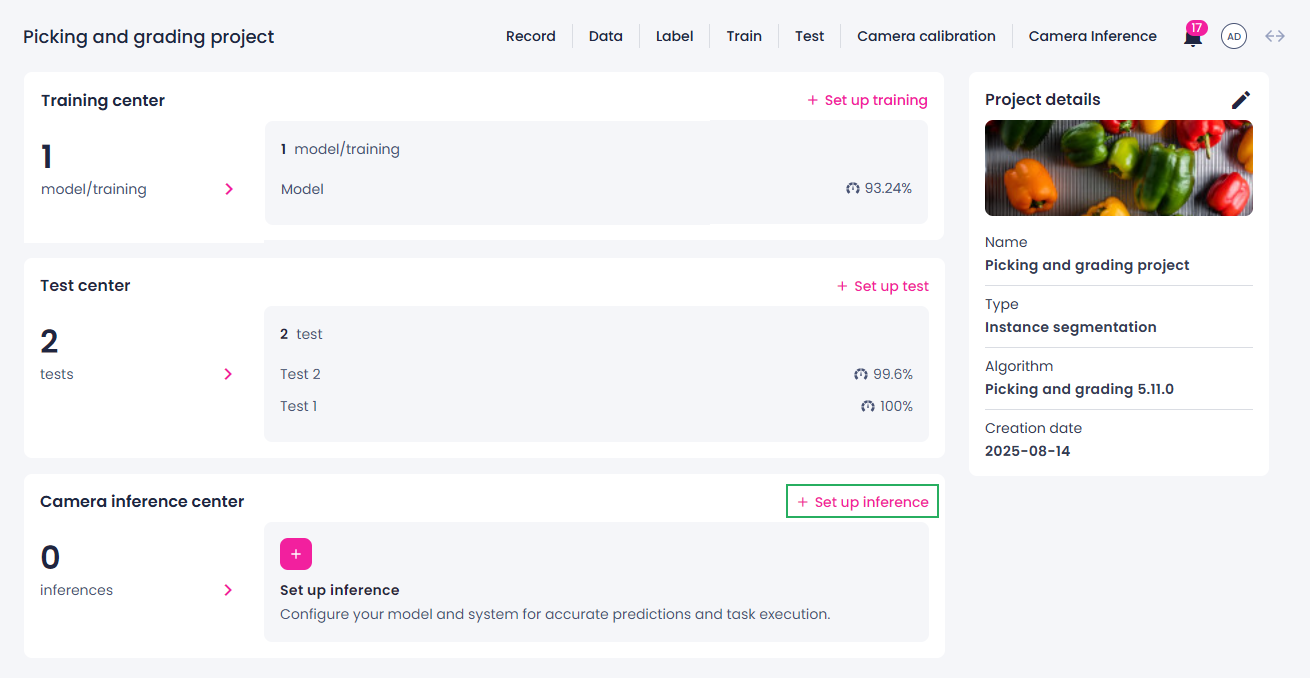
-
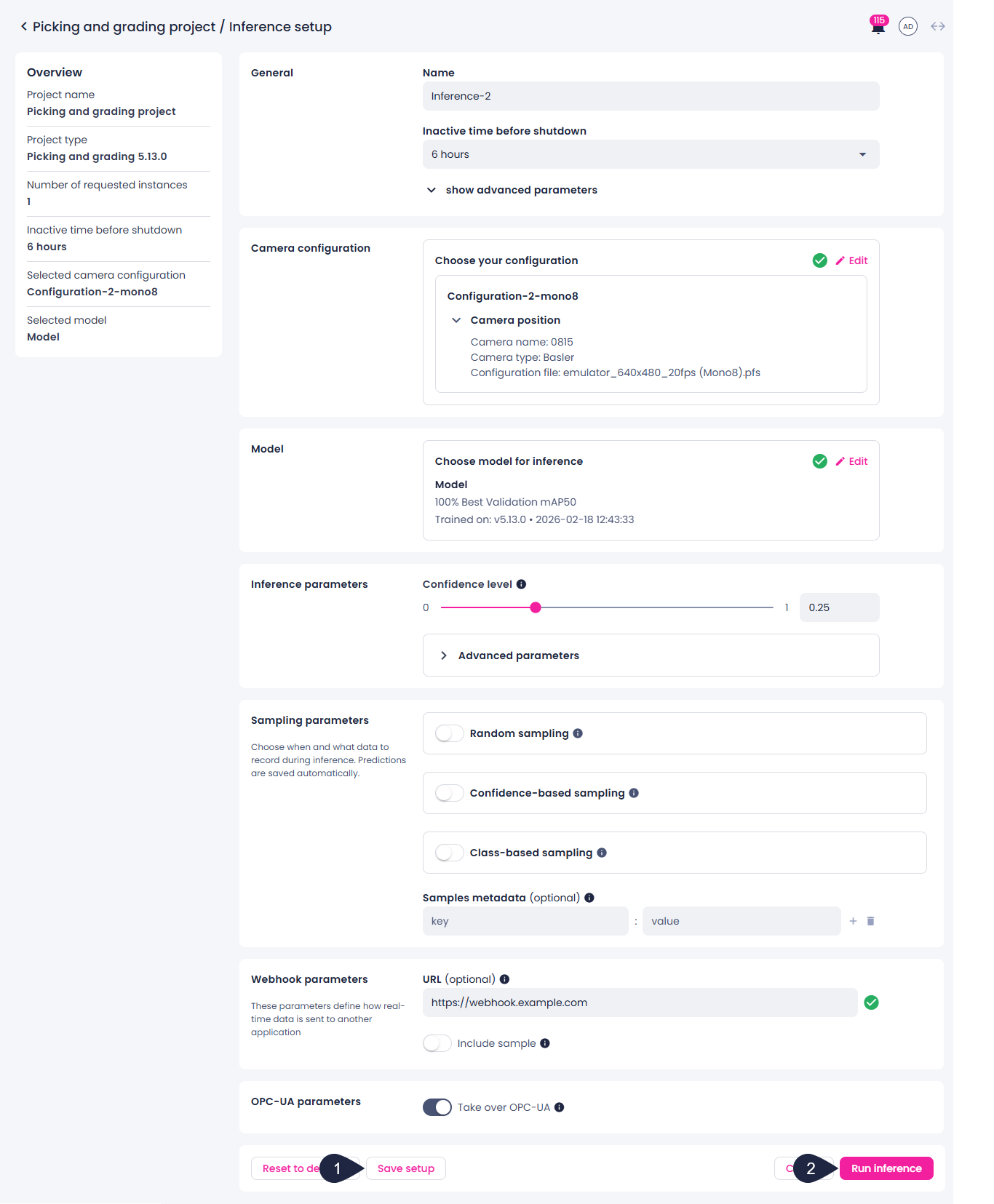
Specify the general information for your camera inference:
- Change the inference name if necessary.
- Set the shutdown time for the inference.
- Classification projects: Select whether you want to use GPU.
- Expand the advanced parameters, and then, if necessary, increase the number of requested instances.
-
Select a camera configuration.
We recommend verifying the configuration file. If it isn't suitable for inference, on the Camera management page, edit the camera configuration and upload the correct file before proceeding.
-
If there are several models trained in the project, in the Model section, select the necessary model.
- Update the inference parameters if available.
-
If you want to record data during inference, select one of the following sampling options:
-
Random sampling – randomly record samples during inference based on the specified probability.
Random sampling during inference is a probabilistic process. For example, if a condition has a 50% probability and you record 100 samples, you should expect around 50 occurrences, but the actual number may vary due to randomness. This variation is normal and reflects the stochastic nature of sampling.
-
Confidence-based sampling – record data based on the model's prediction confidence score. If any prediction meets the selected confidence range, the sample with all predictions will be recorded.
- Class-based sampling – record data only when specific classes are predicted.
Note
Filters use OR logic—a sample is recorded if at least one of the specified conditions is met.
The data recorded during inference can be accessed from the label and data centers. Each inference run generates a separate data folder in the imports list, with the folder name based on the inference name and timestamp. You can use filters to view samples recorded during a specific inference run.
-
-
If necessary, specify metadata for the recorded data in the key and value format, for example, Location: factory floor 1. You can add as many metadata entries as needed, as well as delete the ones you don't need anymore.
The metadata is displayed in the label center as the sample info for each recorded sample.
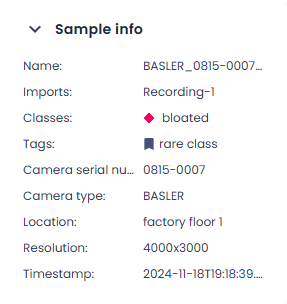
In addition to the specified metadata, each recorded sample will have default metadata:
- Camera serial number
- Camera type
- Resolution
- Timestamp
-
(Optional) Configure webhook parameters:
-
Enter the URL to which the real-time data will be sent.
A webhook URL is the address of the system or application that will receive the data. You can use any custom or third-party application to handle and process the data.
-
Select whether you want to also include images in the results sent.
-
-
Instance segmentation – Picking and grading Update the OPC-UA parameters if available.
-
Save your changes by doing one of the following:
- To save the inference setup, click Save setup (1).
- To save the setup and start the inference, click Run inference (2).
Tip
To test camera inference without an external trigger, select API signal trigger mode when creating a camera configuration, then use the testing API endpoint to manually trigger inference requests.
Inference statuses
If you have started the inference, its status changes to one of the following:
-
In queue – The inference request has been submitted and is waiting to be scheduled.
-
Preparing – The deployment is being created and the algorithm is starting up.
-
Healthy – The inference is fully loaded and ready to receive camera triggers.
-
Failed – The deployment could not start up and is trying to recover. Check the inference logs for error details.
To stop an inference
- To stop the inference, on the inference details page, click Stop inference.
The inference status changes to Stopping. Once the process is complete, you can restart, edit, or delete the inference if necessary.
What's next?
- Download the inference logs.
- If needed, export the inference setup.