Configure custom metadata for API inference
 Supported for: AI-ADC EfficientNet
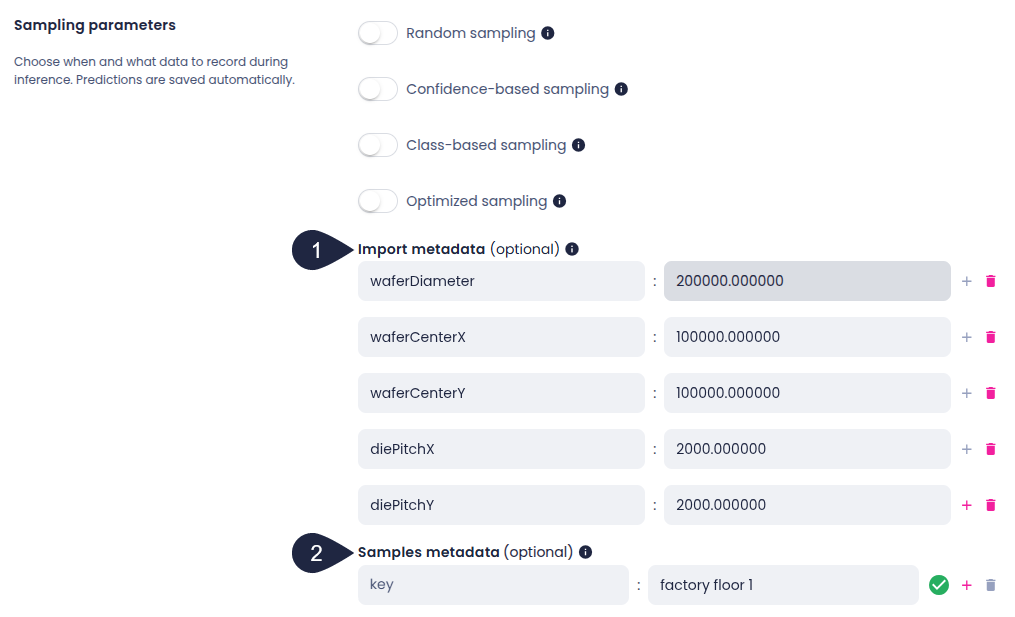
When setting up API inference for AI-ADC projects, you can configure custom metadata that attaches to samples captured during inference. This feature allows you to map incoming samples to internal tracking systems, such as project IDs, batch numbers, or production line identifiers.
The inference setup page provides two sections for configuring metadata:
- Import metadata: Configure wafer dimensions and global parameters that apply to all samples in the inference session. These values are essential for wafer map visualization.
-
Samples metadata: Configure custom key-value pairs that apply to individual samples. You can set these values in two ways:
- Via the inference setup UI: Values specified here serve as defaults for all samples.
- Via API requests: You can include values in individual inference API calls to provide sample-specific metadata.
When the same metadata key is present in both locations, the following priority rules apply:
- API request metadata has priority: If a metadata key is specified in both the inference setup and the API request, the system uses the value from the API request.
- Inference setup as default: If a metadata key is only specified in the inference setup, the system uses that value for all samples.
- API request only: If a metadata key is only specified in the API request, the system sets that value for that specific sample.
Example
If your inference setup contains:
- location: factory floor 1
- line_id: line_a
And your API request contains:
- line_id: line_b
- batch_id: 2024-001
The resulting sample metadata will be:
- location: factory floor 1 (from inference setup)
- line_id: line_b (API request overrides inference setup)
- batch_id: 2024-001 (from API request only)
Configure import metadata
Wafer dimensions are global parameters that define the physical characteristics of the wafer and are required for proper wafer map visualization. These values apply to all samples in the inference session. Configure these values in the Import metadata section of the inference setup page.
Import metadata define wafer dimensions:
- waferDiameter: Wafer diameter in micrometers (μm).
- waferCenterX: Wafer center X coordinate in micrometers (μm).
- waferCenterY: Wafer center Y coordinate in micrometers (μm).
- diePitchX: Die pitch X in micrometers (μm).
- diePitchY: Die pitch Y in micrometers (μm).
When importing data using the KRF format, these values are automatically extracted from the KRF file (SampleSize, SampleCenterLocation, and DiePitch fields). For API inference, you must configure these values manually in the Import metadata section.
Configure samples metadata
Per-sample metadata consists of custom key-value pairs that can vary between samples. This metadata can be configured in the Samples metadata section of the inference setup page or included directly in API requests.
System-generated sample metadata
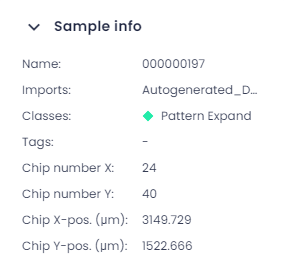
The system automatically generates the following metadata keys for each sample based on positioning data:
- filename: Image filename (for example, 000003.tiff).
- Chip number X: Die/chip index X coordinate, sourced from the KRF XINDEX column.
- Chip number Y: Die/chip index Y coordinate, sourced from the KRF YINDEX column.
- Chip X-pos. (μm): Relative X position within die in micrometers (μm), sourced from the KRF XREL column.
- Chip Y-pos. (μm): Relative Y position within die in micrometers (μm), sourced from the KRF YREL column.
- _norm_x: Normalized X coordinate (-1 to 1, relative to wafer center), calculated automatically.
- _norm_y: Normalized Y coordinate (-1 to 1, relative to wafer center), calculated automatically.
These keys are reserved for system use and cannot be overridden through custom metadata.
Custom sample metadata via UI
To configure default custom metadata for all samples in the inference setup UI:
- On the inference setup page, go to the Samples metadata section.
-
Add metadata key-value pairs. For example:
- Key: project_id, Value: PRJ-2024-001.
- Key: location, Value: factory floor 1.
-
Select Add to include additional metadata entries.
- To remove metadata entries, select the delete button next to the entry.
The system applies these metadata values to all samples captured during inference unless you override them with API request metadata.
Custom sample metadata via API
Metadata can be included in individual inference API requests to provide sample-specific values that override the defaults set in the inference setup UI.
For detailed information on how to include metadata in your API requests, see Custom metadata via inference API.
Required metadata for wafer map visualization
To display samples correctly in the wafer map chart, configure the following metadata:
-
Import metadata (wafer dimensions):
- waferDiameter: Wafer diameter.
- waferCenterX: Wafer center X coordinate.
- waferCenterY: Wafer center Y coordinate.
- diePitchX: Die pitch X.
- diePitchY: Die pitch Y.
-
Sample metadata (positioning data):
- Chip number X: Die/chip X index.
- Chip number Y: Die/chip Y index.
- Chip X-pos. (μm): Relative X position within die.
- Chip Y-pos. (μm): Relative Y position within die.
- _norm_x: Normalized X coordinate.
- _norm_y: Normalized Y coordinate.
Note
When importing data using the KRF format, these values are automatically populated. When sending samples via API inference, ensure your system provides equivalent data through Import metadata and sample positioning metadata.
View metadata
Metadata for captured samples can be viewed in multiple locations:
-
In the label center:
- Open a sample in single view.
- Select the info button (
 ) on the top toolbar.
The Sample info panel displays all metadata associated with the sample, including both system-generated and custom metadata.
-
In the data center:
- Go to the Data center section of your project.
- Select the import containing the inference-captured samples.
- Select a sample and view its details.
The sample information panel displays all custom and system metadata.