Import inference setup from connected platform
You can import an inference setup with its model from the connected Robovision AI platform. Note that for camera inferences the camera configuration won't be imported.
For other options to import inference setups, see Transfer inference setups.
Note
To successfully perform data import and export operations in Robovision AI, ensure the following:
- Use a Chromium-based browser (Google Chrome, Microsoft Edge, and more).
- The Robovision AI URL must contain https or be added to the list of secure websites (see Configure your browser).
To import an inference setup from the connected platform
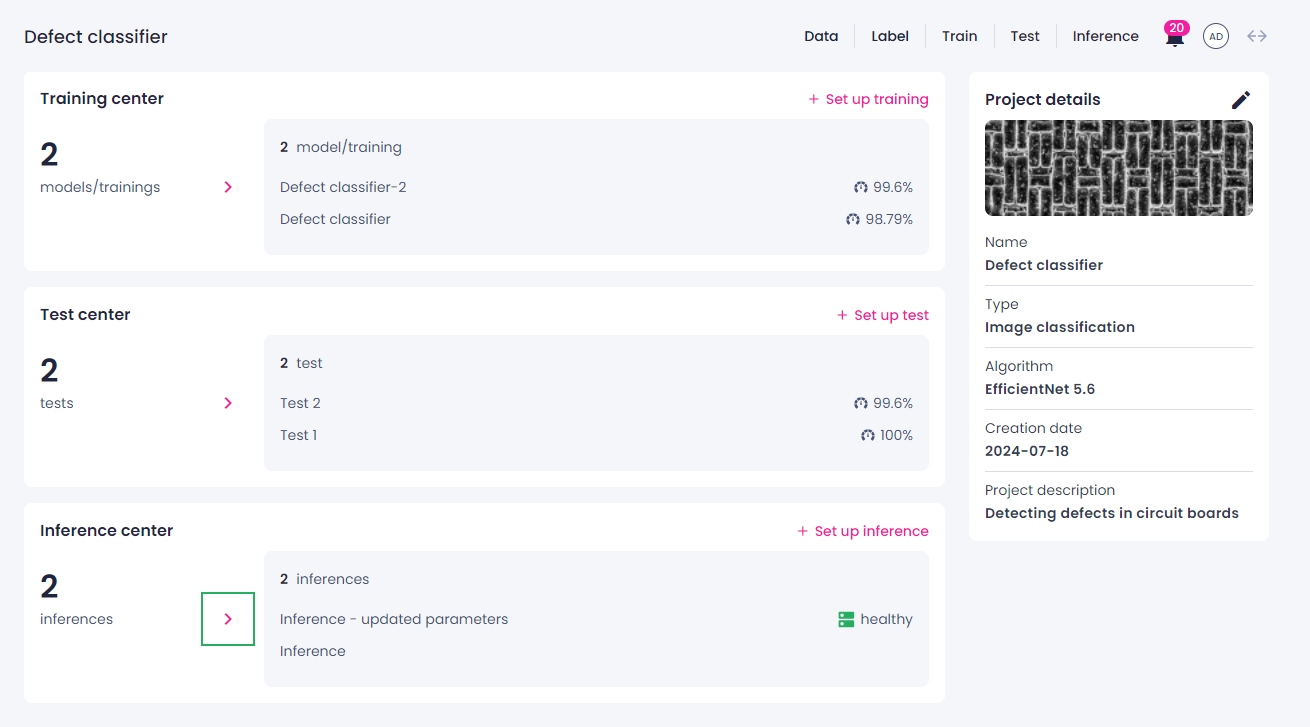
- Go to the Projects module, and then click the name of the necessary project.
-
Open all inferences by clicking the right-arrow button (
 ) in the needed section:
- Inference center section – for API inferences.
- Camera inference center section – for direct camera inferences.
-
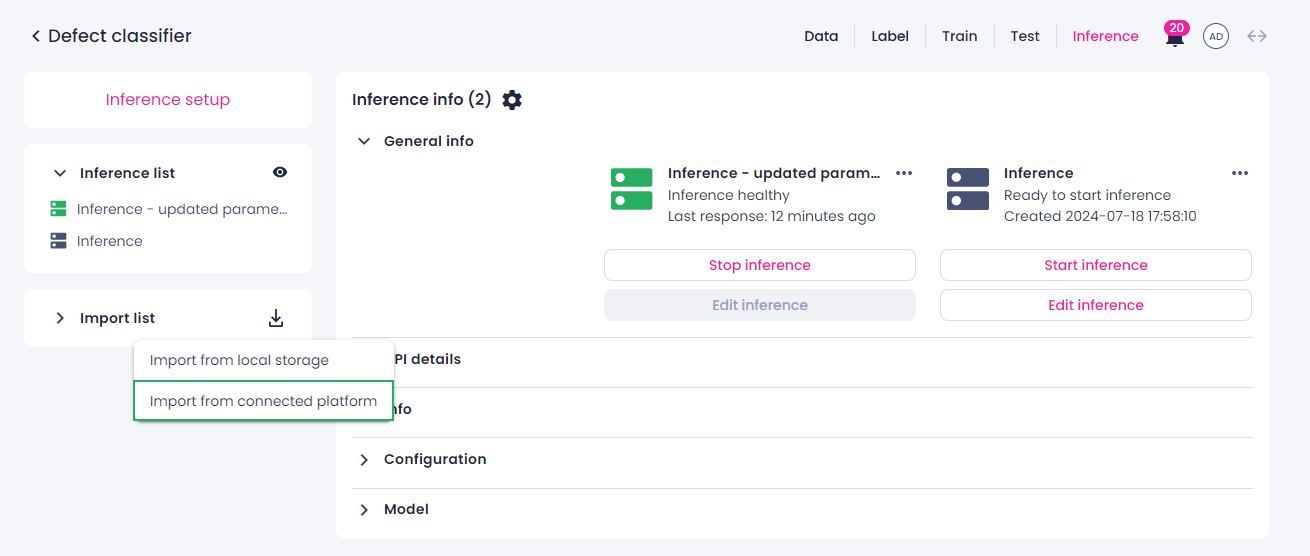
On the inference details page, in the Import list panel on the left, click the import button, and then select Import from connected platform.
If the button appears dimmed, you first need to set up a connection.
-
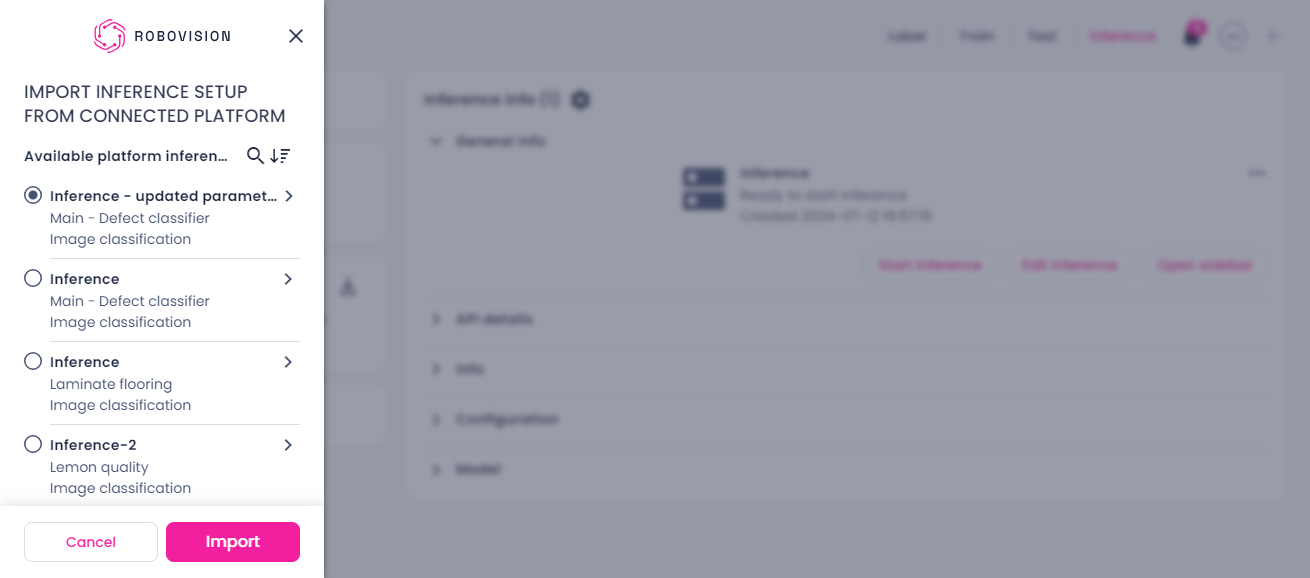
In the sidebar, select the needed inference setup.
The list includes inference setups only from compatible projects—the ones with the same algorithm version (for example, EfficientNet 5.6).
You can use search and sorting to find the necessary inference setup quickly.
-
To view the details of the inference setup, click the arrow button (
 ).
).Depending on the project type, the details may include:
- Model name
- Inference parameters
- Inference name
-
Click Import.
The import process begins. You can track the import progress in the Import list section on the inference details page. While the import is ongoing, you can continue using the platform.
-
To stop the import, click the stop button (
 ), and then, in the confirmation dialog, click Confirm.
Note
When you stop the import, the data that was already imported remains. In this case, you won't be able to use this inference. To start the inference, either edit it or import this inference again.
If you have connection issues during the ongoing import, it will resume automatically once the connection is restored.
Once the import is completed, you will receive a notification. The imported inference will be added to the Inference list on the left, and the inference details and parameters will be available in the Inference info section.
Note
Imported models aren't displayed on the training details page or on the Training center section of the project details page because trainings—not models—are shown there. However, you will be able to select imported models for transfer learning, to set up a test, and more.