Sample selection in different views
To assign classes and tags, manage labels, create datasets, and export data from the label center, you need to select samples first. In all views except the single view, you can select all samples or just specific ones.
Note
If you select samples and then go to another page, these samples will no longer be selected.
Select specific samples
In all views except the single view, a maximum of 100 samples is displayed per page. Depending on the view, you can use one of the following methods to select specific samples within a page.
In the thumbnails view
-
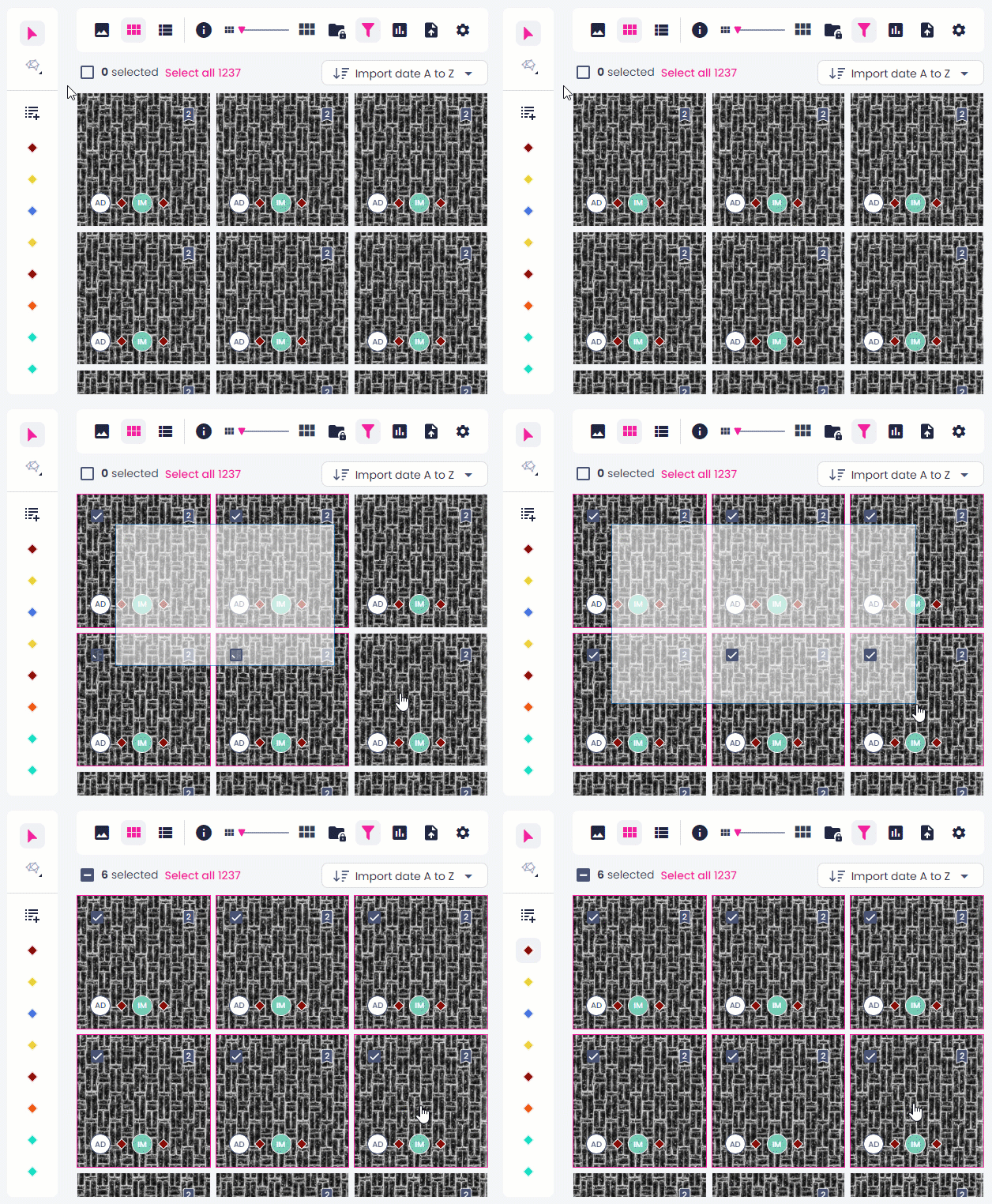
Press the left mouse button and drag over the samples that you want to select.
-
To select the samples that are next to each other:
- Press and hold the Shift key.
- Click the first and the last samples that you want to select.
-
To select the samples that are not next to each other:
- Press and hold the Ctrl/Cmd key.
- Click the samples that you want to select.
To clear the selection for specific samples:
- Press and hold the Ctrl/Cmd key.
- Click the samples that you want to remove from the selection.
In the list view
-
To select the samples that are next to each other:
- Press and hold the Shift key.
- Click the first and the last samples that you want to select.
-
To select the samples that are not next to each other:
- Select the checkboxes next to the samples that you want to select.
Select all samples
In all views except the single view, you can select all samples in one click:
-
To select all samples within a page:
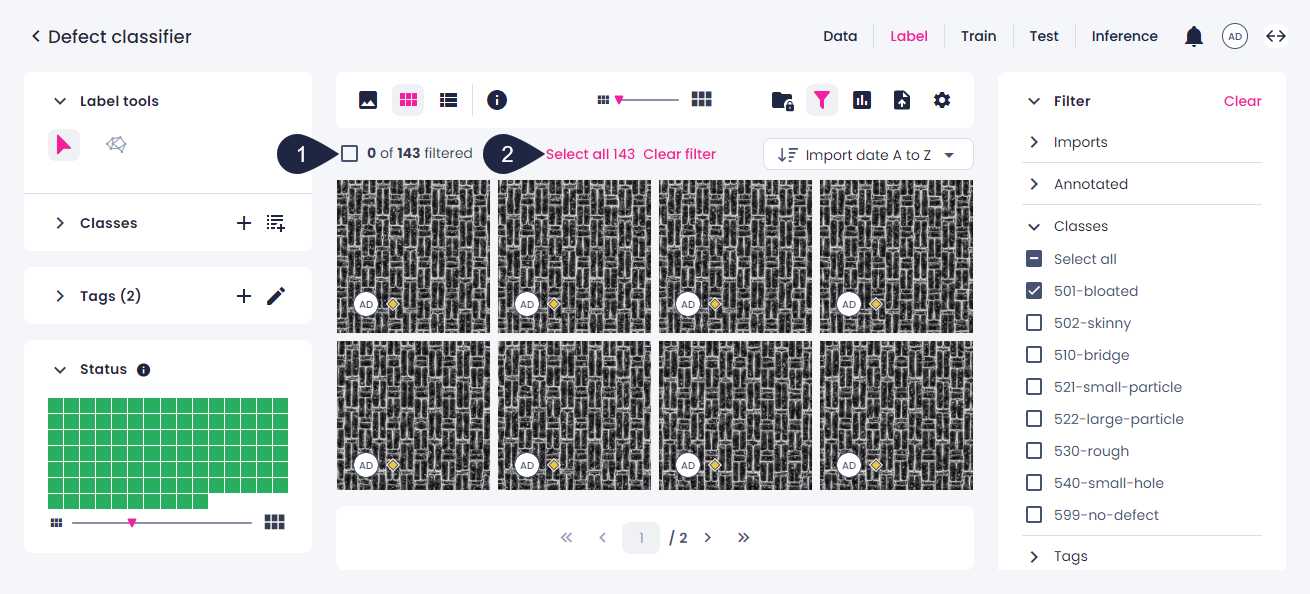
- Above the sample preview, select the checkbox (1).
-
To select samples beyond the current page (all samples or all filtered samples):
-
Above the sample preview, click Select all (2).
-