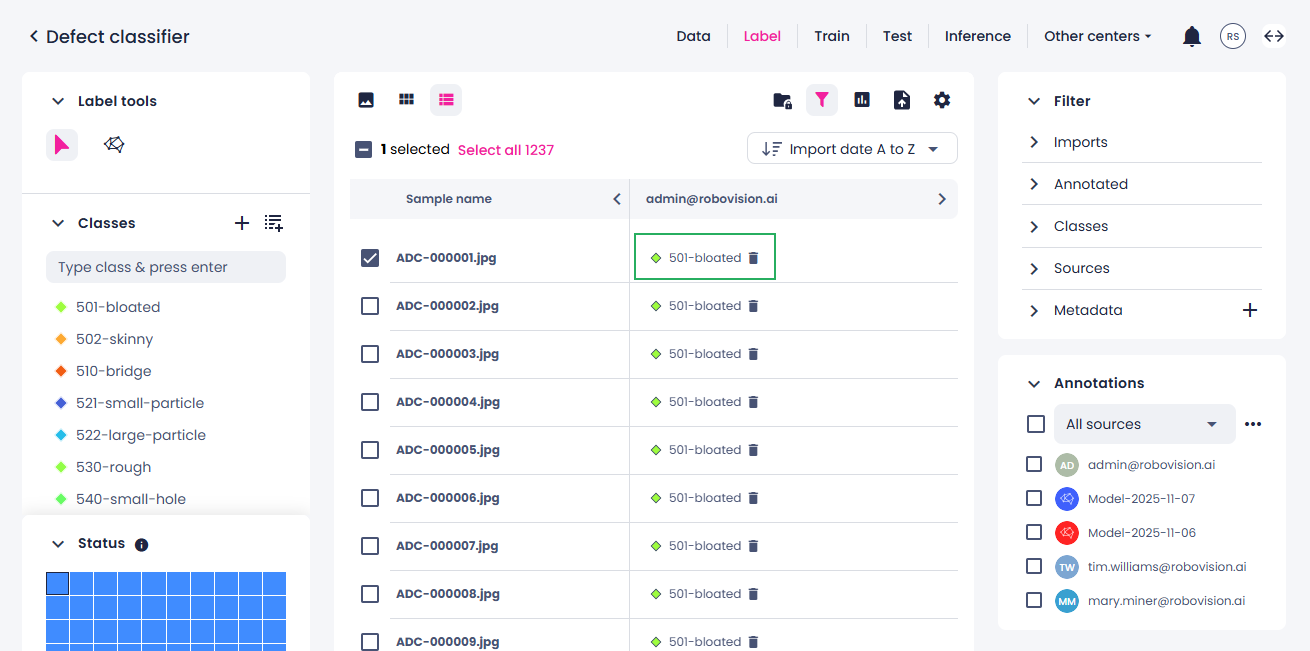
Delete annotations
You can delete labels if they are incorrect or inaccurate:
- Members with the Administrator or Data scientist role can delete any annotations.
- Members with the Labeler role can delete only their own annotations.
In the label center, all annotations assigned to a sample are displayed on the right, in the Annotations panel.
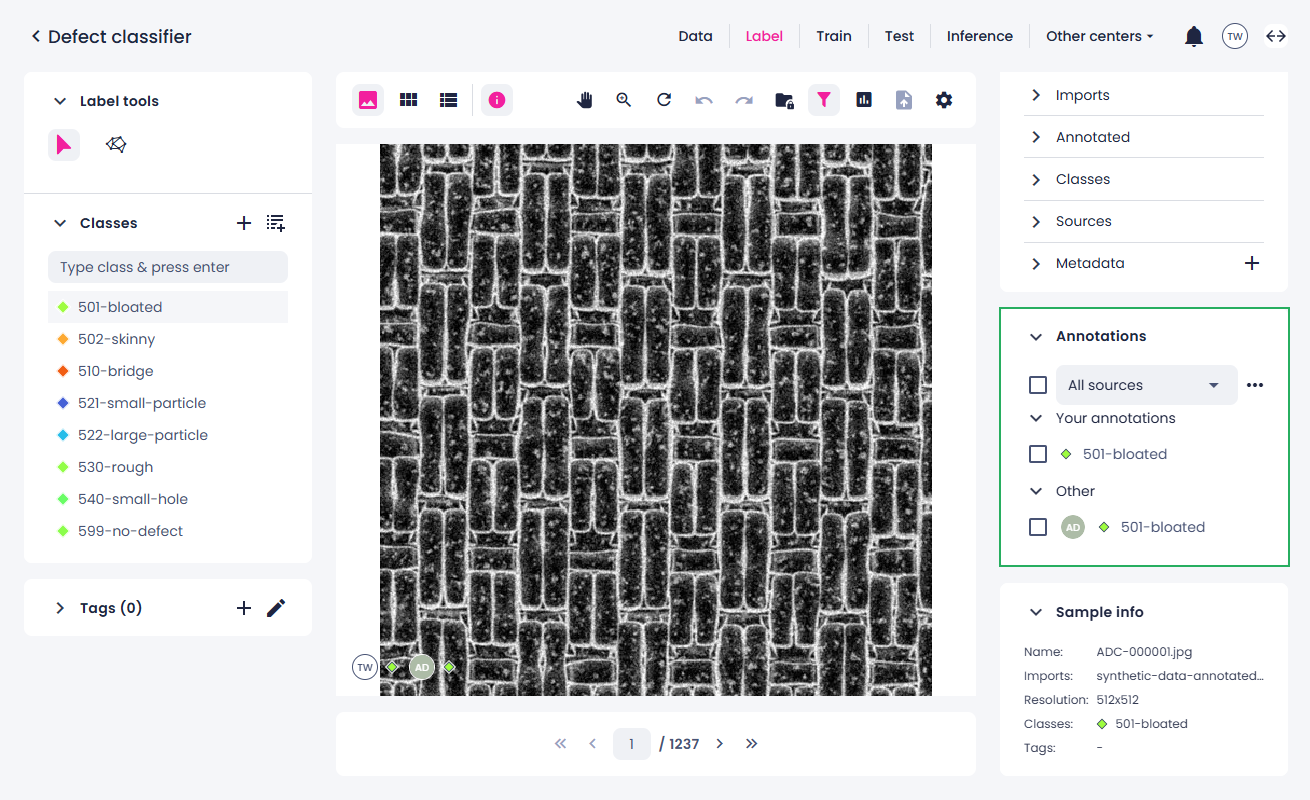
To delete labels
In the single view
Delete all annotations from a source
- In the label center, on the right, navigate to the Annotations panel.
-
To filter the annotations by source, select the necessary source group:
- Me – your annotations.
- Others – annotations by other members.
- Predictions – annotations generated by the Prediction tool.
- All sources – annotation from all sources.
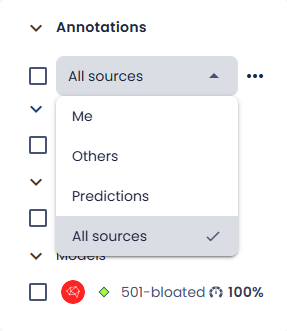
-
Select one or several annotation sources.
-
Click the ellipsis button, next to the sources filter, and then select Delete annotations.
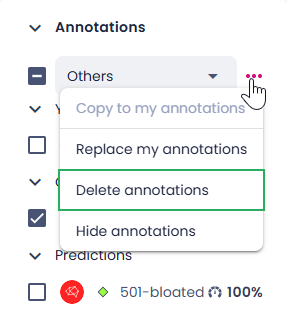
-
In the confirmation dialog, click Delete annotations.
Delete individual annotations
- In the label center, on the right, navigate to the Annotations panel.
- Expand the source of annotations you want to delete.
- Hover over the necessary annotation.
- Select the delete icon.
- In the confirmation dialog, click Delete annotations.
- Object detection and segmentation projects: In the lower-right corner, click Submit.
In the thumbnails and list views
-
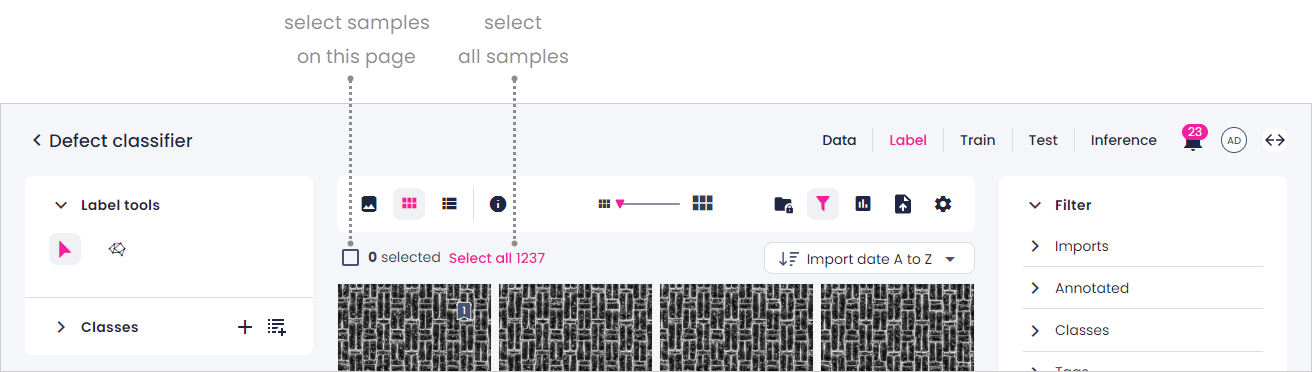
Select the necessary samples. You can select samples on a page or all samples to delete.
- To select all samples on the page, select the checkbox. The default number of samples per page is 100.
- To select all samples, click Select all.
-
In the label center, on the right, navigate to the Annotations panel.
-
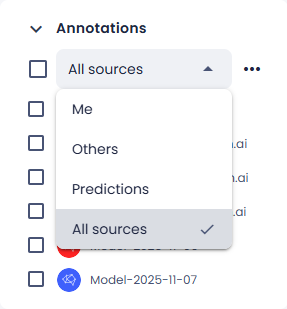
To filter the annotations by source, select the necessary source group:
- Me – your annotations.
- Others – annotations by other members.
- Predictions – annotations generated by the Prediction tool.
- All sources – annotation from all sources.
-
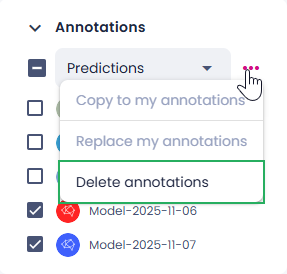
Select one or several annotation sources.
-
Click the ellipsis button, next to the sources filter, and then select Delete annotations.
-
In the confirmation dialog, click Confirm.
Alternatively, in the thumbnails view, you can delete the annotations by getting to the info mode ( ), and then clicking the delete button next to the annotations that you want to delete.
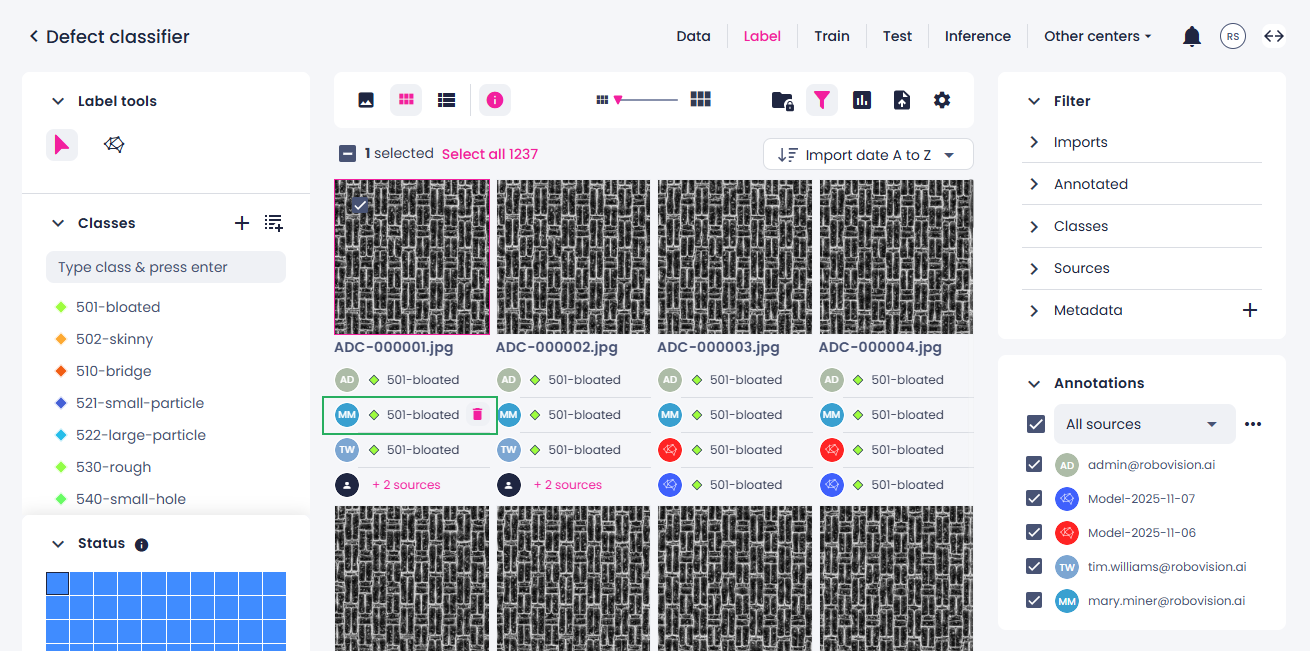
In the list view, you can click the delete button next to one of the selected annotations. If necessary, click the arrow buttons to navigate to the needed column.