Hide annotations
If your data includes annotations from multiple sources—such as your own, other labelers’, or those generated through predictive labeling—you can choose to show or hide individual annotations, or all annotations from specific sources.
In the label center, all annotations assigned to a sample are displayed on the right, in the Annotations panel.
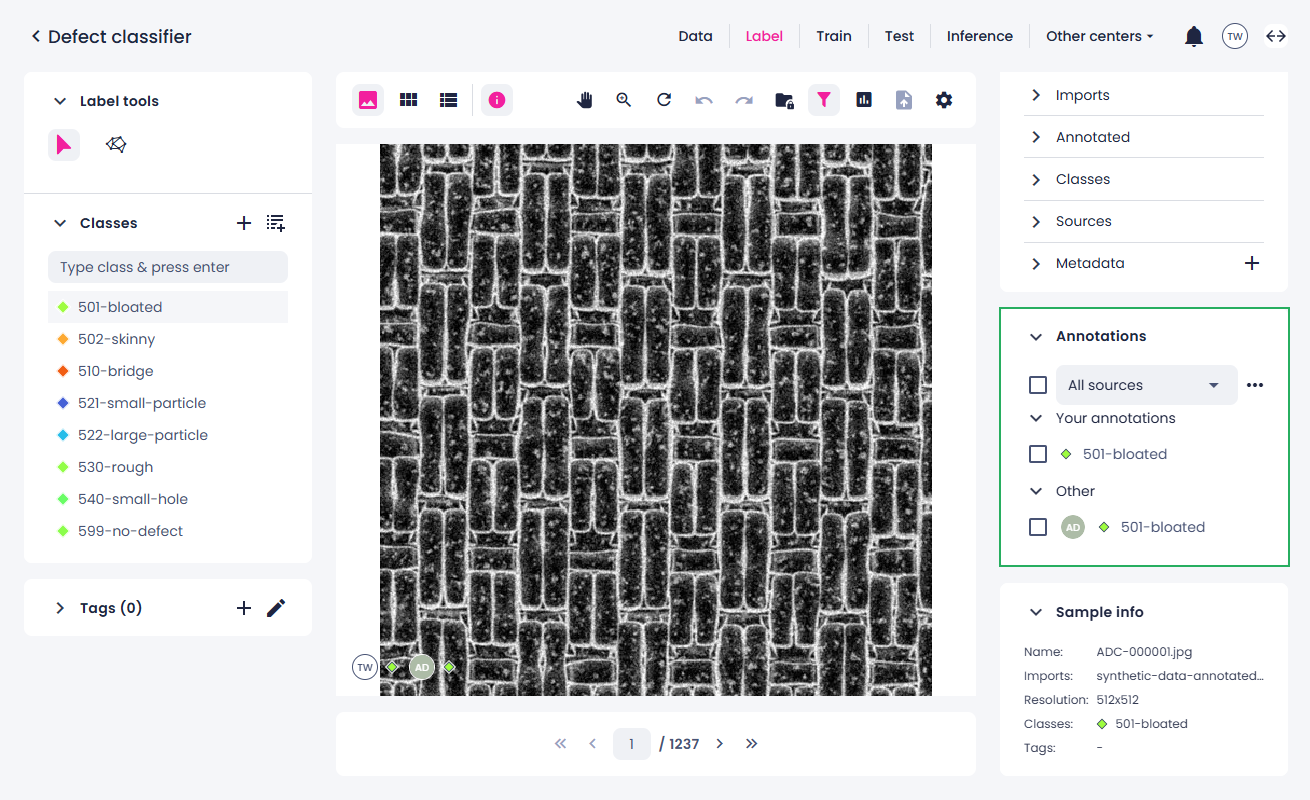
Hide annotations in the single view
Hide all annotations from a source
- In the label center, on the right, navigate to the Annotations panel.
-
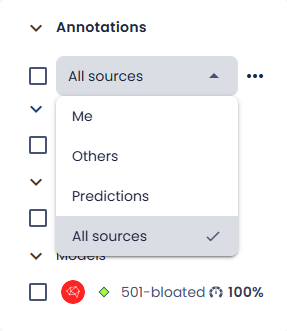
To filter the annotations by source, select the necessary source group:
- Me – your annotations.
- Others – annotations by other members.
- Predictions – annotations generated by the Prediction tool.
- All sources – annotation from all sources.
-
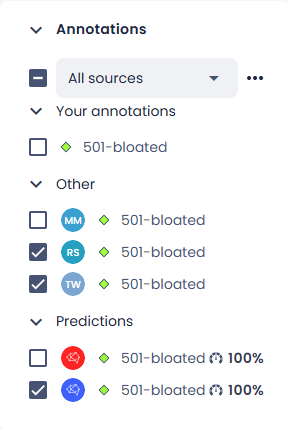
Select one or several annotations.
-
Click the ellipsis button, next to the sources filter, and then select Hide annotations.
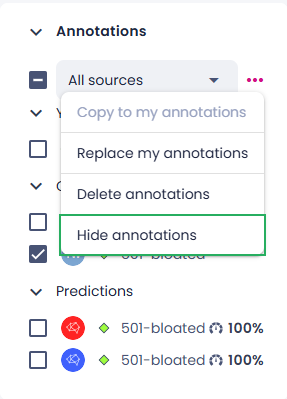
The hidden annotations appear dimmed in the list and are not displayed in the sample.
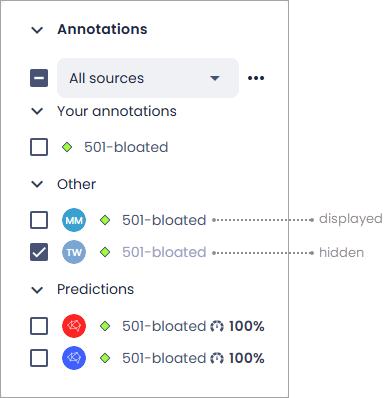
Hide or show individual annotations
You can hide or show individual annotations without affecting other annotations from the same source.
- In the label center, on the right, navigate the Annotations panel.
- Expand the source of annotations you want to hide or show.
- Hover over the annotation you want to hide or show.
-
Select the eye icon:
- To hide the annotation, select the eye icon.
- To show the hidden annotation, select the eye icon again.
The hidden annotations appear dimmed in the list and are not displayed in the sample.