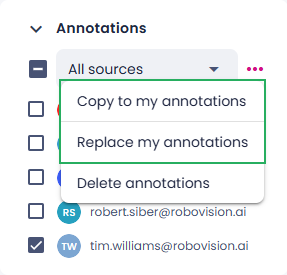
Copy or replace annotations
You can copy or replace your own annotations with annotations from another source—another member's annotations or annotations generated by the Prediction tool. Annotations from other sources are read-only, so you must copy them before you can modify them.
Annotation editability
You can fully edit your own annotations in the label and data centers. Annotations created by other members or generated by the Prediction tool are non-editable but you can copy them to make them editable, delete, or hide or show them. When you hover over or select a non-editable annotation, the cursor changes to a forbidden icon with a respective tooltip.
In the test center, all annotations are non-editable and can't be deleted or copied, but you can hide them. The same visual feedback (forbidden cursor icon) indicates this.
Permissions and roles
The ability to copy annotations depends on your role:
- Members with the Administrator or Data scientist role can copy annotations from any other source.
- Members with the Labeler role can copy only annotations generated by the Prediction tool.
Copy and replace rules
- Copy annotations: When you copy annotations, the annotations from the source are added to yours. Your existing annotations remain unchanged.
- Replace annotations: When you replace annotations, your current annotations are removed and replaced with the ones from the selected source.
- Confidence scores: If the annotations include confidence scores, the scores are copied with the annotations.
- Classification projects: In classification projects, you can't copy annotations if you already labeled the images. Use the replace functionality instead.
- Empty annotations: You can't copy empty annotations. Use the replace functionality instead.
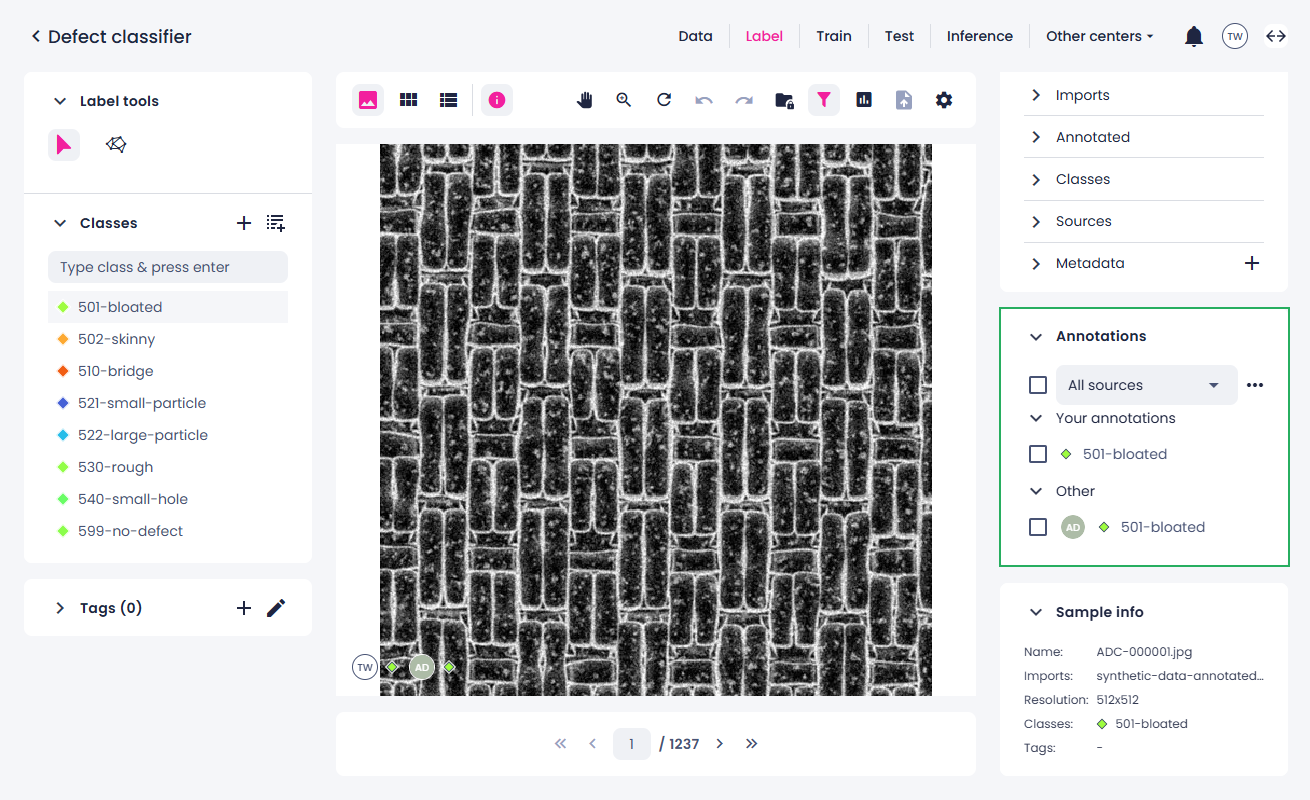
In the label center, all annotations assigned to a sample are displayed on the right, in the Annotations panel.
Limitations and availability
The availability of copy and replace options depends on the project type and your current selection.
-
All project types
-
If no annotations or sources are selected, copy and replace options are unavailable. Select at least one annotation source.
-
If your own annotations or sources are selected, select annotations from a different source.
- To copy an empty annotation, use Replace my annotations.
- If multiple sources are selected, copy and replace options are unavailable. Select a single source.
-
-
Multiview center picking and grading project
- In the single view, copy and replace options are available only when all views are selected. You can't copy or replace annotations for individual views.
-
Image classification
- If you already have annotations and want to copy annotations from another source, use Replace my annotations.
Copy or replace annotations
In the single view
- In the label center, on the right, go to the Annotations panel.
-
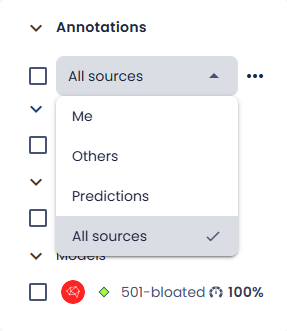
To filter annotations by source, select the source group:
- Me – your annotations.
- Others – annotations by other members.
- Predictions – annotations generated by the Prediction tool.
- All sources – annotations from all sources.
-
Select one annotation source.
-
Select the ellipsis button next to the sources filter, and then select one of the following options:
- Copy to my annotations – Copies annotations from another source and adds them to yours.
- Replace my annotations – Replaces your annotations with annotations from another source.
In the thumbnails and list views
-
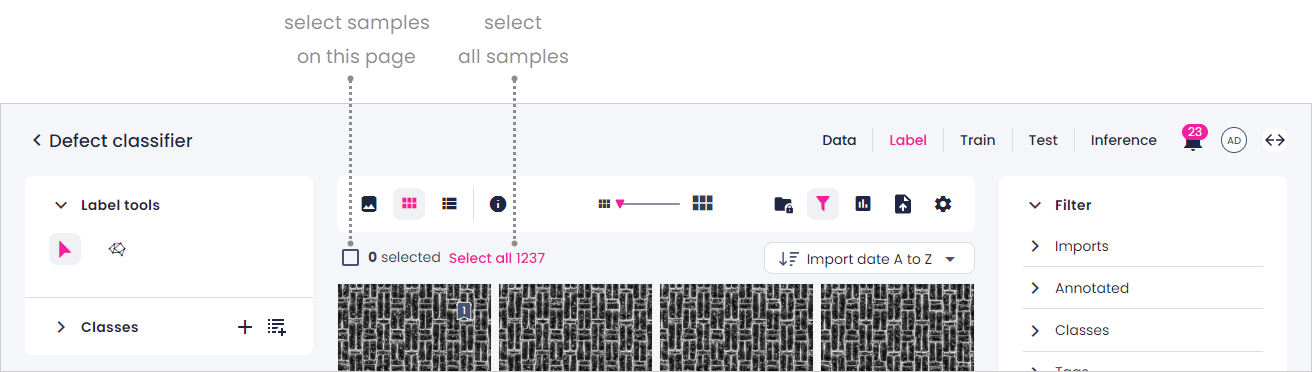
Select the samples. You can select samples on a page or all samples.
- To select all samples on the page, select the checkbox. The default number of samples per page is 100.
- To select all samples, select Select all.
-
In the label center, on the right, go to the Annotations panel.
-
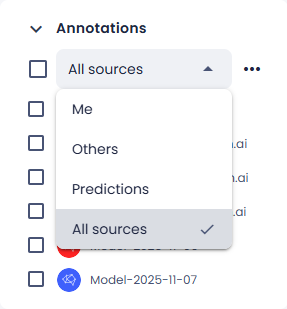
To filter annotations by source, select the source group:
- Me – your annotations.
- Others – annotations by other members.
- Predictions – annotations generated by the Prediction tool.
- All sources – annotations from all sources.
-
Select one annotation source.
Note
Copy annotations from one source at a time in bulk. Select the same source for each sample—for example, annotations from one team member or one prediction job.
-
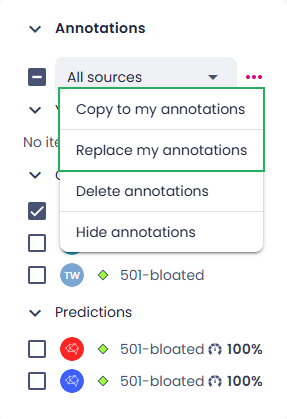
Select the ellipsis button next to the sources filter, and then select one of the following options:
- Copy to my annotations – Adds annotations from another source to yours.
- Replace my annotations – Replaces your annotations with annotations from another source.