Smart mask tool
Overview
Note
The Smart mask tool is available for:
- Object detection projects – creating bounding boxes (such as YOLOv8+ object detection).
- Segmentation projects – creating masks (such as PIDNet semantic segmentation, YOLOv8+ instance segmentation).
The Smart mask tool enables you to perform one-click segmentation. Powered by the SAM (Segment Anything Model), it automatically refines and generates highly precise object boundaries. The model can accurately predict object contours even in complex or noisy environments. This greatly reduces the time required to perform segmentation, especially for objects with repetitive or simple shapes.
With the Smart mask tool analysis, you can generate potential masks for a single image or for multiple (filtered or selected) images. These potential masks are not automatically saved, and you can adjust the class or the boundaries of each mask.
Analysis results can be removed when they are no longer needed to free up disk space and maintain efficient project organization. Analysis results are tied to samples and not specific to any annotations on those samples. Thus, when an analysis result of a sample is deleted, it is removed from all projects where the sample appears. This means that if the same sample exists in two projects, deleting its analysis result in one project will also remove it from the other project.
How to use
When working with the Smart mask tool, it is advisable to follow a structured approach to ensure efficient usage and avoid unnecessary data retention.
| | | |
| Step 1. Analyze samples with Segment Anything Model | Step 2. Label with Smart mask tool | Step 3. Clear the analysis results to free up storage |
Step 1. Analyze samples with Segment Anything Model
- In the Projects module, click the necessary project.
-
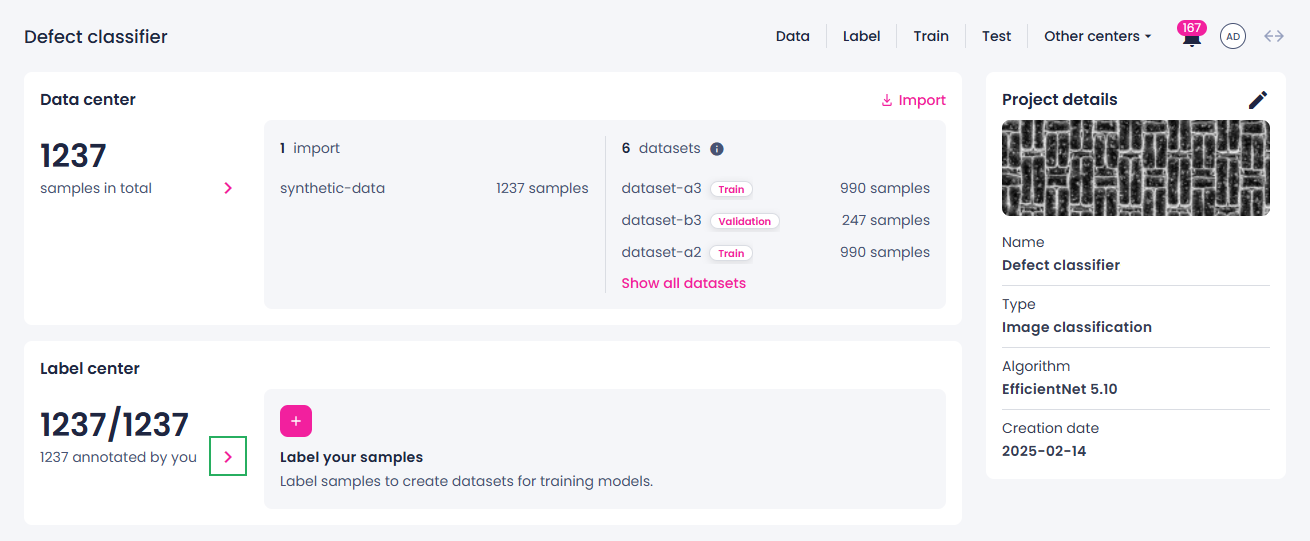
In the Label center section, select the needed import or click the right-arrow button (
 ).
).
The data opens in the label center.
-
To generate potential masks for multiple images, in the thumbnails or list view, select or filter the images for which you want to generate the masks.
-
In the left panel, in the Label tools section, select the Smart mask tool.
-
To start analyzing the samples, select Analyze samples.
You can now track the progress of the analysis process.
-
To stop the analysis, click the stop button (
 ), and then, in the confirmation dialog, click Confirm.
Step 2. Label with Smart mask tool
-
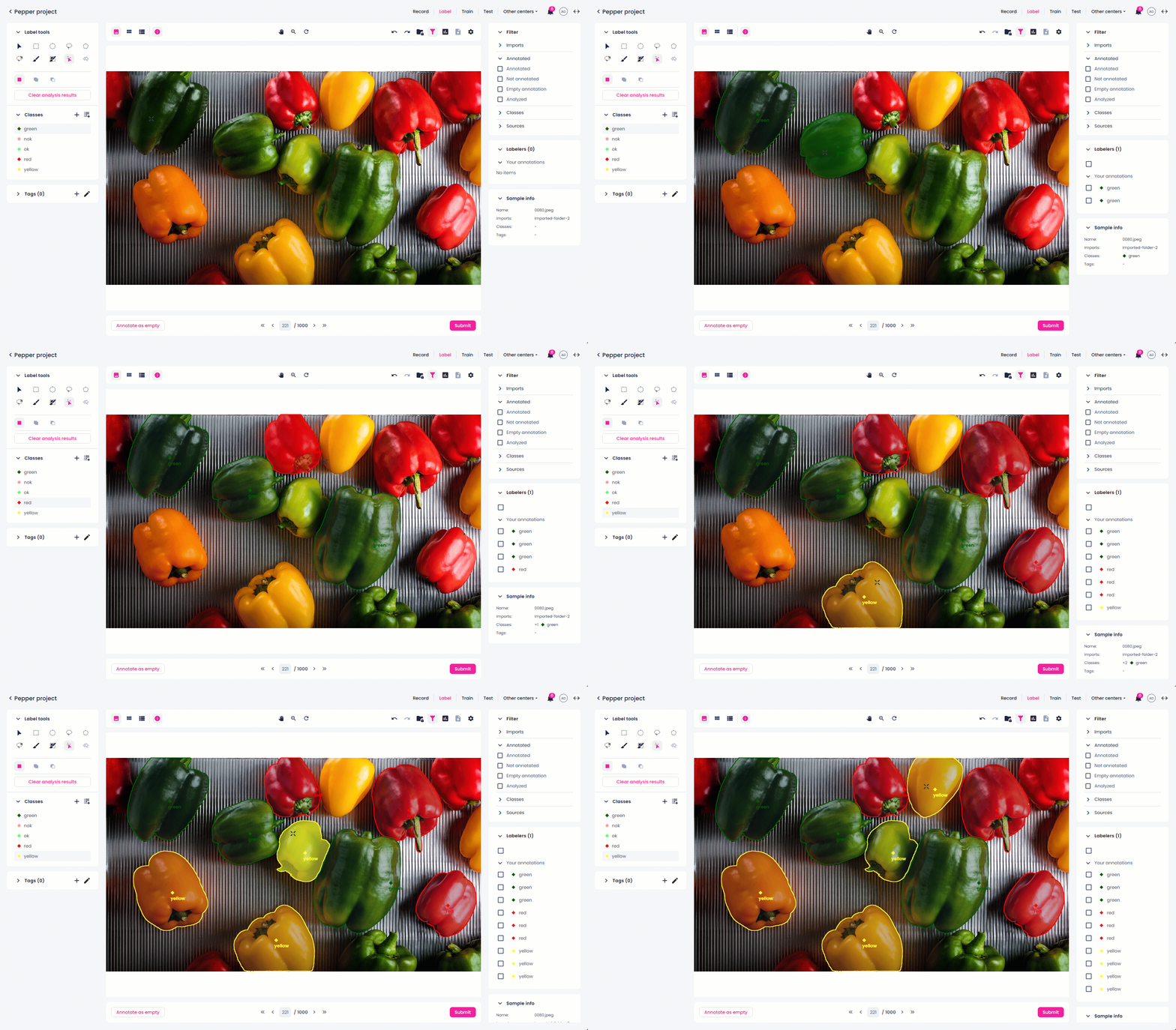
In the single view, hover over the image to preview the detected masks, and then click over the ones you want to save.
-
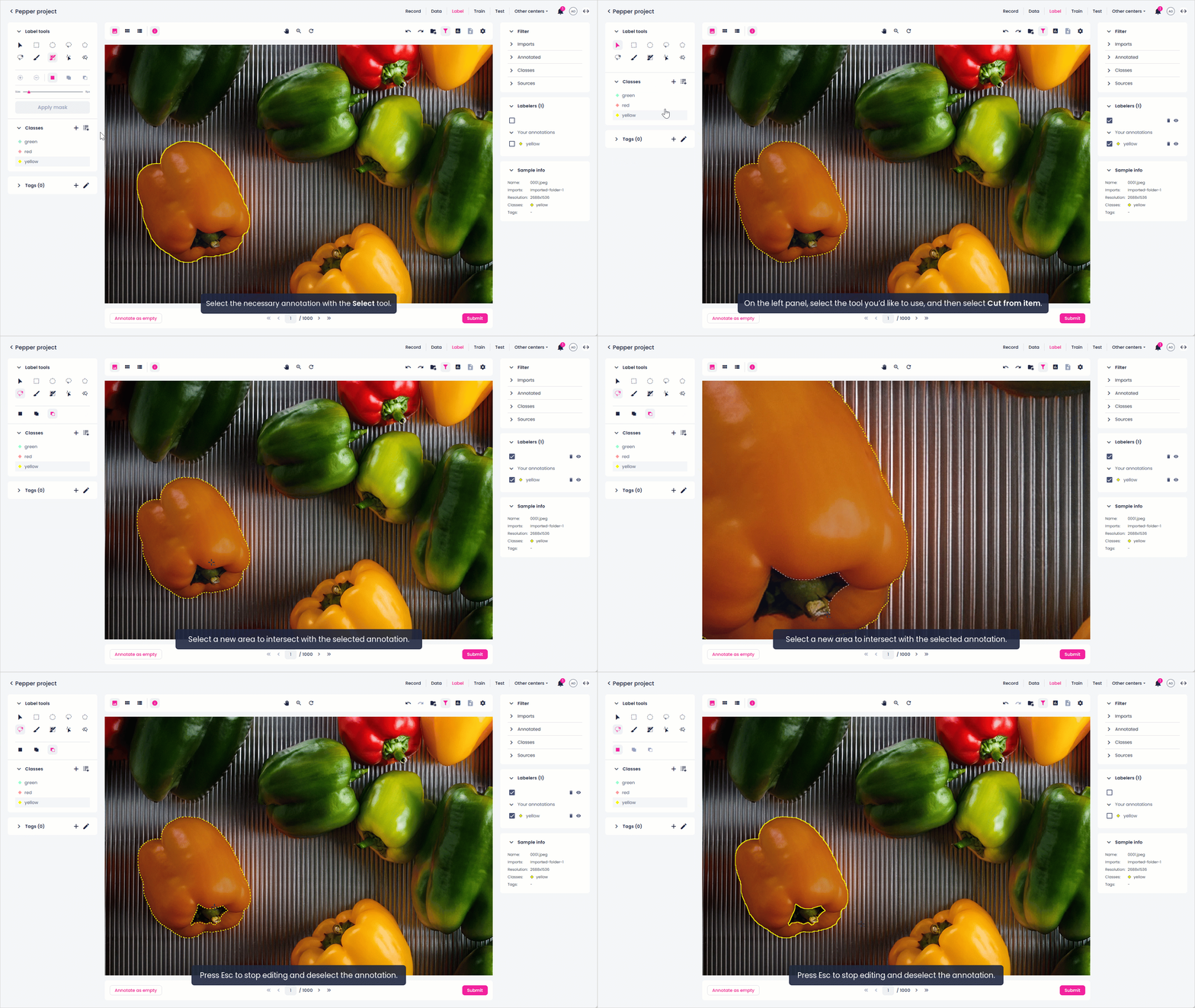
To adjust the selected element, do one of the following:
- Add to the annotation: Select the necessary item using the Select tool. Select the necessary tool, click Add to item, and then make a new selection to intersect with the existing selection.
- Subtract from the annotation: Select the necessary item using the Select tool. Select the necessary tool, click Cut from item, and then make a new selection to intersect with the existing selection.
-
To change the class of a selected label, in the Classes list, select the necessary class.
Your annotations are displayed in the Annotations panel on the right. Note that members with the Labeler role can view only their own annotations or annotations generated by the Prediction tool.
-
In the lower-right corner, click Submit.
Step 3. Clear analysis results to free up storage
-
To remove the analysis results, select the Smart mask tool, and then click Clear analysis results.
You can clear analysis results from a single sample, multiple selected or filtered samples, or all samples.
To navigate between samples, use one of the following:
- In the single view, use the arrow buttons on the bottom toolbar to navigate between samples or specify the number of the sample you want to open.
-
In the thumbnails and list views, you can view a maximum of 100 samples per page:
- Use the Status panel on the left to navigate between the 100 samples on the page. You can also get the overview of the labeled and unlabeled samples within the page. The labeled samples are marked with green or blue, while unlabeled – with gray. Green indicates that the sample is annotated by the logged-in user, while blue indicates that the annotation comes from another user or is generated by the Prediction tool.
- Use the arrow buttons on the bottom toolbar to navigate between pages or specify the number of the page you want to open.
Note
If you export data from one platform and import it into multiple projects on another platform (or even within the same platform), those samples will be recognized as identical. If analysis results are generated for these shared samples in one project, they will automatically be available in any other project where the same samples exist. This means you can use the Smart mask tool in multiple projects without regenerating the analysis results.