Create and set up projects
You can create and set up a new project in three steps:
Step 1. Initiate a new project.
Step 2. Add data to your project.
Step 3. Add classes to label the samples.
Step 1. Initiate a new project
- Go to the Projects module.
- In the upper-right corner of the screen, click Create.
- Enter the name for your project.
- (Optional) Add a project description.
- Select one of the algorithms.
-
In the lower-right corner, click Create.
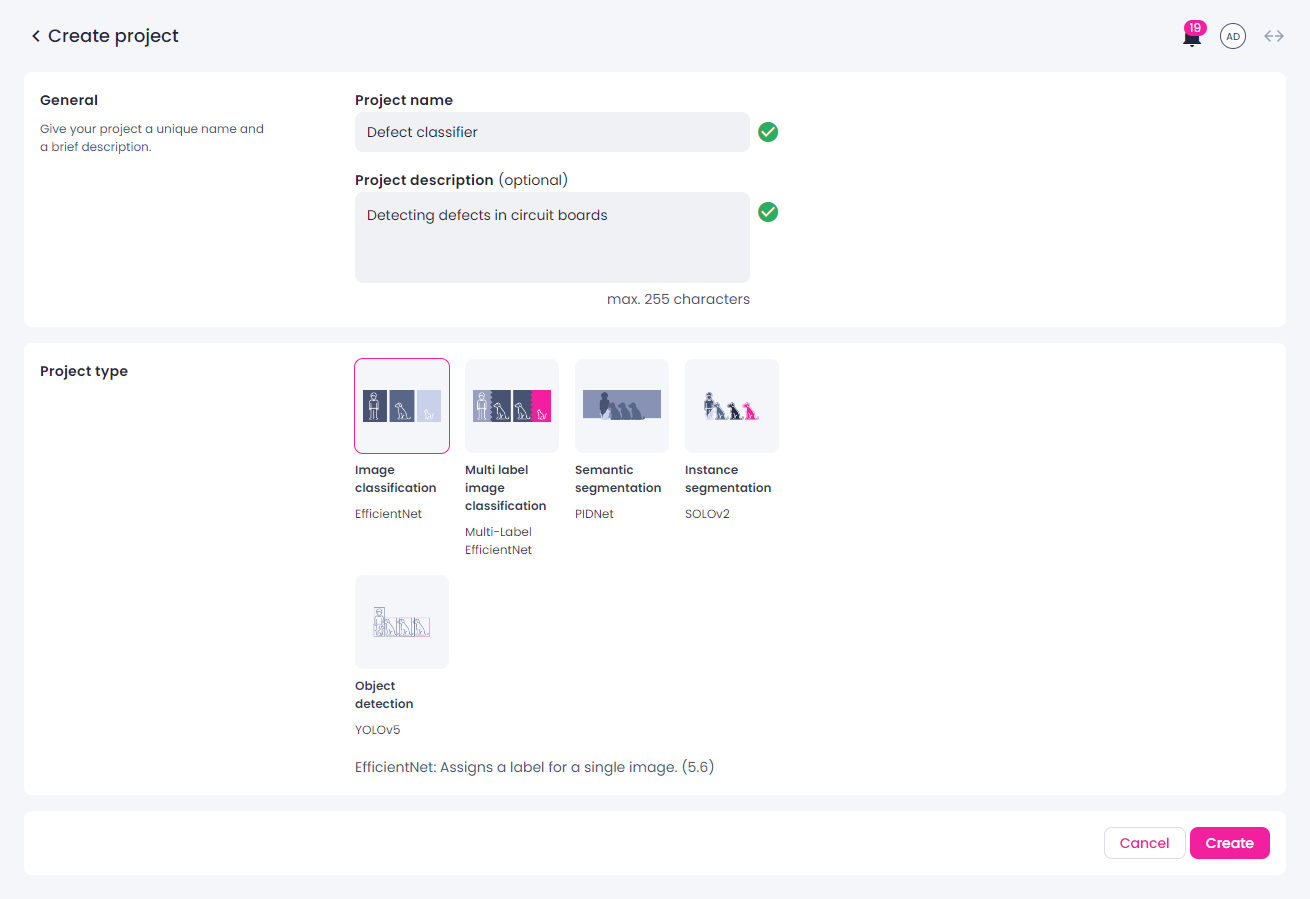
The new project is created. You can now add data to your project.
Step 2. Add data to your projects
Data can be added to Robovision AI in the following ways:
- Imported from your local storage.
- Transferred from another Robovision AI platform.
- Recorded if your algorithm type supports data recording.
For more information, see Data management.
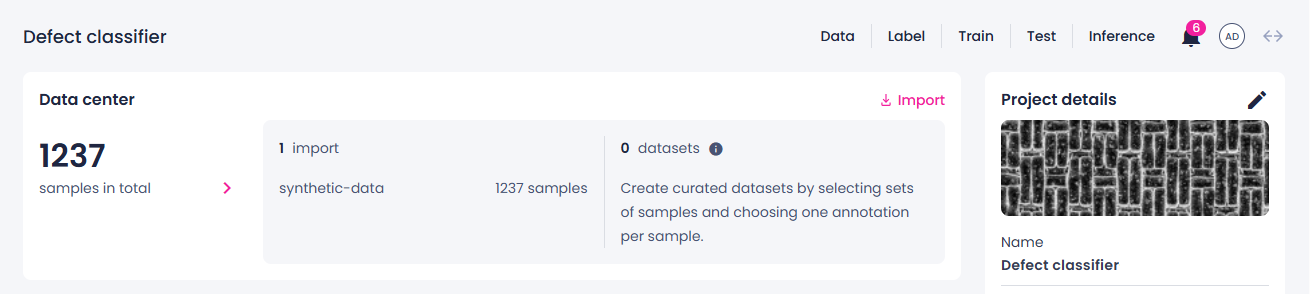
Once the data is added, you can view the number of imported samples.
Step 3. Add classes to label the samples
Glossary
Classes are categories of objects that you need to differentiate in the samples. It can be any quality like ok or nok or a noun like cat or dog. In classifications, an entire image is one class; in other algorithms, classes are assigned to multiple items present in an image.
To add classes
-
Click the Label center section.
The imported data opens in the label center.
-
To add a new class:
-
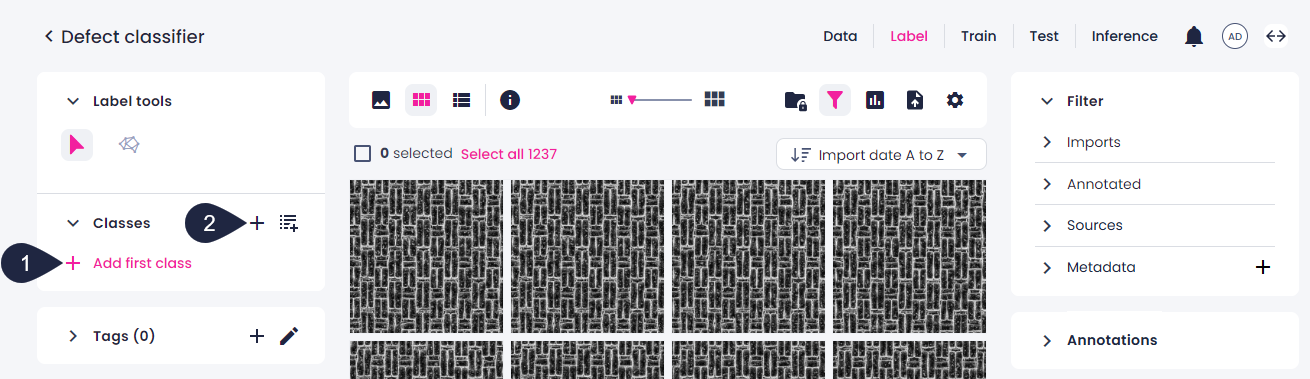
In the left panel, in the Classes section, click Add first class (1) or the plus button (2).
-
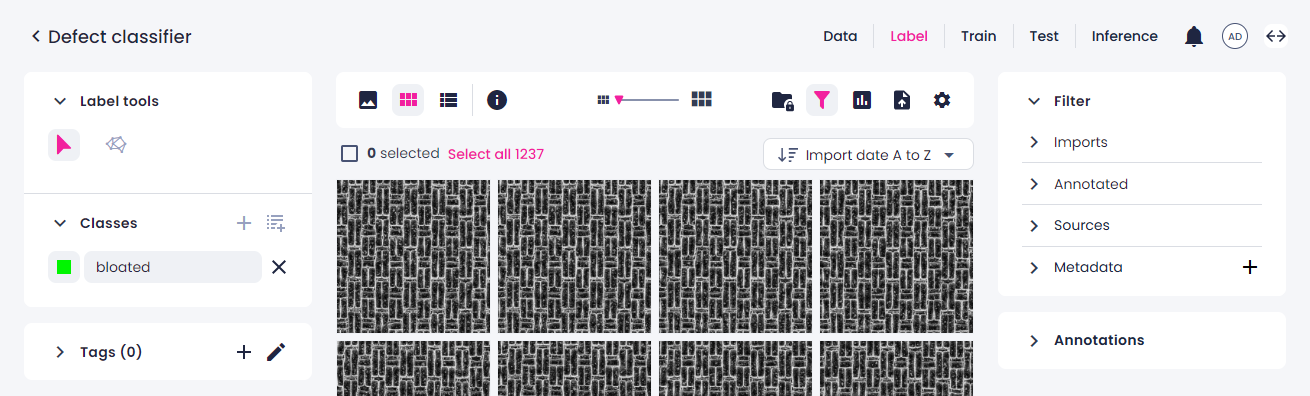
Enter the class name and press Enter.
-
-
To reuse a class that already exists in the system:
-
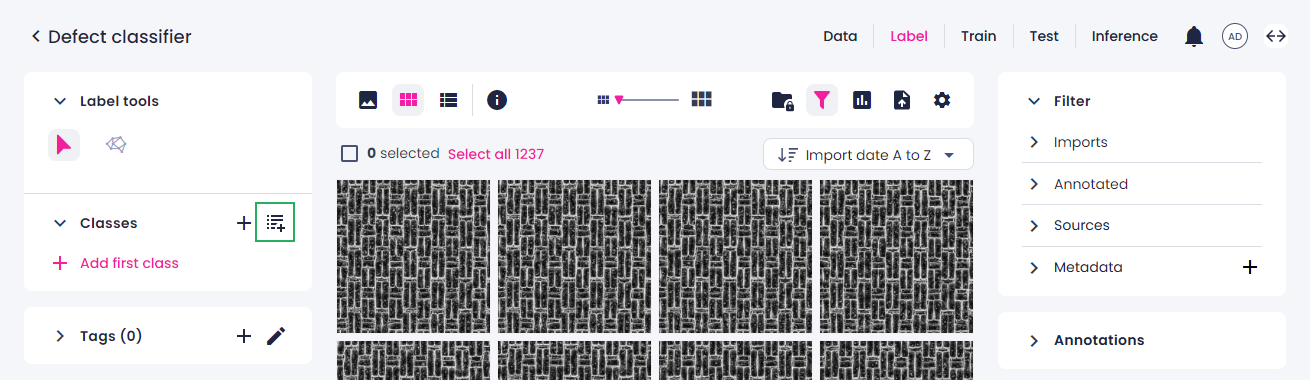
Click the Add system classes button.
-
(Optional) Use sorting or search to find the necessary class quickly.
- Select the checkboxes next to the classes you want to add to your project.
- Click Add.
Once the class is added to the project, you can edit the class color. The class name cannot be edited.
-
-
To change the default class color:
-
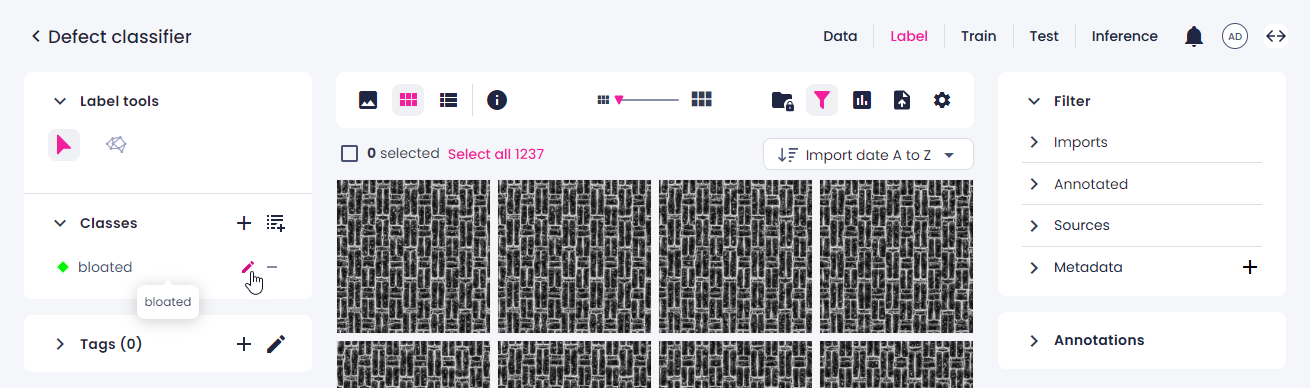
Click the edit button next to the class.
-
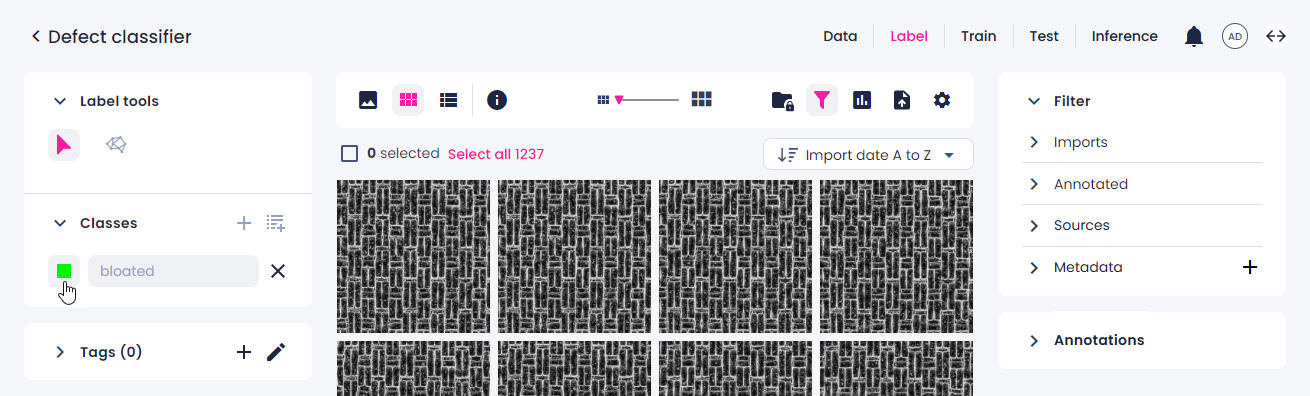
Click the color square.
-
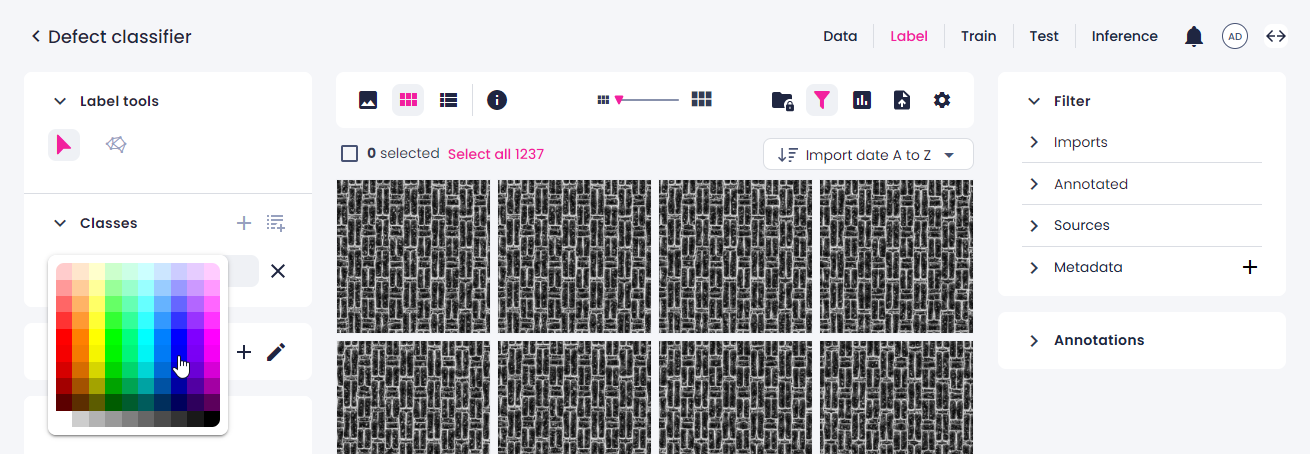
Select the necessary color.
-
-
Add as many classes as necessary.
A class that was created in a project can be used in any other project on Robovision AI. All classes can be managed on the Classes page.