Manage storage
You can view the storage capacity of your deployment on the Resources pages of the System module.
Note
The storage partition configuration may vary across different deployments. As a result, the number of tiles shown in the Storage section (representing available space and storage entries) can differ from one deployment to another. It depends on how the underlying system resources are allocated.
The storage capacity is shown in three categories:
- Data storage – S3 storage for various data types, such as samples, annotations, embeddings, trained models, training parameters, and more.
- Algorithm storage – Docker Registry storage for algorithm Docker images.
- Database storage – PostgreSQL storage.
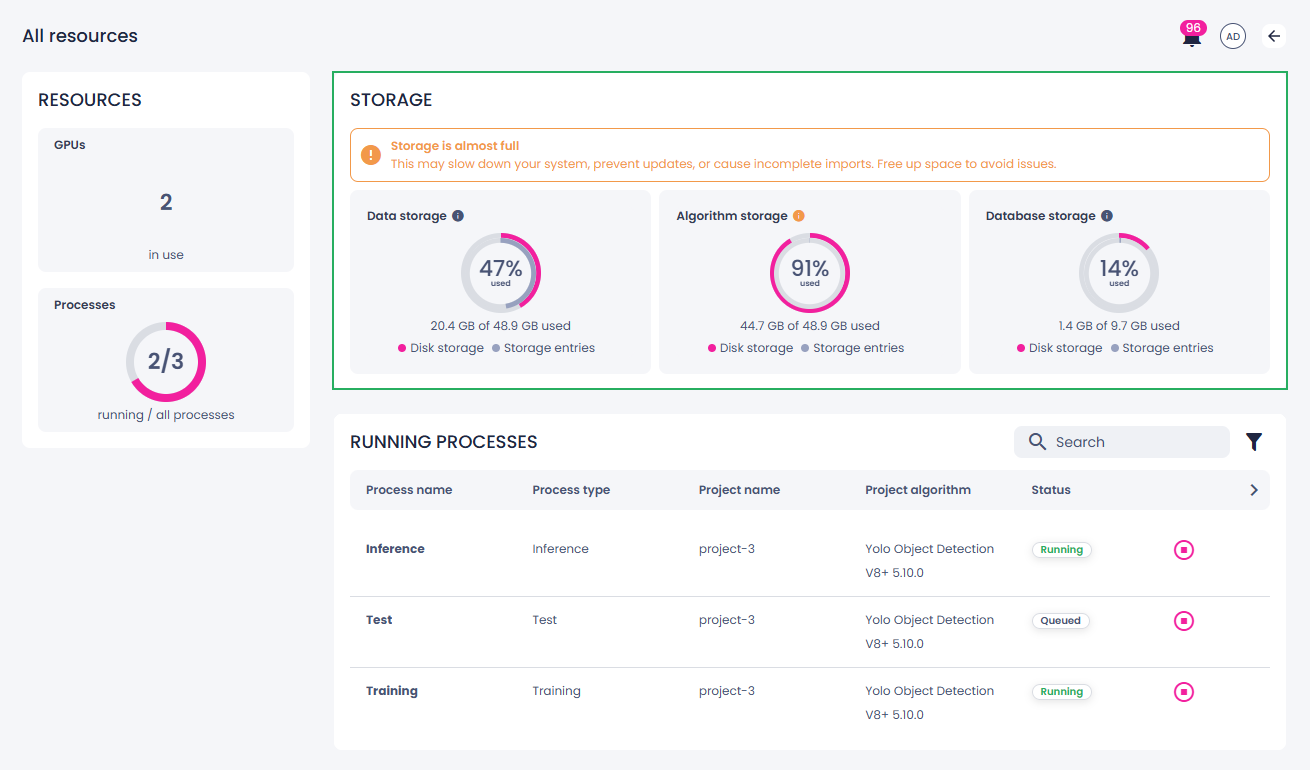
Each type of storage, such as data storage, is divided into two components:
- Disk space refers to the total amount of physical space your files use.
- Storage entries represent the number of individual files or items stored.
Even small files count as individual entries, so it’s possible to reach the limit on storage entries before using up all available disk space—or the other way around. As a result, storage is considered full when either disk storage or storage entries reaches 100%.
When your deployment starts running low on storage, you will receive a notification, and an indicator will appear on the left menu and next to the affected storage type.
Percentage | Indicator | Warning |
|---|---|---|
| 80-95% |  | Your storage is almost full. This may slow down your system, prevent updates, or cause incomplete imports. Free up space to avoid issues. |
| 96% and more |  | Your storage is full. You system may become unresponsive, prevent new data from being saved, and prevent processes from running. Free up space to restore functionality. |
Note
Deployments may have different percentage-based storage thresholds configured.
To clean up storage
Depending on the storage category, you may need to clean the storage up yourself or contact support:
- Database storage – contact support to request a cleanup of the database.
-
Algorithm storage – delete unnecessary algorithms and extensions on the Settings page of the System module. Although the storage is cleaned up immediately, the storage information may take up to 24 hours to update on the Resources page.
Note
Before deleting any algorithms or extensions, ensure they are not used in your projects. Deleting them may result in limited functionality or cause certain features to stop working.
-
Data storage – manually remove any samples, annotations, embeddings, trainings, optimized parameters, and inference setups that you no longer need. Data storage information is refreshed every 30 seconds, so you will see the updated usage almost immediately.