View license details
Your Robovision AI instance is provided to you under a license. While using the platform, you might need to check the current state of your license.
To view the license state
- On the menu, go to System > About.
- In the General section, you can view the following license states.
| State | Description | Appearance on the UI | Notification label on the menu |
|---|---|---|---|
| Active | Your license is active. | 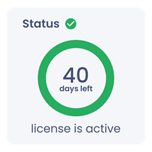 | Not applicable |
| About to expire | License will expire in less than a month. To extend the license, contact license@robovision.ai | 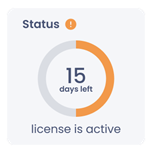 |  |
| Expired | You cannot continue using the majority of functions on your Robovision AI instance. To extend the license, contact license@robovision.ai | 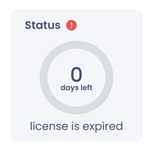 |  |
Note
You won’t be able to start a new inference after the license expires. However, if you started an inference before the expiration of the license, the inference will keep running.
If the license state is About to expire or Expired, there will be a dialog on every login. It will notify you about the amount of time left on your license and prompt to extend it by contacting license@robovision.ai.
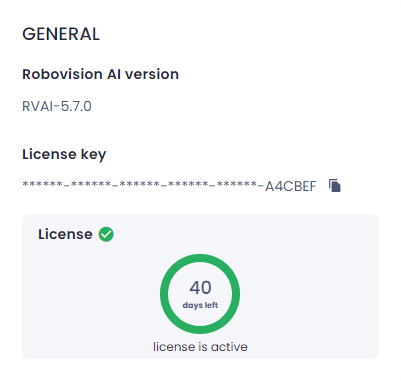
To extend your license, you will need to know your license key. For security purposes, the license key in Robovision AI is masked, and only the last six symbols are displayed.
To copy the license key
-
In the General section of the About page, next to License key, click the copy button.
Note
License keys are displayed only for cloud versions of Robovision AI. If you're using on-premises Robovision AI, copy your Machine name instead. You can find your Machine name in the General section of the About page.