View running processes
When creating an AI model, you might have multiple long-running background processes started in different projects. You can manage and view the status of the running, queued, and starting processes on the All resources page. The processes displayed here include:
- Trainings
- Tests
- Generating predictions
- Analyzing samples for smart segmentation
- Inference
- KRF export
To view all running processes
- On the menu, go to System > Resources.
On the All resources page, you can see the following:
- The number of used GPUs.
- The storage capacity of your deployment.
- The number of running and queued processes.
- The list of running processes.
In the list of running processes, you will see the following information:
- Process name — the name of a training, test run, prediction, smart segmentation, inference, or KRF export.
- Process type — if it's a training, test, prediction, smart segmentation, inference, or KRF export.
- Project name — the name of the project where a process was created.
- Project algorithm — the algorithm used to create the project where a process was created.
- Status — the status of the process: running or queued.
- Requested GPU — the number of requested GPUs.
- Last activity — the date and time a process was active.
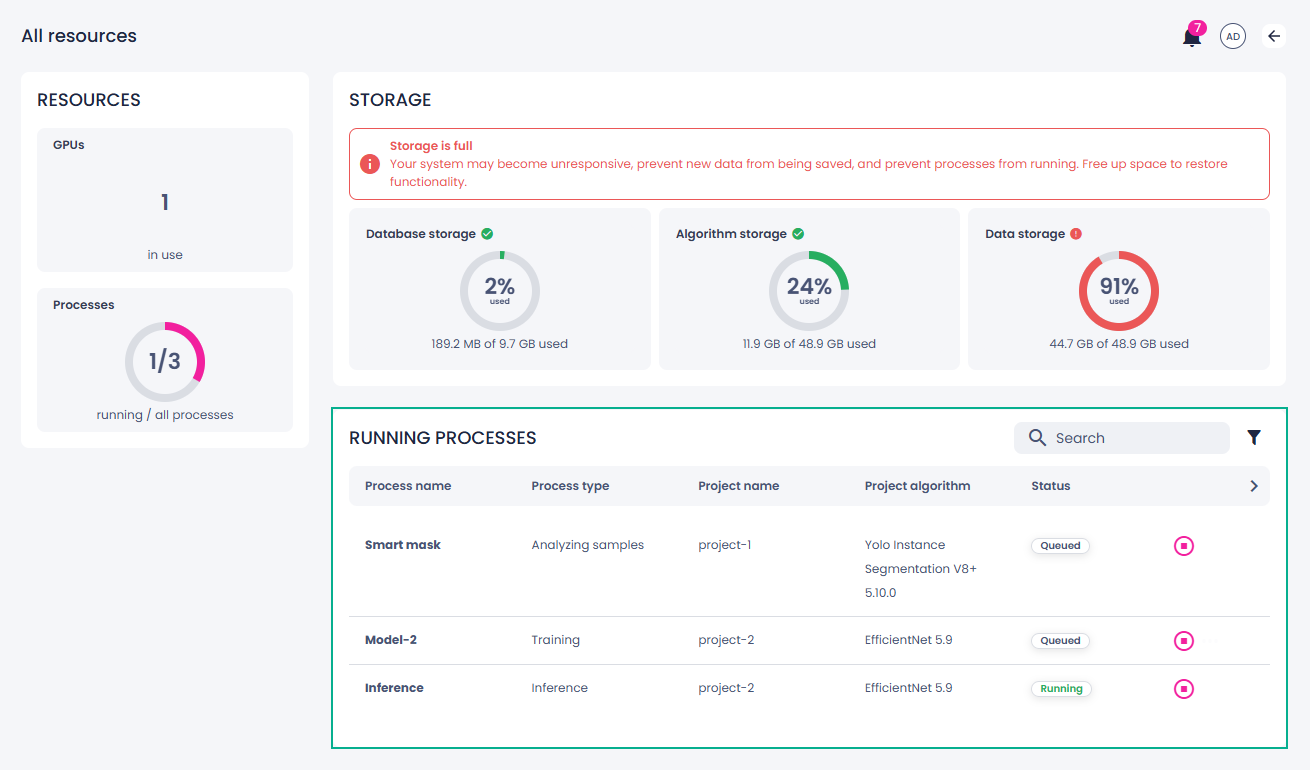
A process is not displayed if it failed, was stopped, or completed normally.
When a process is completed, it disappears from the list of running processes.
To manage running processes
To manage your running processes, next to the necessary process, click the ellipsis button, and then select what you want to do.
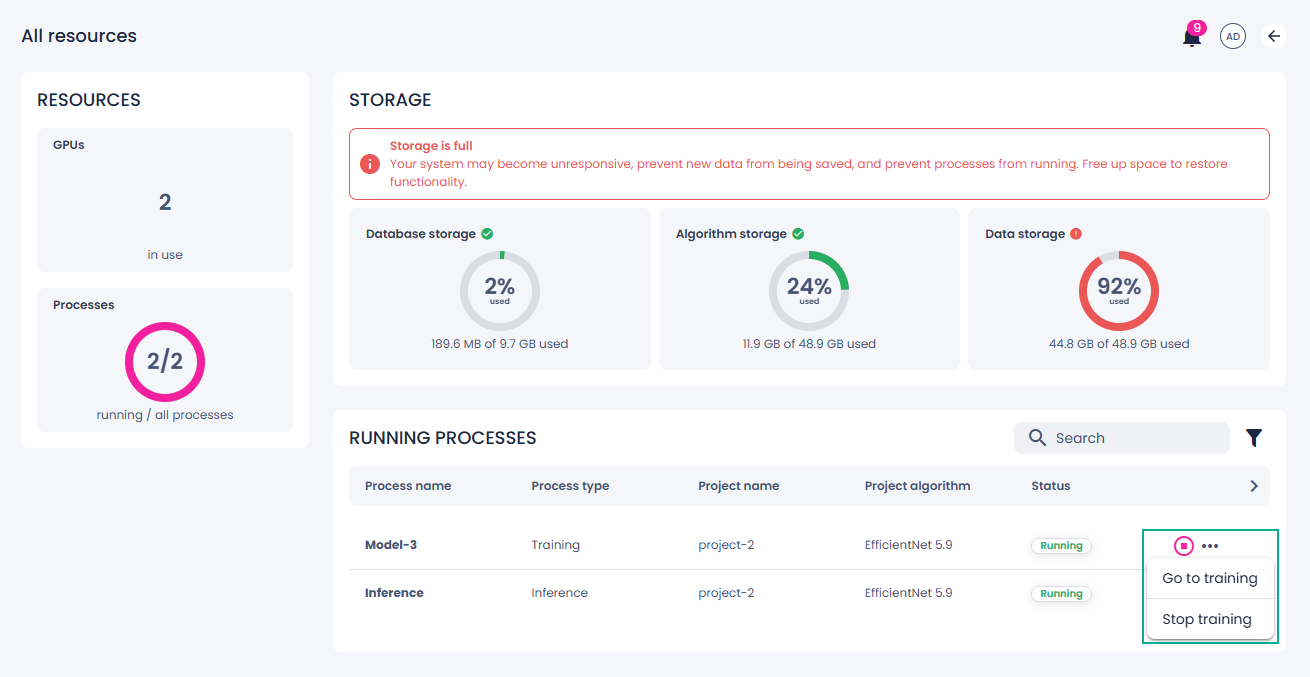
Depending on a process type, you can stop a process or view the details of a process by going to the project where the process was started.