Create members
To create a member
- On the menu, go to System > Members.
- In the upper-right corner of the screen, click Create member.
- In the sidebar that opens, enter the member's email.
-
In the Member role field, select a role.
After selecting the role, the list of permissions for that role is displayed. To get more information about permissions, hover over the info icon.
-
Click Create member.
-
To inform the new user about the created account, do one of the following:
-
To send the invitation link to the new user, click Mail invitation link.
You are redirected to your default email application. The invitation link is added to the message body. If necessary, edit the message, and then click Send. Once the invited user clicks the link, they will be prompted to start the onboarding process—set a new password and accept the terms and conditions.
-
To copy the invitation link to your clipboard, click Copy link.
The invitation link is copied to your clipboard. You can send the link to the new member to start the onboarding.
Note
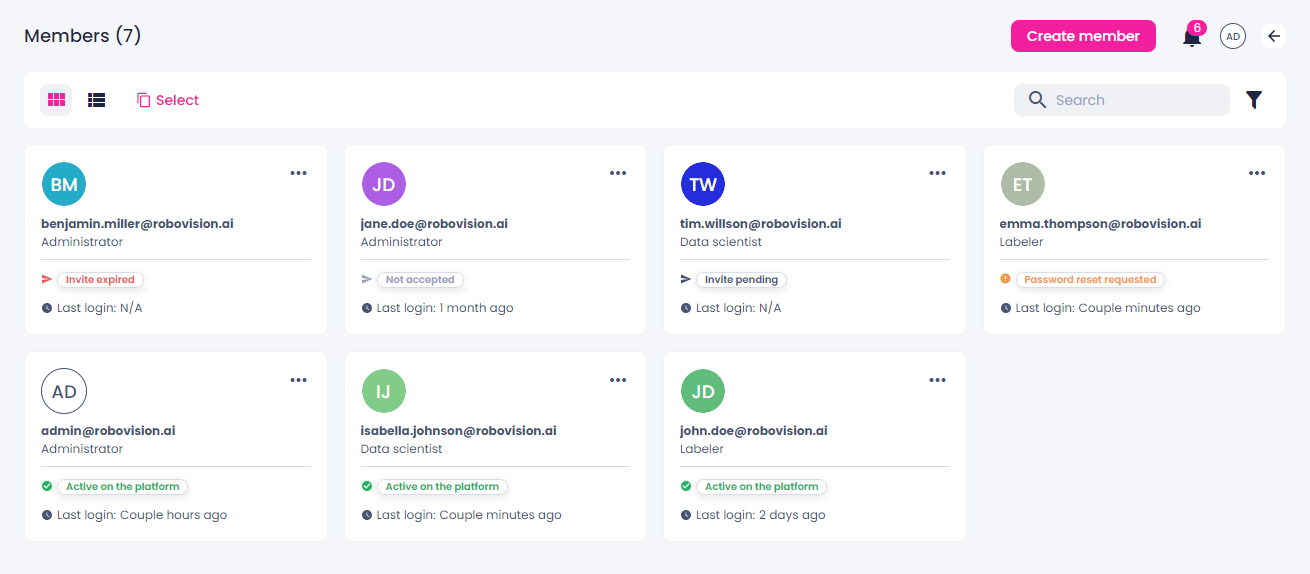
The invitation link will expire in 24 hours. If this happens, the member status on the Members page changes to Invite expired.
-
The new member appears in the list of members with the Invite pending status. Once the new member completes the onboarding, their status will change to Active on the platform.