Reset member's password
If a member can't sign in to their Robovision AI account, they can request a password recovery. After that, the administrator can reset the member's password.
To reset a member's password
- On the menu, go to System > Members.
- In the thumbnails view, next to the member with the Password reset requested status, click the ellipsis button.
-
Select Edit.
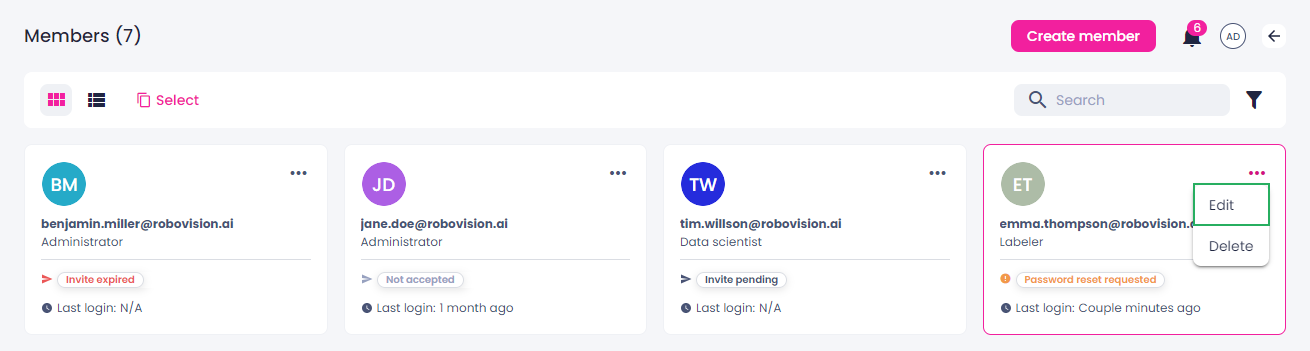
The sidebar with the profile details opens.
-
In the sidebar, click Reset member's password.
-
To let the user set a new password, do one of the following:
-
To send the link by email, click Mail reset password link.
You are redirected to your default email application. The password reset link is added to the message body. If necessary, edit the message, and then click Send.
-
To copy the link to your clipboard, click Copy reset password link.
You can send the link to the member so that they can set a new password.
-
The status of the member changes to Invite pending. Once the user sets a new password, the member status changes to Active on the platform.