
Import data
In this tutorial, we will import unlabeled data from local storage, but other import formats are also supported. For more details on supported formats, see Supported import formats.
Note
To successfully perform data import and export operations in Robovision AI, ensure the following:
- Use a Chromium-based browser (Google Chrome, Microsoft Edge, and more).
- The Robovision AI URL must contain https or be added to the list of secure websites (see Configure your browser).
To import data from a local storage
- In the Projects module, click the necessary project.
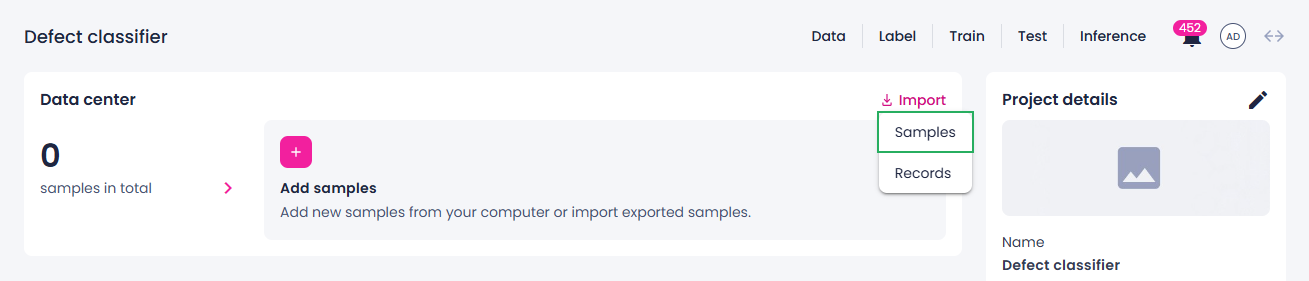
- In the Data center section, click Import.
-
Select Samples.
-
Select the samples on your computer, and then click Open.
The import process begins. You can track the import progress in the Data center section on the project details page.
-
To stop the import, click the stop button (
 ).
).Note
When you stop the import, the data that was already imported remains. If you close the tab in your browser or refresh the page during the ongoing import, you will be able to resume the import. In case of connection issues, the import will resume automatically once the connection is restored.
You can also drag the samples to the gray area of the Data center section.
Once the import is completed, you will receive a notification.