Test model
To test your model, do the following:
Step 2. Select a model to test.
Step 1. Add test data
- Go to the Projects module.
- Click the name of the necessary project.
-
In the Test center section, click Set up test.
-
To add test data, on the left, next to Test data, click Add.
-
Select if you want to test on annotated or unannotated data:
-
To add annotated data, select Datasets, and then select one of the existing datasets.
The list of datasets contains the train and validation sets as well as other datasets created in the label center. Once you add a dataset, the ground truth from the dataset will be displayed below the dataset.
-
To add unannotated data, select Tagged data & imports (without labels), and then upload new data from your computer or select the available imports.
The list will also contain the tagged data.
-
-
Click Add data.
Step 2. Select a model to test
- Next to Test models, click Add.
- Select a model that you want to test.
- Click Add to setup.
- To change the test model, hover over the selected model, and then click the delete button (
 ).
). -
To edit the inference parameters, next to Inference parameters, click the edit button (
 ).
).If the project already contains optimized thresholds per class, you can use one of the following options:
- Use the class thresholds generated with the most recent optimization (the default option).
- Use the class thresholds from one of the earlier optimizations in the project.
-
Use no class thresholds.
All class thresholds are set to 0. In other words, no samples will be marked as unknown.
-
Click Save.
-
Click Run test.
You can now view the estimated time and the progress of the test. If the test is taking longer than expected and you want to save the time and resources, you can stop the test.
You can also start a new test while the previous test is still running. To start a new test, in the upper-left corner, click Set up test.
To view the results or progress of another test, select the necessary test in the list of tests.
When the test is completed, you can revise the parameters of the model used for testing. For this, hover over the model name, and then click the icon next to it.
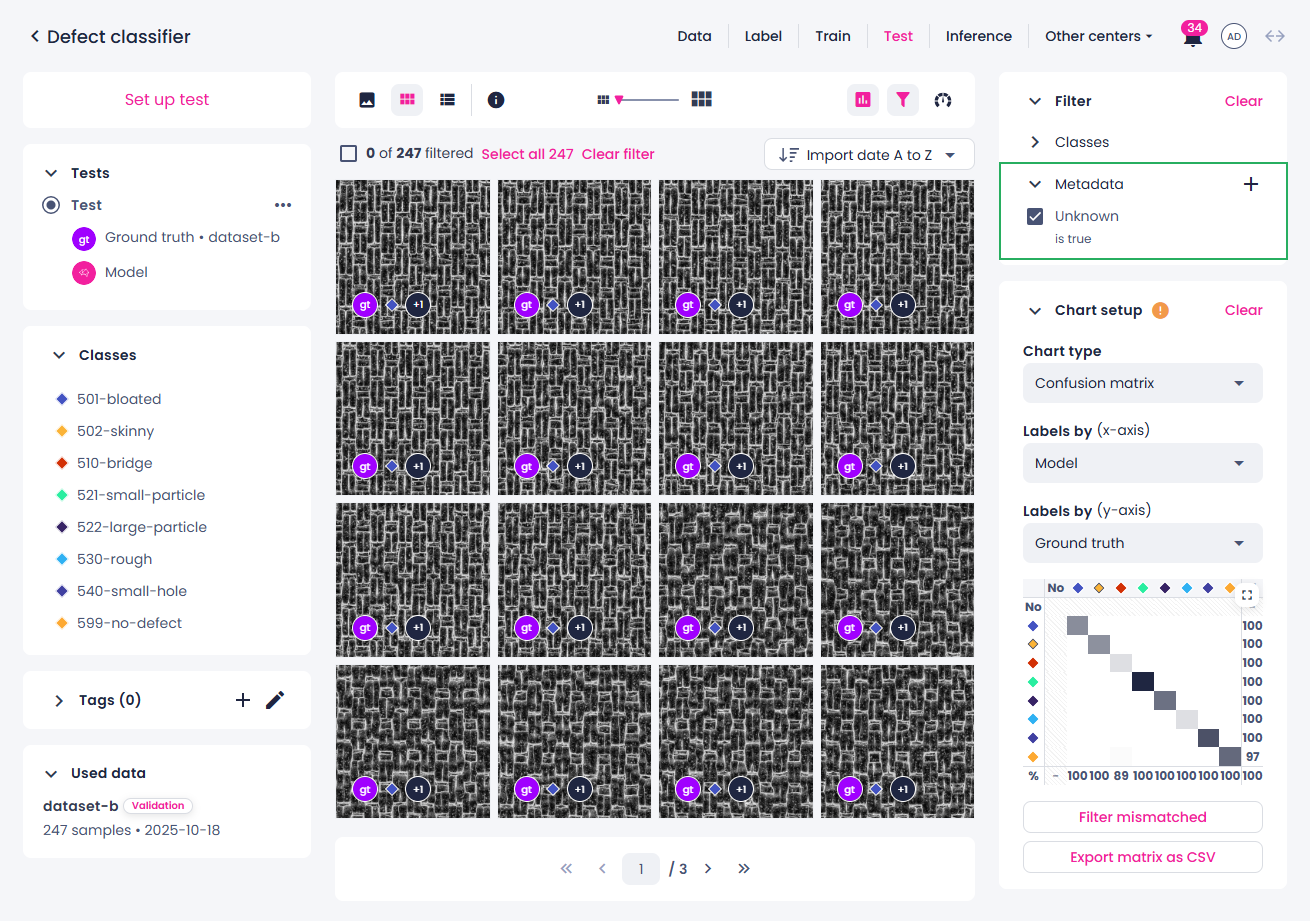
Unknown predictions
Samples with predictions below the selected threshold are automatically tagged with metadata Unknown: true. You can view or filter these low-confidence predictions by creating a custom metadata filter with the condition Unknown is true, and using it to display only samples marked as unknown.
Note
- The Unknown: true metadata is stored only on samples predicted as unknown. This means you can filter on Unknown is true, but not on Unknown is false. Although it might appear that Unknown is false is simply the opposite, this is not the case.
- Since the metadata is stored at the annotation level, unknown metadata will appear in the Sample info section only within the test center. The Unknown is true filter will function in the data, label, and test centers.