
Train model
You can train your model in three simple steps:
Step 1. Initiate a new training.
Step 2. (Optional) Edit and analyze your training data.
Step 3. (Optional) Edit the parameters.
If the default training setup (auto setup) looks good to you, you don't have to update your training data or edit the training and model parameters. In this case, you can start the training immediately.
Step 1. Initiate a new training
- Go to the Projects module.
- Click the name of the necessary project.
-
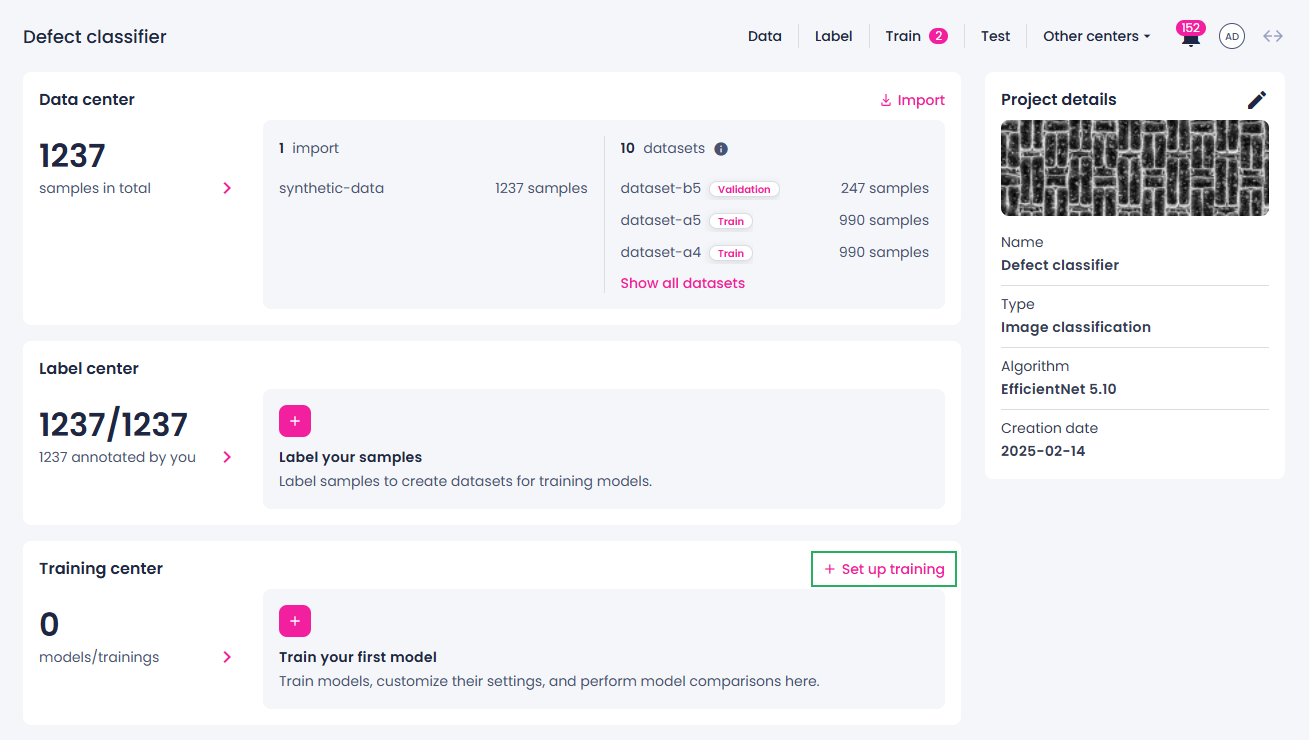
In the Training center section, click Set up training.
Note
If you can't start a new training because the necessary button isn't available, make sure you have added annotated data to your project.
-
If necessary, change the training name.
The training name is pre-filled with the project name.
-
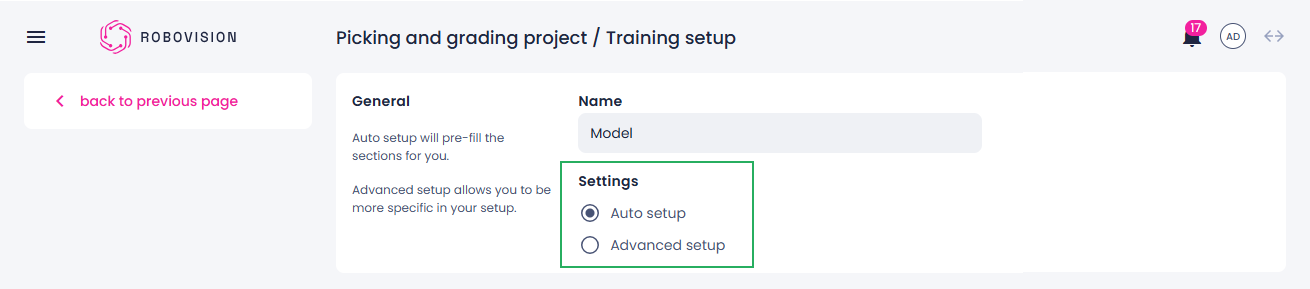
Under Settings, select one of the following options:
- Auto setup – to go with the default settings and start training immediately. If you select this option, you can click Train model and your training will start.
- Advanced setup – to edit your training data or fine-tune training and model parameters.
Step 2. Edit and analyze your training data
You can edit and analyze your training data only if the Advanced setup option is selected.
-
In the Datasets section, if available, add the train and validation sets. For this, next to Training data, click Add.

-
In the sidebar, select the necessary datasets.
If no models have been trained in the project or datasets created in the label center, the list of datasets will be empty. The following steps describe the flow with no datasets.
-
If there are no datasets in the list, do the following:
-
Click Create new dataset.
You are redirected to the label center where you can create a new dataset.
-
Select the samples to add to a dataset. These can be:
- All samples.
- Samples that match specific filters (a class, a tag, and so on). If the result includes more than 100 samples, click Select all to select all filtered samples.
- Samples that you select manually. However, you cannot select samples located on different pages. If you select samples, and then go to another page, these samples will no longer be selected.
-
In the Define ground truth field, select what to include in your dataset—annotations by a specific member, last updated, or random annotations.
While one sample can have many annotations, only one of the annotations can be used for training—the ground truth.
-
Using the slider, define the train/validation split.
-
Click Create & use for training.
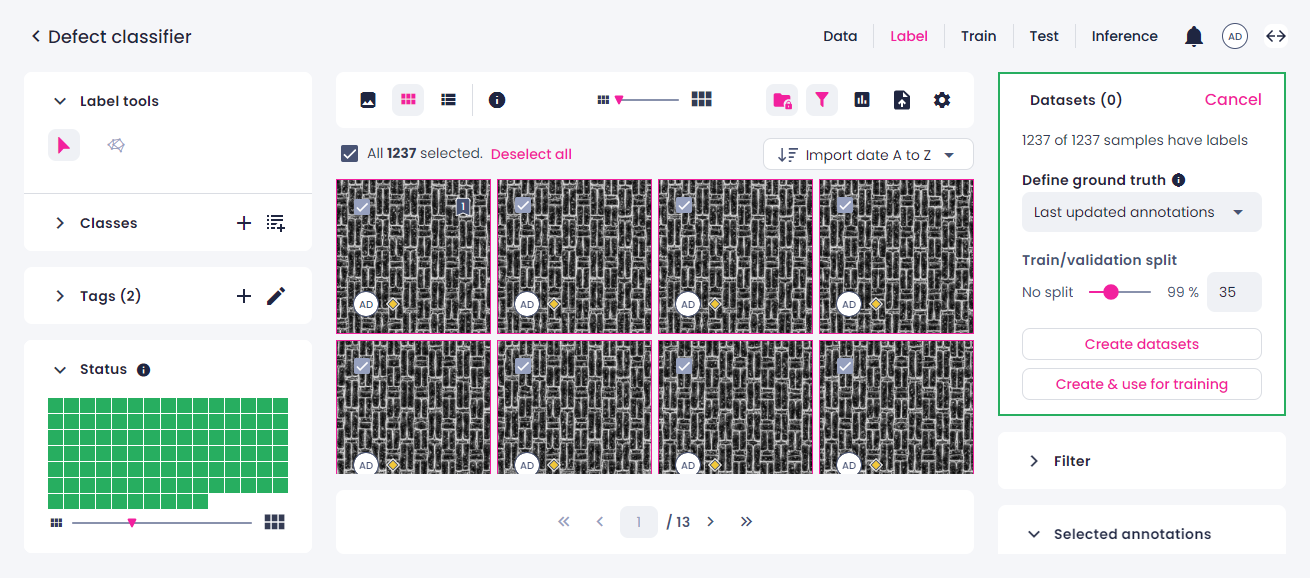
You will be redirected to the training setup, and your datasets will be added as the training data.
-
Step 3. Edit the parameters
Note
You can edit training parameters only if the Advanced setup option is selected.
- On the left, in the Page content list, select the parameters that you want to edit.
-
In the corresponding section, edit the necessary parameters.
For more information about the training parameters, hover over the info icon next to the necessary parameter.
-
To select a model for transfer learning:
- In the Transfer learning section, next to Model, click Add.
- Select a model whose weights (what it learned) you want to use for your new model.
- Click Add model.
-
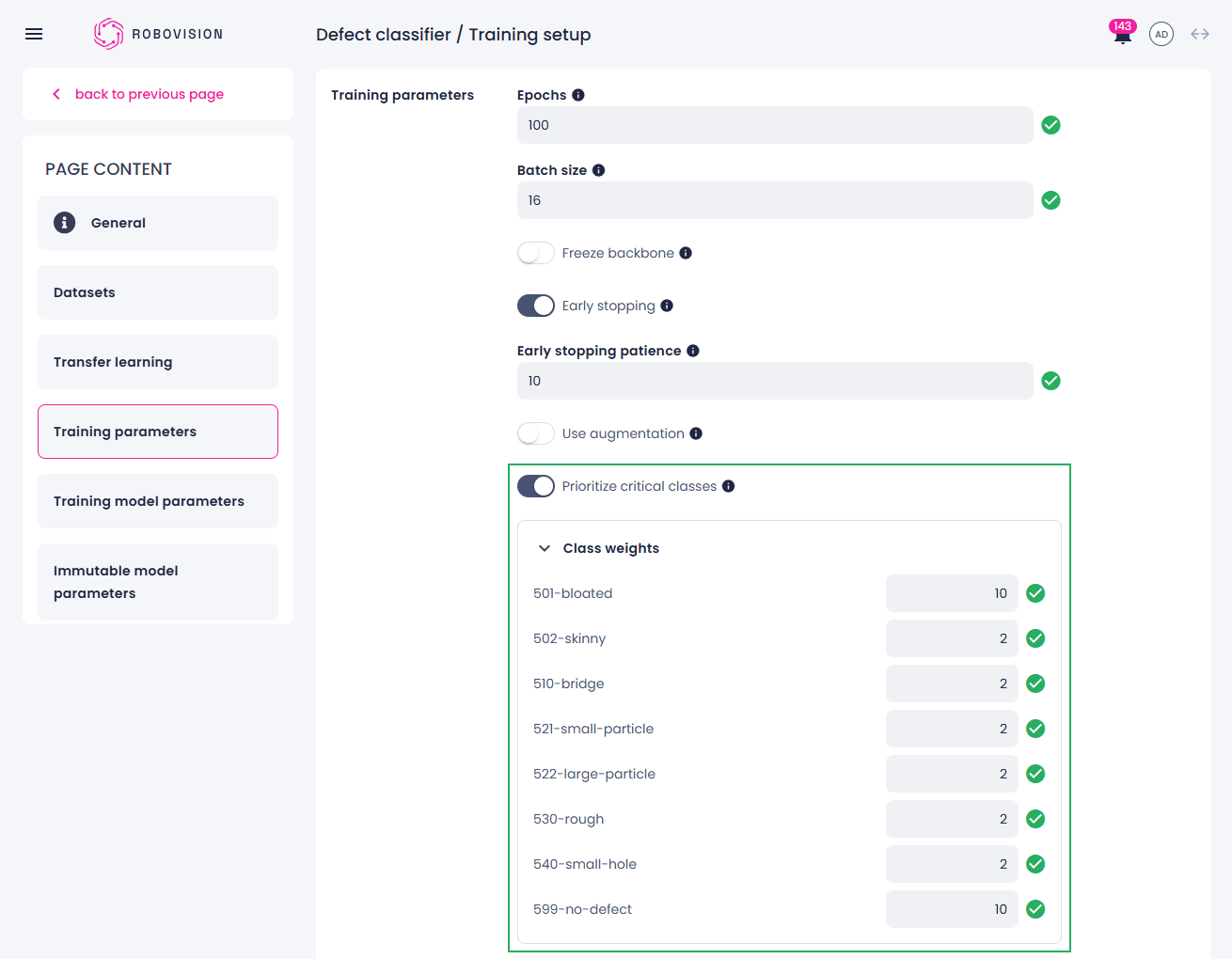
To emphasize specific classes during training, in the Training parameters section, turn on the Prioritize critical classes toggle.
By default, this option is off. When it's off, training applies the same weight to every class.
When it's on, each class in the project appears with its sample count and a weight field (default 1.0). Enter a number greater than 0 for each class that you want to change.
Weight values up to 10 are recommended because higher weights on classes with many samples can dominate training. Increasing weights for classes with fewer samples can improve detection for those classes with less impact on overall accuracy.
-
Click Train model.