
Auto-label data with Prediction tool
The Prediction tool allows generating annotations based on an already trained model. You can now use it to auto-label the remaining samples in your project.
Note
The Prediction tool is enabled if the same project contains a trained model.
To label with the Prediction tool
- In the Projects module, click the necessary project.
-
In the Label center section, select the needed import or click the right-arrow button (
 ).
).The data opens in the label center.
-
To generate predictions for specific samples, apply a filter.
You can use the Filter panel on the right.
-
Select the necessary samples.
-
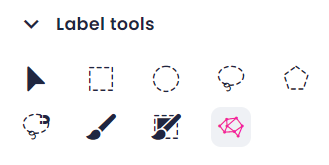
In the left panel, in the Label tools section, select the Prediction tool.
-
Click Set up model prediction.
- To select a model to generate annotations, in the sidebar, click Add model.
- Select one of the models, and then click Add model.
- If necessary, in the Prediction name field, edit the prediction set name.
- To save the setup and start generating predictions, click Start predicting.
You can see the progress in the Predictions section on the left.