
Reuse data
Now that you have predictions created by the Prediction tool, you can review data, and then create a dataset from it. This dataset can be used for further training within the same project or reused in another project that uses the same annotation type.
This article explains how to:
To create datasets in the label center
- Go to the label center.
- In the thumbnails view, select all the samples.
- Above the labeling area, click the datasets button.
-
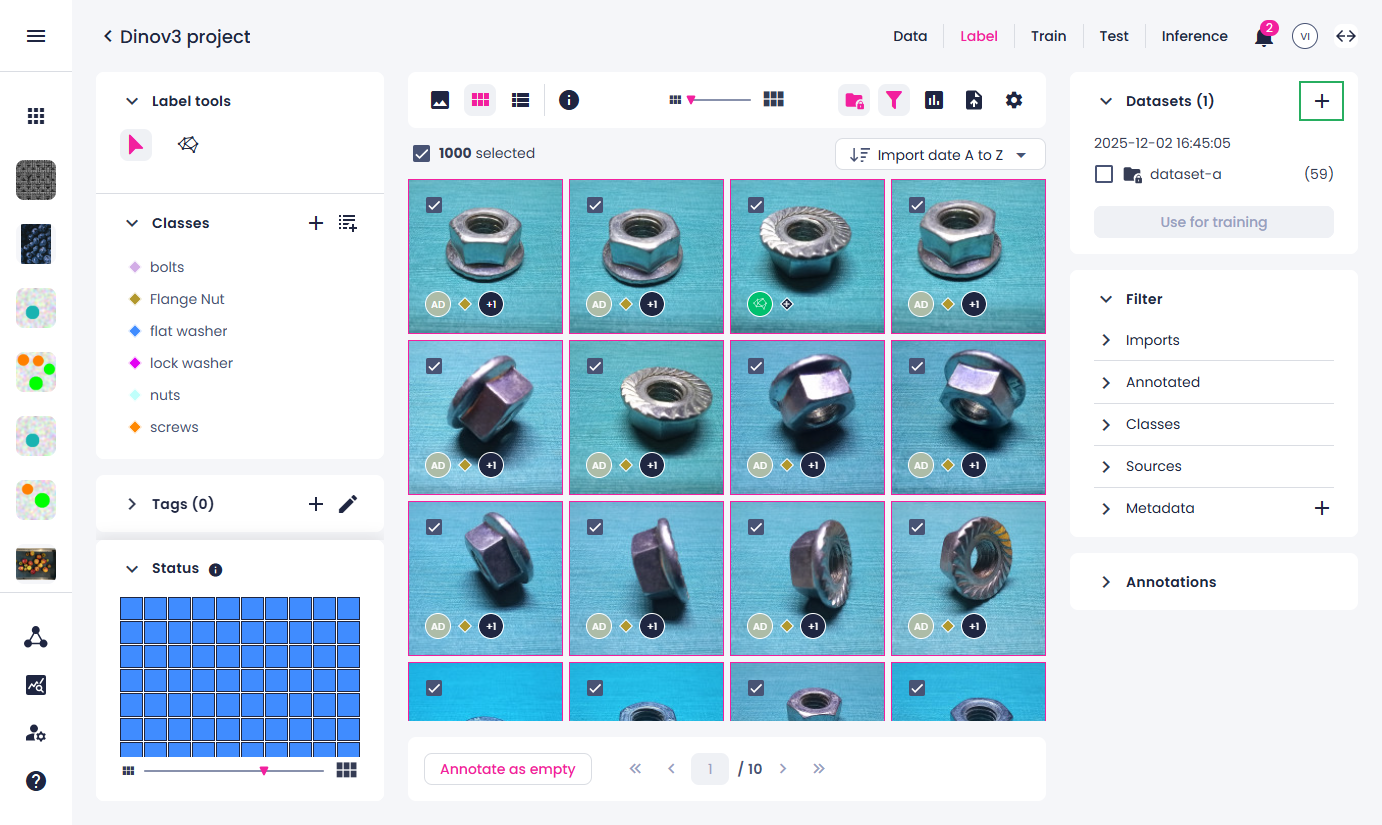
In the right panel, next to Datasets, click the plus button.
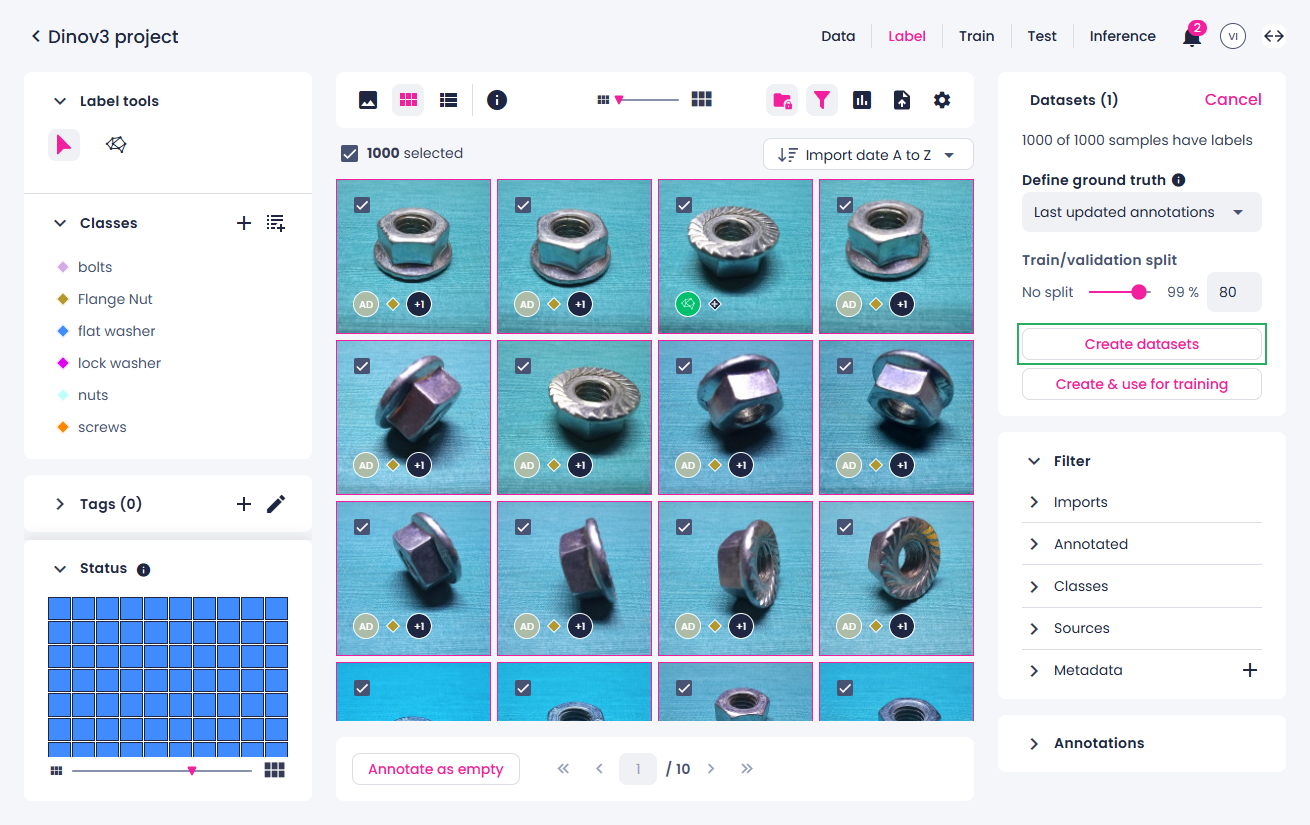
While one sample can have many annotations, only one of the annotations can be used for training—the ground truth. To select what annotation should be used, set up the following.
-
In the Define ground truth field (A), select Last updated annotations. In our case, the latest annotations are the predictions.
- If necessary, using the slider, define the train/validation split (B).
-
Select Create datasets.
Your datasets will be added to the list of datasets. You can now reuse this dataset within the same project or export it and use it in another project with the same annotation type.
To export datasets
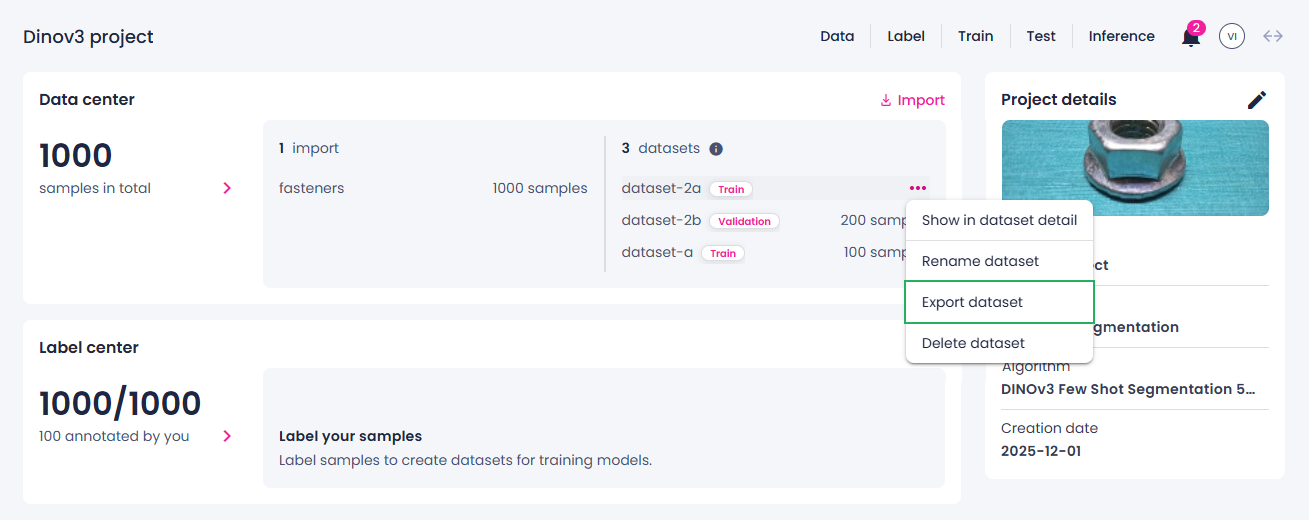
- On the project details page, navigate to the Data center section.
-
In the dataset list, hover over the dataset that you want to export, and then select Export dataset.
-
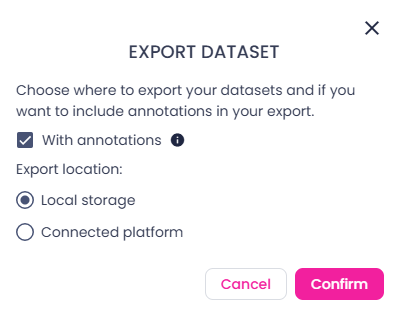
In the Export dataset dialog, make sure the With annotations checkbox is selected.
-
Select Local storage, and then click Confirm.
-
Select the location where you want to save the samples. You can select an existing empty folder or create a new one.
-
In the Let site edit files dialog in your browser, click Edit files.
If the selected folder isn't empty, you are prompted to create or select an empty one.
You can track the export progress in the dataset list next to the corresponding dataset.
When the export is completed, it will disappear from the list, and you will receive a notification. The exported dataset can then be imported on the project details page as records (Robovision AI native format).