
Train model
To train a DINOv3 few-shot segmentation model, you don't have to update your training data or edit the training and model parameters. In this case, you can start the training with the default auto setup.
To train a model
- Go to the Projects module.
- Click the name of the necessary project.
-
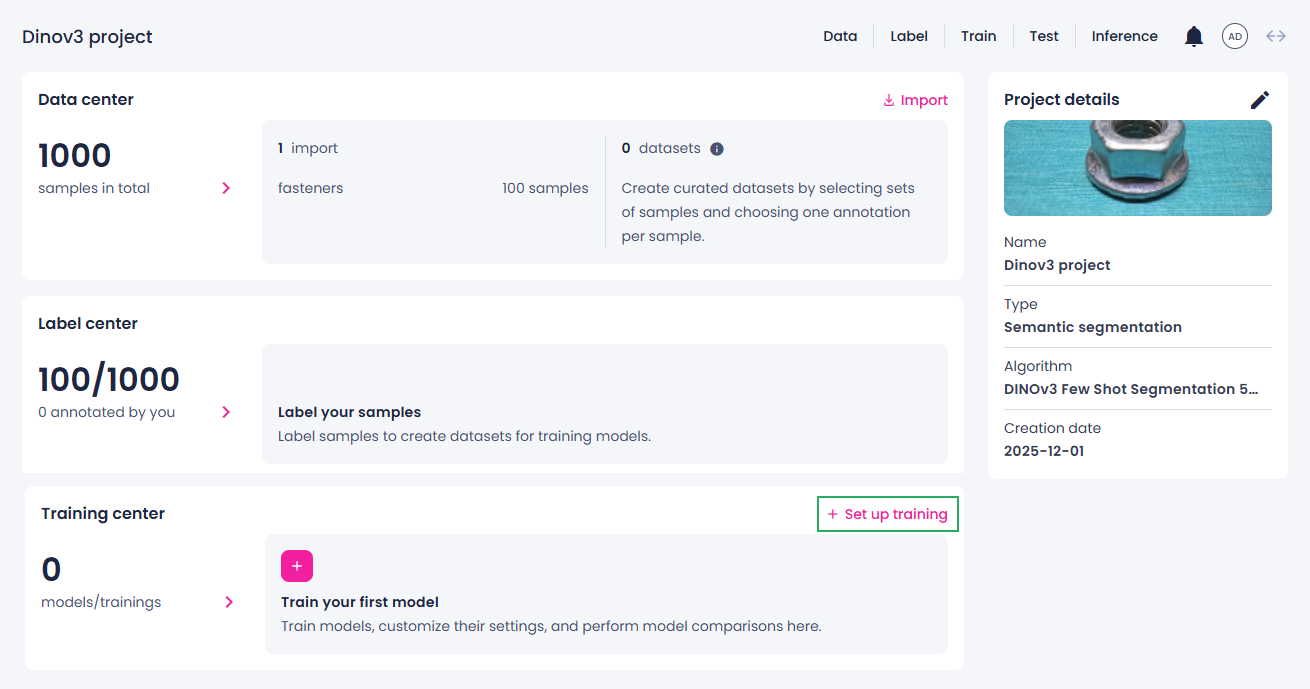
In the Training center section, click Set up training.
Note
If you can't start a new training because the necessary button isn't available, make sure you have annotated data in your project.
-
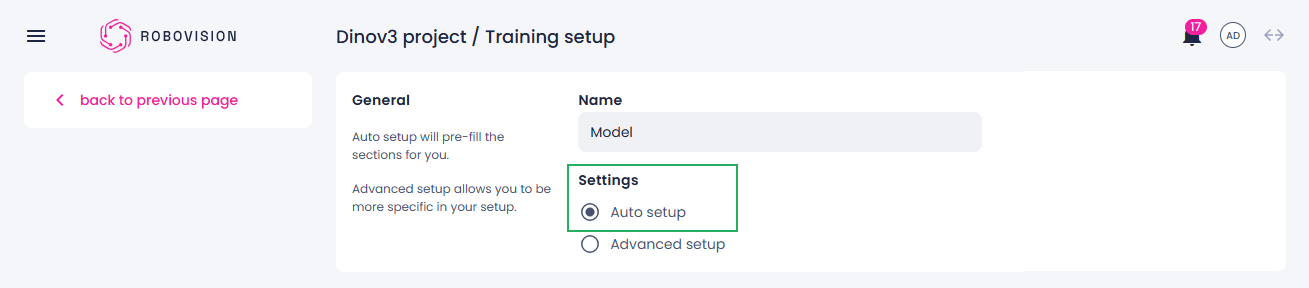
If necessary, change the training name.
The training name is pre-filled with the project name.
-
Under Settings, select Auto setup – to go with the default settings and start training immediately.
-
Once your training is set up, click Train model.
In DINOv3, all annotated data is used as a support set for training and no split to train/validation is applied.
Troubleshoot out-of-memory issue
In DINOv3 projects, training may fail if there is insufficient memory. There are multiple scenarios in which an OOM error can occur, depending on the configuration of chunking, chunking size, and upsampling (✔️ = enabled, ❌ = disabled). The table below summarizes common failure cases and the recommended actions to mitigate them.
| Chunking | Chunking size | Upsampling | Fails on | Recommendation |
|---|---|---|---|---|
| ❌ | ❌ | ❌ / ✔️ | Dot product | Enable chunking |
| ✔️ | ✔️ and larger than 1 | ❌ / ✔️ | Dot product | Reduce chunking size |
| ✔️ | ✔️ and 1 | ❌ / ✔️ | Dot product | Retrain with smaller resolution/model |
| ❌ / ✔️ | ❌ / ✔️ | ✔️ | Upsampling | Disable upsampling or retrain with smaller resolution/model |
| – | – | – | Any other | Apply all previous recommendations |